
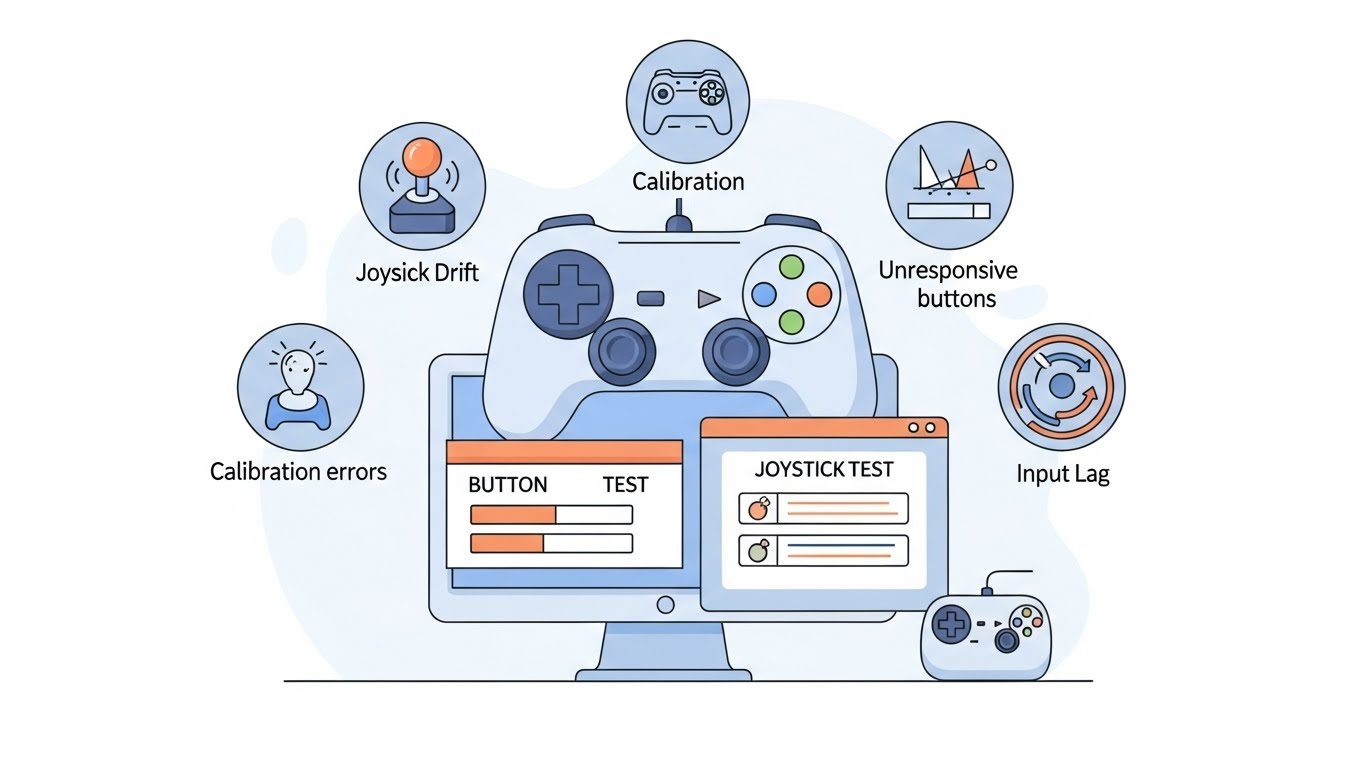
Introduction-Ultimate Gamepad Issues Guide
Whether you’re battling joystick drift, Bluetooth lag, or those mysterious “controller not detected” errors, few things are more frustrating than your gamepad failing at the worst possible moment. Modern controllers—Xbox, DualShock, Switch Pro, or PC USB gamepads—are amazing engineering feats, but they’re not immune to quirks.
This Ultimate Gamepad Issues Guide is your all-in-one resource to identify, diagnose, and fix any gamepad error—from hardware glitches to driver conflicts. Bookmark this page—it’s designed to be an evergreen troubleshooting reference and link magnet for gamers, developers, and tech writers alike.
Table of Contents
🧩 Common Gamepad Problems Overview
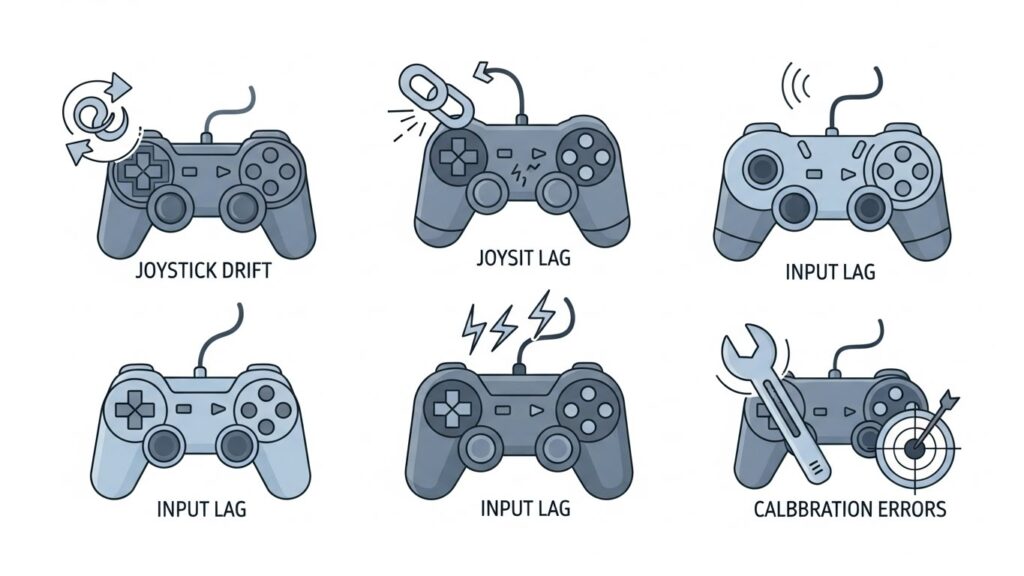
Before diving into step-by-step solutions, it helps to group issues by type. Most controller problems fall into one of these categories:
- Connection issues: The device isn’t recognized or keeps disconnecting.
- Input issues: Buttons, triggers, or joysticks send incorrect signals.
- Calibration problems: Analog direction drift or dead zones.
- Firmware/driver errors: Outdated or conflicting software.
- Battery or charging problems: Especially common with wireless and Bluetooth controllers.
These categories overlap—so don’t worry if your issue seems to fit in multiple boxes. We’ll go systematically through each possible cause and fix.
⚙️ Gamepad Not Detected or Not Working
Nothing kills the gaming vibe faster than your system refusing to see the controller. Here’s how to fix this across platforms.
🖥️ Windows Not Detecting Controller
Common causes:
- USB connection failure or faulty cable
- Corrupt controller drivers
- Windows Update conflicts
- Hidden power-management settings
Fixes:
- Check the basics:
Plug into a different USB port (avoid front ports—use rear USB 2.0 or 3.0). - Device Manager reset:
- Press Win + X → Device Manager.
- Expand Human Interface Devices or Universal Serial Bus Controllers.
- Right-click your controller → Uninstall Device.
- Unplug → wait 10 seconds → reconnect → Windows reinstalls drivers.
- Disable USB selective suspend:
Control Panel → Power Options → Advanced → USB settings → Disable selective suspend. - Gamepad tester:
Use an HTML5 Gamepad Tester to ensure the input is recognized by your browser.
🍏 Mac or Linux Detection Issues
Mac fix tips:
- Use USB-C directly—Bluetooth on macOS can be finicky with DualShock and Xbox pads.
- On macOS Ventura and later: System Settings → Game Controllers → verify input.
- Update using brew install drivers if using open-source DualShock/Xbox HID packages.
Linux fix tips:
- Run lsusb to confirm hardware recognition.
- Install xboxdrv or steam-devices for broader support.
- Configure via jstest-gtk for joystick calibration and input mapping.
🎮 Console Detection Troubles
- Xbox: Power-cycle console and controller (hold power 10s). If pairing fails, plug via USB to re-sync.
- PlayStation: Reset controller via the small pinhole on the back for 5 seconds, then re-pair.
- Nintendo Switch Pro Controller: Hold the Sync button longer than 5 seconds by USB connected mode before pairing wirelessly.
🕹️ Joystick Drift and Calibration Errors

What is joystick drift?
Drift happens when your analog stick sends movement signals even when untouched—your character moves on their own. Common in both DualShock 4, PS5 DualSense, Joy-Con, and Xbox Series controllers.
Causes:
- Dust or debris inside analog sensor
- Worn potentiometer
- Bad calibration or firmware fault
Fixes:
- Clean your thumbsticks:
- Turn off controller.
- Apply isopropyl alcohol on a Q-tip and clean around the base of the thumbstick.
- Move the stick in circles to loosen any grit.
- Recalibrate:
- Windows: Control Panel → Devices → Game controllers → Properties → Calibrate.
- Steam: Steam → Controller → General Controller Settings → Calibrate Joysticks.
- Switch: System Settings → Controllers → Calibrate Control Sticks.
- Update firmware:
Controller Companion apps often push drift calibration updates (especially for DualSense & Joy-Con). - Last resort: Replace stick modules—affordable kits are available, but proceed carefully or have a repair shop handle it.
⚡ Button Mapping and Input Lag Fixes

Button Mapping Problems
Sometimes buttons don’t match their on-screen actions (like pressing “A” performing “B”).
Solutions:
- Check your in-game control settings—custom mapping may override defaults.
- Use JoyToKey or DS4Windows to create stable mappings on PC.
- Delete conflicting controller profiles in Steam or Xbox Accessories App.
Input Lag Fixes
Symptoms: noticeable delay between pressing a button and seeing the action.
Possible causes & fixes:
| Cause | Fix |
| Wireless interference | Move closer to console, remove nearby Bluetooth devices |
| Low battery | Charge fully or connect via USB |
| VSync or high latency monitor mode | Enable Game Mode on your TV or disable VSync in-game |
| Drivers/firmware outdated | Update via companion software (Xbox Accessories, DS4Windows, etc.) |
Pro Tip: 2.4GHz wireless signals conflict easily—switch router channels or use wired for competitive play.
📡 Bluetooth and Wireless Connectivity Issues
Pairing fails or keeps disconnecting?
Do this:
- Forget and re-pair:
Remove the controller from Bluetooth device list → rescan → re-pair. - Reset the controller:
Use the pinhole reset button (PS, Xbox, Switch Pro all have one). - Update the Bluetooth adapter driver:
- On PC: Device Manager → Bluetooth → Right-click → Update Driver.
- Consider upgrading to Bluetooth 5.0 adapter for stronger signal.
- Check firmware-level bugs:
Visit official sites:
🧠 Firmware & Driver Fixes
Controllers today behave like microcomputers—they run firmware controlling vibration, lighting, and sensor thresholds. Outdated firmware can cause detection errors or ghost inputs.
How to update:
- Xbox: Connect to PC via USB → open Xbox Accessories App → check for firmware update.
- PlayStation: On console → Settings → Accessories → Controller (General) → Wireless Controller Device Software.
- PC generic pads: Manufacturer utilities (Logitech G Hub, 8BitDo Ultimate Software, etc.).
Driver tip:
If all else fails, uninstall HID-compliant game controllers from Device Manager → reboot → reinstall.
🧭 How to Calibrate Your Gamepad (Step-by-Step)
Calibration ensures joysticks and triggers respond accurately.
- Open Control Panel (Windows):
Search Set up USB game controllers. - Select your controller → Properties → Settings → Calibrate.
- Follow on-screen prompts: move sticks in circles, press buttons when asked.
- Save calibration → test each axis in Properties.
For Steam users:
Steam → Big Picture Mode → Settings → Controller → Calibrate.
Linux users:
Use jstest-gtk GUI tool or command evtest for deeper calibration debugging.
🧰 Advanced Troubleshooting (Pro Level)
Hidden Device Conflicts
Windows may have ghost driver profiles causing confusion.
Run in Command Prompt (Admin):
text
set devmgr_show_nonpresent_devices=1
start devmgmt.msc
Then show hidden devices → uninstall duplicate or ghost entries under Human Interface Devices.
HTML5 Gamepad API Debug
For developers: browsers can display raw input using navigator.getGamepads().
Use the tool Gamepad Tester to inspect data stream noise or dead zones.
Reflashing Firmware
For modded or third-party controllers, download OEM firmware tools (e.g., 8BitDo Firmware Updater). Follow carefully—wrong firmware bricks devices.
🧽 Preventive Maintenance Tips
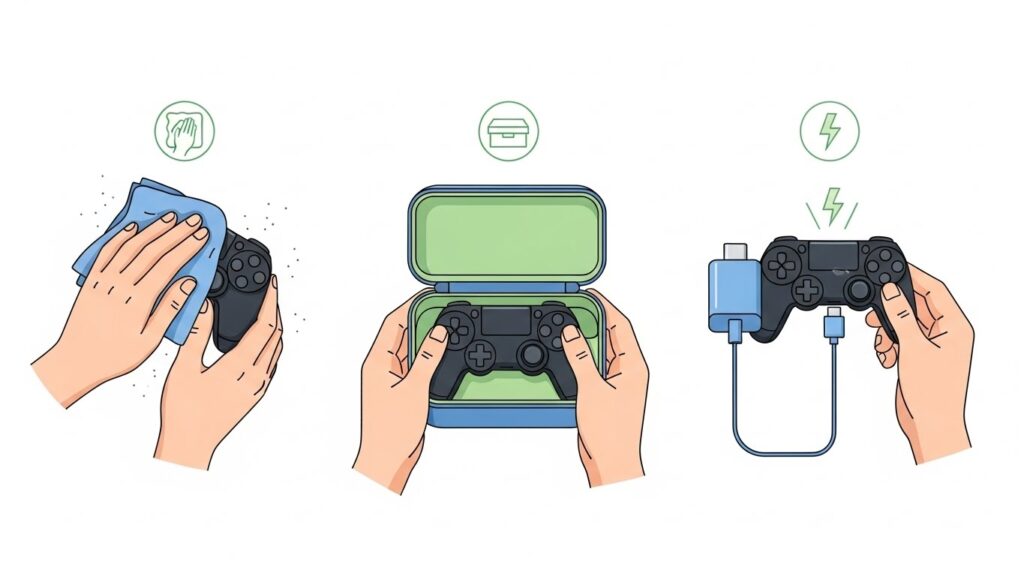
Extend gamepad life (and sanity):
- Clean monthly—compressed air + microfiber cloth.
- Avoid pulling on USB cable ends.
- Don’t overcharge wireless controllers overnight.
- Store in cool, dry areas; humidity corrodes internal sensors.
- Regularly recalibrate each few months.
Bonus tip: Use controller cases when traveling. The analog sticks are delicate and hate tight jeans pockets—trust me, their tiny sensors scream in anguish.
❓ FAQs
Q1: Why is my controller not showing up on PC at all?
Check your USB connection and disable power management on USB root hubs. Use wired mode to confirm hardware detection.
Q2: My controller is recognized, but buttons act weirdly.
Delete all custom layouts in both Steam and game settings, then recalibrate.
Q3: How do I fix joystick drift permanently?
Hardware replacement of analog modules is the only permanent solution. Cleaning helps temporarily.
Q4: Is Bluetooth lag normal?
Some lag is expected (~8–10ms). Use wired mode or a 2.4GHz dongle for zero-lag gaming.
Q5: Can third-party drivers cause conflicts?
Yes. Remove any virtual controllers (like vJoy or SCPToolkit) if multiple drivers try to control one pad.
(Schema-friendly format suggestion: wrap Q&A in JSON-LD when publishing.)
🔗 Internal & External Link Opportunities
Internal links:
- How to Calibrate Your Gamepad Without Any Software:The Ultimate 2026 Guide
- PS4 Controller Test: How to Fix Button Input Lag (Ultimate Guide 2026)
- Testing Vibration Motors on Gamepads: Easy Step-by-Step Guide to Diagnose & Fix (2026 Updated)
External authority sources:
- Microsoft Support – Controller Problems
- PlayStation Controller Support
- Nintendo Controller Calibration
🏁 Conclusion & Key Takeaways
Modern gamepads are powerful precision tools—and like any hardware, they demand occasional tuning. Whether you’re solving drift, input lag, or driver headaches, the fixes above cover both basic user-level steps and pro-grade troubleshooting.
Key reminders:
- Always start simple: cables, batteries, USB ports.
- Keep firmware updated and drivers refreshed.
- Recalibrate regularly to maintain responsiveness.
- Treat controllers gently—prevention beats repair every time.
If this guide helped you rescue your controller from the tech graveyard, don’t keep the secret—share it with your fellow gamers, link it in forums, or pin it in dev communities. The next time someone shouts, “Why isn’t my gamepad working?!”, you’ll have the definitive answer.