
Introduction-How to Test Gamepad Inputs for Steam Games
Steam is easily the best platform for controller support, but it’s also the most complicated. Between ‘Steam Input,’ ‘Desktop Configurations,’ and ‘Per-Game Overrides,’ it’s very easy to end up with a controller that works in the Steam menu but stays completely dead once you actually launch a game. I’ve seen so many players get frustrated because Steam is ’emulating’ an Xbox controller over their PS5 hardware, adding layers of input lag they don’t even know about. In this guide, I’ll show you how to bypass the confusion and verify exactly what Steam is doing to your controller signal.
This guide walks you through every method to test, calibrate, and troubleshoot controller inputs on Steam. You’ll learn both basic and advanced techniques — from Steam’s built-in controller tester to third-party joystick analysis tools.
Related Post: How to Use a Gamepad Tester with Cloud Gaming Platforms
Table of Contents
Why Testing Your Gamepad Inputs Matters
Imagine pressing “A” to jump, but your character doesn’t respond — or worse, they jump three seconds later. That’s not player error; it’s bad input response.
Testing your controller inputs helps you:
- Detect input lag, button ghosting, or joystick drift early.
- Ensure your PC correctly recognizes all axes, triggers, and buttons.
- Verify that your Steam configuration matches your controller type.
- Prevent calibration mismatches that can ruin precision gameplay in titles like Rocket League or Elden Ring.
Steam supports a wide range of devices, but not all controllers behave identically by default. Testing keeps your setup clean and predictable.
Supported Gamepads and Compatibility on Steam
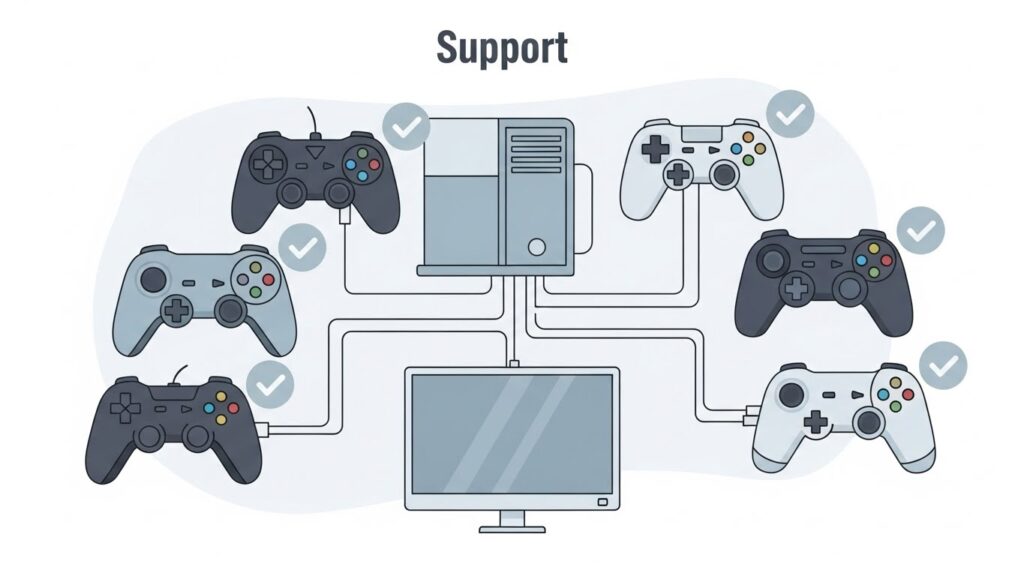
Before diving into testing, confirm that your controller is recognized by Steam. As of 2024, Steam natively supports:
Commonly Supported Controllers
- Xbox 360, Xbox One, and Xbox Series X|S controllers
- PlayStation DualShock 4 and DualSense (PS5)
- Nintendo Switch Pro controller
- Steam Controller (naturally!)
- Generic DirectInput / USB controllers
Steam uses its Steam Input System, which allows game-specific configuration, button remapping, and fine-tuned calibration per profile.
If your controller isn’t automatically detected, check:
- USB connection stability (try another port).
- Bluetooth pairing (if wireless).
- Driver installation — Xbox and PlayStation controllers often require Microsoft or Sony’s proprietary drivers.
For custom device models (like retro SNES USB controllers), you can still test functionality using HTML5 gamepad tester websites or calibration tools outside Steam.
If you browse the Steam Community Hubs for games like Rocket League or Street Fighter 6, you’ll find a massive debate: Steam Input vs. Native Support. Competitive players on Reddit often argue that Steam Input adds a tiny amount of ‘software overhead’ (lag). While the developers at Valve have worked hard to minimize this, the community consensus is that if a game has ‘Native’ support for your controller (like a PS5 controller in Cyberpunk 2077), you should actually disable Steam Input entirely. Using a third-party tester like GamepadScan is the only way to see the ‘Raw’ input vs. the ‘Steam-Filtered’ input to decide which feels better for your playstyle.
How to Test Gamepad Inputs in Steam Settings
Steam’s Big Picture Mode and Desktop Mode both allow gamepad testing, but Big Picture provides a dedicated interface that feels more console-like.
Step 1: Open Steam and Enter Big Picture Mode
- Click the Big Picture Mode icon (top right corner of the Steam client).
- This opens a fullscreen controller-friendly interface.
Step 2: Access Controller Settings
- Navigate to Settings → Controller Settings.
- Steam will list all connected controllers. You’ll see your device name (e.g., “Xbox Series Controller”) under “Detected Controllers.”
Step 3: Test Inputs
- Select your controller and choose Test Device Inputs.
- The screen will display:
- Button presses (visual response every time you press one).
- Analog stick movement with real-time axis plotting.
- Trigger sensitivity (useful for analog triggers).
Watch for:
- Buttons that don’t respond → possible hardware issue.
- Sticks that don’t center at zero → calibration or drift issue.
- Incorrect label mapping (e.g., X swaps with Y) → configuration mismatch.
Step 4: Save or Adjust Configuration
If some buttons are swapped or unrecognized:
- Choose Define Layout or Calibrate in the same menu.
- Re-map each input manually, following the on-screen guide.
Using Desktop Gamepad Tester Tools
If you want a more technical test (or if Steam fails to recognize your controller), you can use OS-level or web-based testers.
Option 1: Windows Game Controller Tester
Windows users can access a built-in tester via Control Panel.
Steps:
- Open Run (Windows + R) → type
joy.cpl→ press Enter. - Select your controller and click Properties.
- In the Test tab, move analog sticks, press buttons, and pull triggers.
You’ll see inputs light up or move onscreen.
This tester reveals any “dead zones” or faulty buttons.
Option 2: HTML5 Controller Test Websites
Browser-based testers use the HTML5 Gamepad API, compatible with Chrome, Edge, and Firefox.
Visit sites like:
These display real-time input monitoring including:
- Pressure-sensitive trigger readings
- Stick angle accuracy
- Input latency
Perfect for diagnosing drift or stuck buttons without installing software.
Option 3: Third-Party Utilities
Power users might prefer:
- DS4Windows for PlayStation controllers
- x360ce (Xbox 360 Controller Emulator) for older DirectInput devices
- JoyToKey for mapping keyboard keys to gamepad inputs
These programs offer precise calibration and customization, which Steam can recognize afterward.
Calibrating Your Controller for Better Accuracy
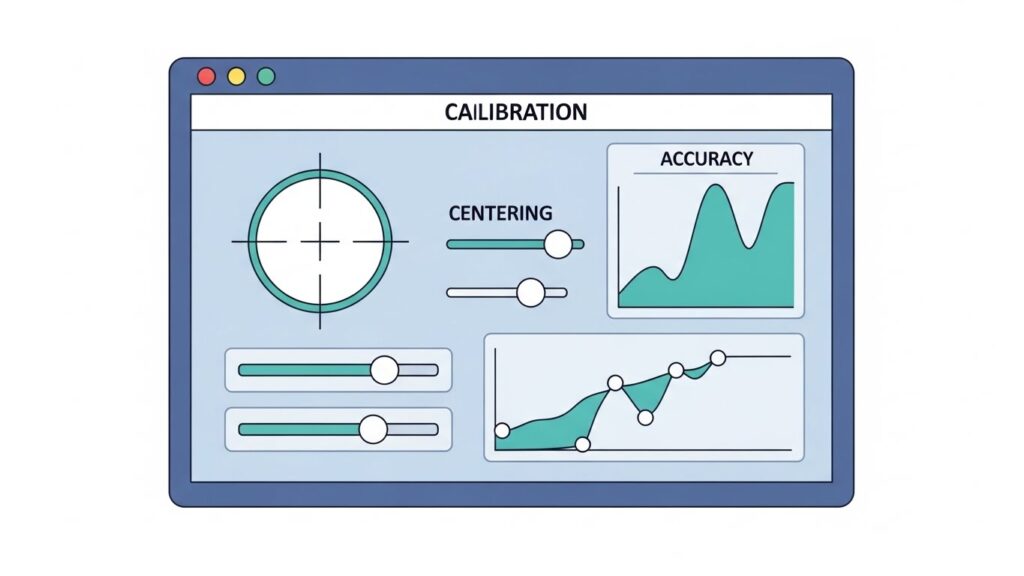
Testing detects issues. Calibration fixes them.
Calibration ensures your controller’s analog sticks and triggers return to their neutral positions correctly, eliminating drift and improving sensitivity.
How to Calibrate in Steam
Steam’s calibration tool is accessible from the same settings area.
- Go to Settings → Controller → General Controller Settings.
- Choose your controller → click Calibrate.
- Follow all prompts:
- Rotate each analog stick fully.
- Pull every trigger to maximum pressure.
- Center sticks when prompted.
- Save calibration when complete.
Steam will apply your calibration across all Steam Input-supported titles.
Windows Built-In Calibration
If you’re outside Steam:
- Launch
joy.cplagain. - Click Properties → Settings tab → Calibrate.
- Follow the wizard instructions.
This method helps if certain games bypass Steam Input and read Windows’ device calibration instead.
Tips for Best Calibration:
- Avoid calibrating if your sticks are worn — you may bake in drift.
- Calibrate only after ensuring the controller is clean and centered.
- Keep controller firmware updated (especially for DualSense and Xbox).
Fixing Common Controller Issues in Steam
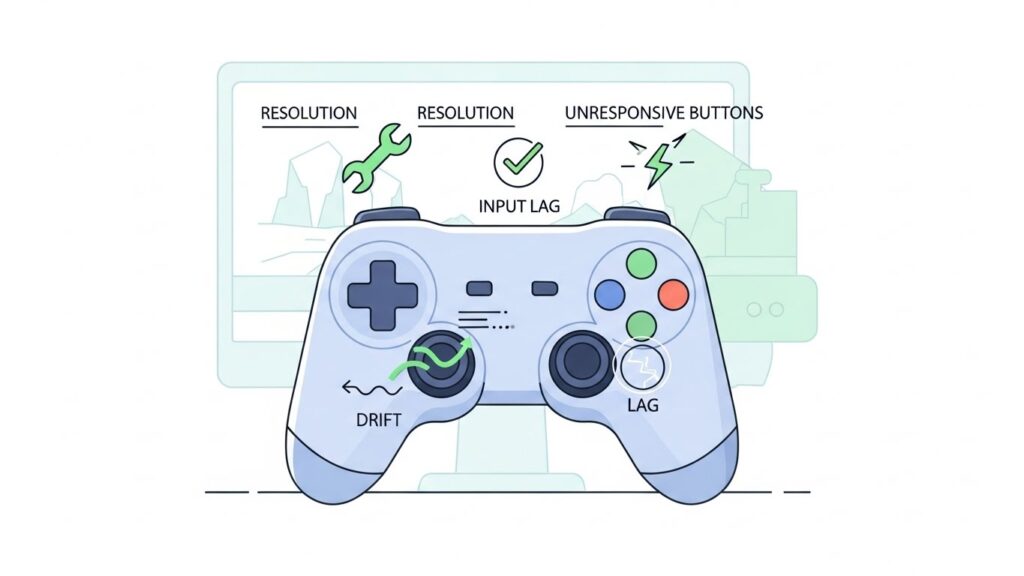
Even a well-calibrated gamepad can occasionally misbehave. Here’s how to troubleshoot.
1. Steam Not Detecting Controller
- Reconnect the device.
- Restart Steam after connecting.
- Try switching between Bluetooth and Wired mode.
- Disable other conflicting software like DS4Windows during initial setup.
2. Button Mapping Errors
Open Controller Layout → Define Layout and check if “A” and “B” or “X” and “Square” are swapped due to region or system type.
You can manually reassign each button.
3. Analog Stick Drift
- Test drift via Big Picture “Test Device Inputs.”
- Recalibrate (as above).
- If drift persists → hardware issue, not software. Consider repair or replacement.
4. No Vibration Feedback
- Ensure vibration is enabled in both Steam Input settings and game options.
- Some PC ports lack haptic feedback (especially with DualSense unless developers use Steam Input API).
5. Conflicts Between Multiple Controllers
Unplug other devices, restart Steam, and retest.
Some DirectInput devices can confuse the Steam Input system.
Comparison Table (Steam Input Modes)
| Steam Setting | When to Use It | Impact on Latency |
| Enable Steam Input | For non-supported controllers (Generic/Third-Party) | Minor (Software Overhead) |
| Disable Steam Input | For games with “Native” PS4/PS5/Xbox support | None (Best Performance) |
| Use Global Setting | For casual gaming across many titles | Varies by Game |
| Steam Desktop Config | For using your controller as a Mouse/Media remote | High (Intended for Desktop only) |
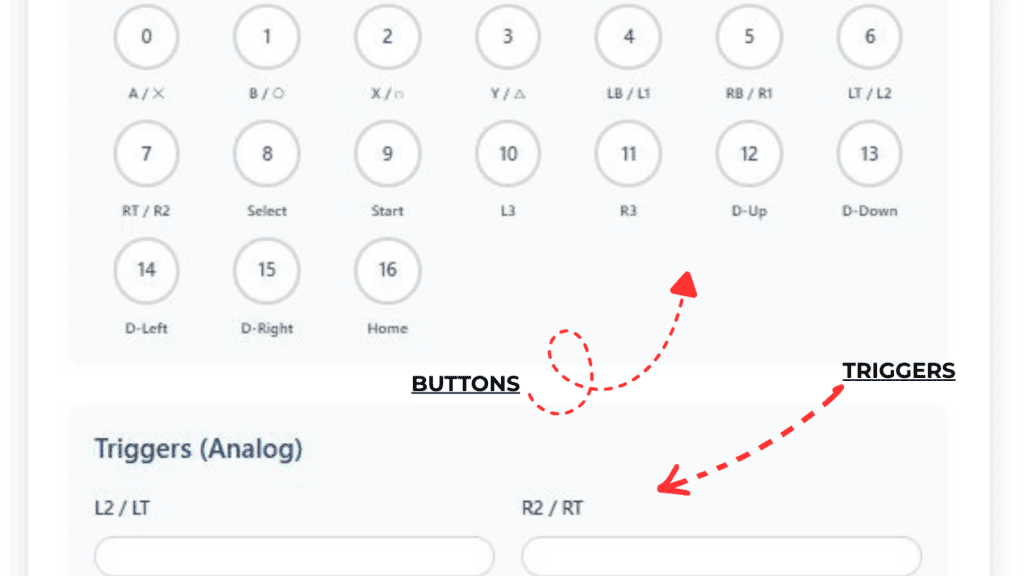
Advanced Input Testing Using HTML5 Gamepad API
For developers — or curious gamers who love seeing raw data — the HTML5 Gamepad API allows reading joystick input via JavaScript directly in your browser.
How it Works
When you connect a controller and press any button:
- Your browser exposes gamepad data (axes, buttons, timestamps).
- Real-time JSON-like feedback updates with every input.
This helps verify compatibility between different devices before deep integration into your Steam game or web-based project.
Example Use
If you’re developing or modding a Steam title:
- Open the browser console in Chrome (Ctrl + Shift + J).
- Type
navigator.getGamepads()and hit Enter. - You’ll see a full data object of controller details.
This is the same API that HTML5 testers use under the hood, giving you more granular insight than Steam’s graphical tools.
FAQ Section
Q1: How can I test my controller inputs in Steam?
A: Open Steam → Settings → Controller → Test Device Inputs. You’ll see a visual response for each button, trigger, and joystick axis.
Q2: Why isn’t my controller showing up in Steam?
A: Check your physical connection, update drivers, and ensure Steam Input is enabled under General Controller Settings.
Q3: What’s the easiest way to detect joystick drift?
A: Use Big Picture’s input tester or HTML5 tester. If the on-screen stick marker moves without touching the controller, it’s drifting.
Q4: Can I use gamepad tester websites safely?
A: Yes, reputable ones like gamepad-tester.com use the browser’s Gamepad API — no downloads, just permissions for detection.
Q5: How do I recalibrate my Xbox controller on PC?
A: In Windows, press Win + R → joy.cpl → Properties → Settings → Calibrate, then follow the setup wizard.
Conclusion and Key Takeaways
Testing your gamepad isn’t just tech tinkering — it’s fundamental quality control for your gaming experience. Steam’s robust controller settings, combined with PC-level calibration and HTML5 tools, ensure you can eliminate lag, drift, and button misfires quickly.
Key Takeaways:
- Steam’s built-in Test Device Inputs is your first stop.
- For accuracy, run both Steam and Windows calibration.
- Use HTML5 testers for quick web-based checks.
- Always keep firmware and drivers updated.
- Regularly retest before every major game session or firmware change.
When your inputs are perfectly tuned, gameplay feels responsive and effortless — every press, trigger, and tilt in harmony. That precision difference transforms casual gaming into pure immersion.
External Authority Sources:
A properly tested controller means fewer rage-inducing moments and more unbroken winning streaks. Your thumbs will thank you for it.