
Introduction-Test Bluetooth Gamepads
Bluetooth is the most convenient way to play, but it’s also the most ‘unstable’ connection in gaming. On paper, your controller says it has a 10-meter range, but in reality, your own desk or a nearby smartphone can cause massive input spikes that feel like lag. I’ve seen setups where the controller is detected perfectly, but the actual data transmission is ‘stuttering’ because of a crowded 2.4GHz frequency. In this guide, I’ll show you how to use GamepadScan to visualize your Bluetooth signal quality and the one setting on Android that is probably killing your response time.
This guide walks you through how to test Bluetooth gamepads on Android and Windows, covering both built‑in tools and advanced testing apps. Whether you’re using an Xbox Wireless Controller, DualShock, Switch Pro, or a third‑party Bluetooth pad, you’ll find everything you need here.
Table of Contents
Why Testing Bluetooth Gamepads Matters
Testing your Bluetooth controller isn’t just tech geekery — it’s practical. Here’s why:
- Identify Connection Issues Early: Before a major gaming session, confirm that your device actually registers the controller correctly.
- Fix Input Lag or Dead Zones: Joystick drift or laggy responses can often be detected only through testing.
- Game Compatibility Check: Some Android and Windows titles require specific button mappings or APIs (like DirectInput vs. XInput).
- Prevent Unnecessary Returns: If you bought a new controller, you’ll know instantly if it’s functioning as advertised.
Think of it like a test‑driving a new car — you want the steering, brakes, and buttons in perfect condition before you hit the highway.
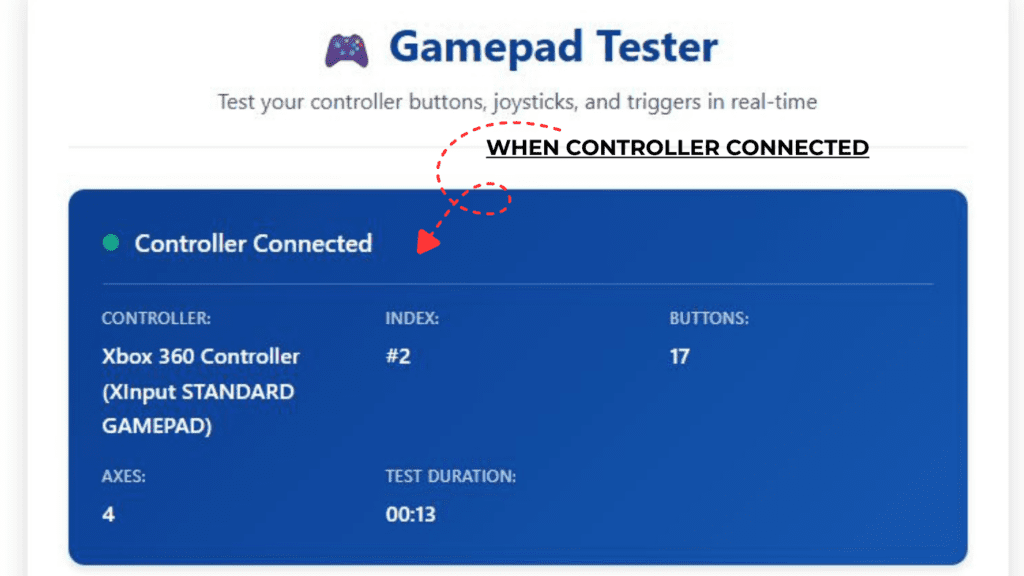
FIGURE SHOWS OUR TOOL REACTION WHEN YOU CONTROLLER CONNECTED
Before You Start: Pairing Tips & Requirements
Before testing, ensure your hardware is properly set up. A few quick pointers:
✅ On Android
- Turn on Bluetooth.
- Hold down the Pairing button on your controller (usually the small button next to USB port).
- Select the controller from list under Settings → Bluetooth → Pair new device.
✅ On Windows
- Enable Bluetooth under Settings → Devices.
- Hold the pairing button on your controller.
- Choose Add Bluetooth or other device → Bluetooth → [Your Controller].
Pro Tip:
Use a USB‑C cable for the first connection if pairing fails. Once paired via cable, Bluetooth pairing generally becomes easier.
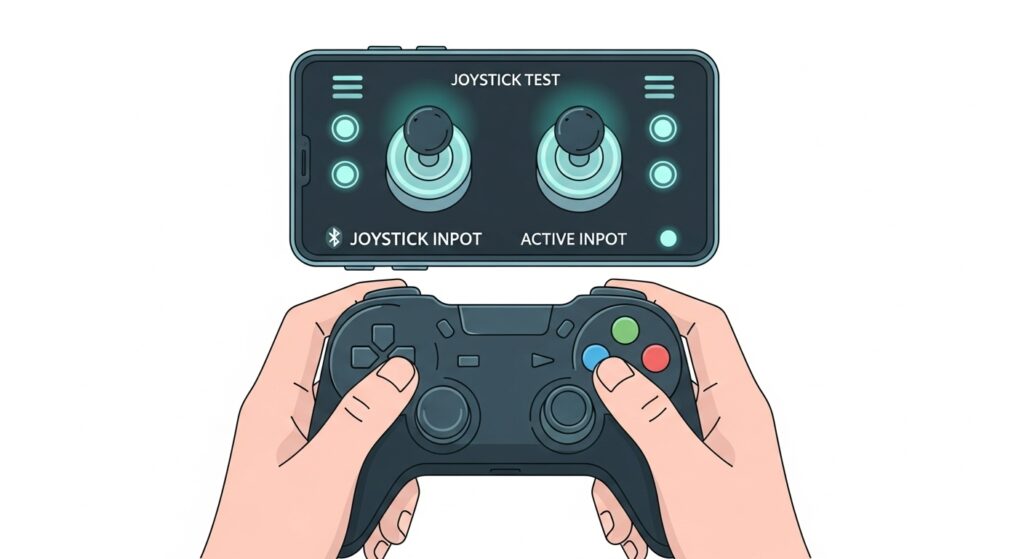
How to Test Bluetooth Gamepads on Android
Android devices natively support many popular Bluetooth controllers. Once you’re connected, testing ensures every button registers correctly.
Checking Connection & Recognition
After pairing:
- Open Settings → Connected Devices → Bluetooth.
- Confirm your controller appears under “Paired devices.”
- Open any text field and try pressing some buttons. Some controllers emulate keyboard input, so letters might appear — that’s confirmation it’s being recognized.
Using Gamepad Tester Apps
Android has several handy apps from Google Play for this purpose. Popular ones include:
- Gamepad Tester (by elron)
- Game Controller Tester
- Joystick and Gamepad Tester
These apps display real‑time input visuals for each axis, trigger, and button press. Look for:
- Button mapping: All buttons should light up or trigger input codes.
- Analog stick range: Movement should smoothly vary from -1.00 to +1.00.
- Dead zones: Small neutral areas are normal; large ones indicate wear or calibration issues.
- Vibration or rumble tests: Some apps let you trigger haptic motors to confirm they’re working.
Quick Tutorial with Game Controller Tester
- Install and open the app.
- Grant any necessary permissions.
- Move the sticks, press buttons, and observe the feedback.
- Note any inputs that don’t respond or stick values that jump erratically.
Calibrating Joysticks & Fixing Drifts
If you see “drift” (the joystick moves by itself in‑game):
- Try recalibration by unplugging, re‑pairing, or resetting the controller.
- Check if the app or your game offers joystick calibration.
- Some tools allow adjusting dead zones to offset drifting inputs.
- In extreme cases, cleaning or replacing analog modules might be necessary.
Testing in Games & Emulator Settings
For real‑world confirmation:
- Open a game like Asphalt 9, Call of Duty Mobile, or RetroArch Emulator.
- Enter controller settings and verify that button remapping works.
- Adjust sensitivity in‑game for finer control accuracy.
Android recognizes most XInput, DInput, and HID‑compatible Bluetooth controllers — including Xbox Wireless, PS4 DualShock, and 8BitDo models — but older Android versions may need third‑party keymapper apps like Octopus or Panda Gamepad Pro.
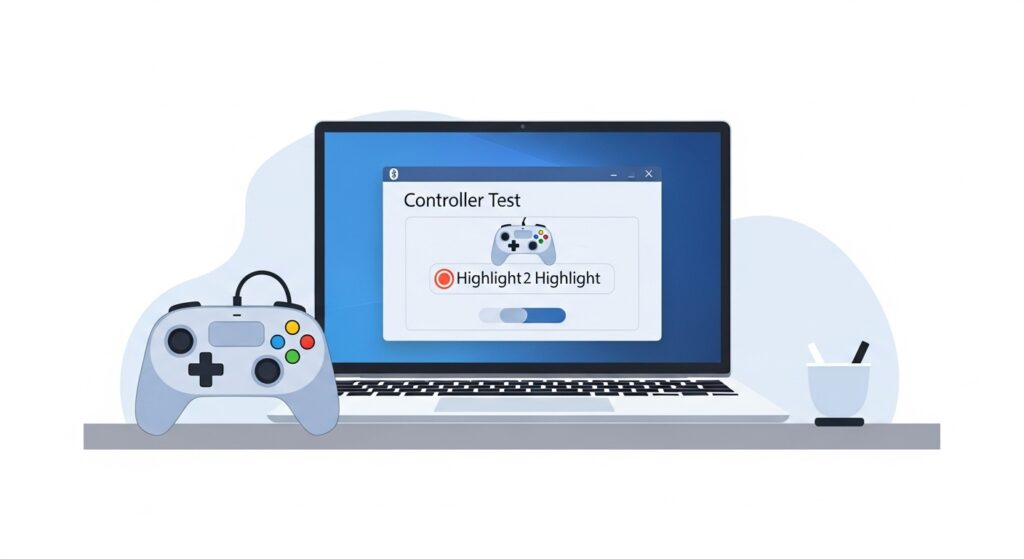
How to Test Bluetooth Gamepads on Windows
Testing controllers on Windows is even more thorough. You can visualize inputs, verify ranges, and calibrate everything using native tools — no need for special drivers unless using legacy devices.
Pairing a Bluetooth Controller on Windows 10/11
- Go to Settings → Bluetooth & Devices.
- Turn Bluetooth on.
- Choose Add device → Bluetooth → [Your Controller].
- Wait for successful pairing confirmation.
Xbox, PlayStation, and generic Bluetooth controllers typically show up with names like Wireless Controller, Xbox Wireless Controller, or Gamepad.
Using the Windows Game Controller Settings Tool
Once paired:
- Press Windows + R, type joy.cpl, and hit Enter.
This opens the Game Controllers properties window. - Select your controller → click Properties.
- You’ll see two tabs: Test and Settings.
In the Test tab:
- Move joysticks to ensure smooth axis movement.
- Press buttons; each should light up the respective indicator.
- Pull triggers to confirm analog values vary correctly.
- Check POV (D‑Pad) directions.
If the crosshair jumps erratically or axes don’t reach full range, proceed to calibration.
HTML5 Gamepad Tester for Browser Testing
For cross‑platform verification, test your controller directly in your browser using the HTML5 Gamepad API. Visit an online gamepad tester (for example: https://gamepadscan.com/game-pad-tester/
The site displays:
- Detected controller model.
- Real‑time button presses and analog readings.
- Vibration test support for certain devices.
This is excellent for comparing multiple controllers or testing after firmware updates.
Advanced Calibration via Control Panel
To calibrate:
- Re‑open the joy.cpl window.
- Choose your controller → Properties → Settings → Calibrate.
- Follow on‑screen prompts — they’ll ask you to rotate sticks and press triggers.
This process can correct offset readings and recalibrate center points, improving accuracy.
Note: Windows distinguishes between XInput (Xbox standard) and DirectInput (legacy). Most modern controllers default to XInput, ensuring widest compatibility.
Troubleshooting Common Issues
Even the best devices occasionally misbehave. Here’s a quick diagnosis table:
| Problem | Possible Cause | Solution |
| Controller not detected | Outdated Bluetooth drivers | Update drivers via Device Manager |
| Input lag or delay | Interference from other Bluetooth devices | Keep device within 1–2 meters of receiver |
| Buttons mapped incorrectly | Game not recognizing correct profile | Rebind in-game controls or use mapping apps |
| Constant joystick drift | Sensor wear or miscalibration | Recalibrate or clean joystick modules |
| Controller disconnects randomly | Battery low or firmware bug | Recharge, update firmware, or re-pair |
💡 Developer’s Pro Tip: The ‘Polling vs. Power’ Paradox “Here is a technical detail most ‘top 10’ lists miss: Windows and Android treat Bluetooth polling differently to save battery. Windows often ‘parks’ the Bluetooth radio if there is no input for a few seconds, leading to a massive 100ms+ delay on your first button press.
My recommendation? If you’re testing on Android, go into Developer Options and look for ‘Bluetooth Gabeldorsche’ or ‘Bluetooth HCI Snoop Log.’ While you don’t need the logs, toggling the modern Bluetooth stack can stabilize the report rate. On Windows, always test your Bluetooth latency while the controller is at 100% battery—as soon as it hits the ‘low power’ state, the Bluetooth chip reduces its report frequency to stay alive, which looks like ‘lag’ in our tester but is actually an OS power-saving feature.”
Best Tools for Testing & Calibration
A few reputable utilities and apps simplify gamepad testing across different platforms:
For Android:
- Game Controller Tester
- Joystick & Gamepad Tester
- Gamepad Calibration Tool
For Windows:
- HTML5 Gamepad Tester (web‑based)
- DS4Windows (for PlayStation controllers)
- Steam Big Picture Mode Controller Setup
- Microsoft Xbox Accessories App
Each of these helps fine‑tune inputs, dead zones, and button mapping, ensuring your controller feels “just right.”
FAQs
Q1: Why isn’t my Bluetooth gamepad showing up on Android?
It may be incompatible or in wired‑only mode. Ensure Bluetooth is on and the controller is in pairing mode. Restart the phone and retry.
Q2: Can I test my controller without installing apps?
Yes. On Windows, use joy.cpl. On Android, you can open a text editor or navigate menus to see if directional input works.
Q3: What’s joystick drift and how do I fix it?
Drift happens when analog sticks send signals even when untouched. Recalibrate, clean around the joystick base with isopropyl alcohol, or adjust the dead zone.
Q4: My controller pairs but doesn’t work in games. Why?
Some titles accept only XInput controllers. Try switching modes (some gamepads toggle via button combinations) or use key mapping software.
Q5: Are third‑party Bluetooth controllers safe to use?
Yes, if they follow HID standards. Always check for firmware updates and buy from recognized brands like 8BitDo, PowerA, or GameSir.
(Schema-friendly markup would look like { “@type”: “FAQPage”, “mainEntity”: […] } in your HTML for SEO purposes.)
Conclusion & Key Takeaways
Testing your Bluetooth gamepad is an essential step to guarantee top performance across mobile and PC gaming. Both Android and Windows provide native and third‑party ways to ensure that every input, trigger, and analog stick behaves as expected.
Key Takeaways:
- Use built-in tools like joy.cpl on Windows or Gamepad Tester apps on Android.
- Regular testing helps prevent frustration from latency, drift, or mis‑mapped buttons.
- Always keep firmware and drivers updated.
- Don’t forget calibration — it refines accuracy dramatically.
To keep related reading smooth, link this guide internally to topics like Bluetooth Not Connecting Fixes, How to Pair an Xbox Controller on PC, or Best Android Gamepad Apps.
For authoritative info, reference official sources such as Microsoft’s Xbox Accessories Support Page or the Android Developers Game Controller Guide.
Once tested and calibrated, your Bluetooth controller will feel like an extension of your hands — ready for whatever digital adventure awaits.
More Guides:
- How to Test an Xbox Controller on PC Without Installing Apps | Step-by-Step Guide(2026)
- PS4 Controller Test: How to Fix Button Input Lag (Ultimate Guide 2026)
- Nintendo Switch Pro Controller Tester — Online Ultimate Methods That Actually Work(2025 Guide)
- How to Diagnose a Faulty USB Game Controller (Complete Step-by-Step 2025 Guide)