
Introduction-Latency Testing in Gamepads
Have you ever felt like you pressed the jump button, but your character waited a split second too long to move? In fast-paced games like Rocket League or Call of Duty, that tiny delay—known as input latency—is the difference between a win and a trip back to the lobby. Most gamers obsess over their monitor’s refresh rate but completely ignore the device in their hands. At GamepadScan, we built our latency tester to strip away the guesswork. In this post, I’ll break down why your ‘1ms’ controller might actually be giving you 10ms of lag and how you can use our tool to find the ‘sweet spot’ for your setup
This comprehensive guide will walk you through everything you need to know about latency testing in gamepads. You’ll learn what causes input lag, how to measure it accurately, which tools and methods professionals use, and how to optimize your controller setup for the fastest possible response time.
Whether you’re a competitive esports player, a casual gamer looking to improve performance, or a tech enthusiast who wants to benchmark different controllers, this guide has you covered.
Related Post: XInput vs DirectInput Explained
Table of Contents
Understanding Gamepad Latency
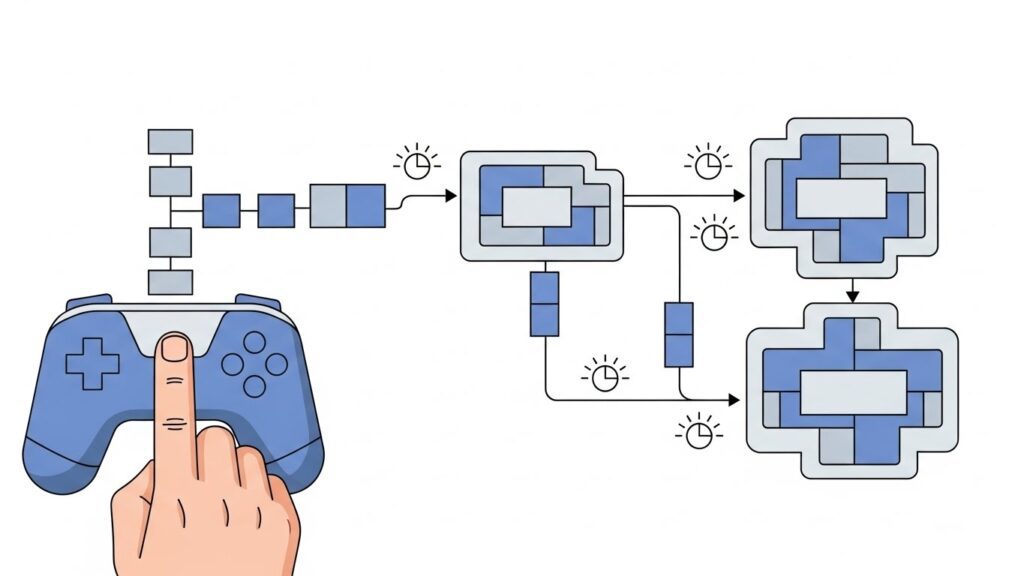
Gamepad latency refers to the total delay between when you physically press a button or move a joystick and when that input registers in the game. This delay is measured in milliseconds (ms), and even small differences can impact gaming performance.
Modern controllers typically have latency ranging from 3ms to 20ms, depending on various factors. Professional gamers often prefer controllers with sub-10ms latency for competitive play.
The human eye can perceive delays as small as 10-15 milliseconds, while competitive gamers can often feel differences as small as 5ms. This sensitivity makes latency testing crucial for anyone serious about gaming performance.
What Is Considered Good Latency?
- Excellent: Under 5ms (tournament-grade performance)
- Good: 5-10ms (competitive gaming)
- Acceptable: 10-20ms (casual gaming)
- Noticeable: 20-40ms (may affect gameplay)
- Poor: Over 40ms (significant input lag)
Why Latency Testing Matters
Testing your gamepad’s latency isn’t just for esports professionals. Understanding your controller’s response time helps you:
Optimize Your Gaming Setup: Identify bottlenecks in your gaming configuration and make informed decisions about hardware upgrades.
Choose the Right Controller: Make data-driven decisions when purchasing new gamepads by comparing actual performance metrics rather than relying on marketing claims.
Troubleshoot Performance Issues: Determine whether perceived lag is coming from your controller, display, console, or network connection.
Gain Competitive Advantage: In competitive gaming, every millisecond counts. Knowing your exact input delay helps you understand your system’s limitations and maximize performance.
Verify Manufacturer Claims: Many gaming peripheral manufacturers advertise “ultra-low latency” or “zero lag” controllers. Testing lets you verify these marketing claims.
Types of Controller Latency
Understanding the different components of controller latency helps you identify where delays occur in your gaming setup.
Input Processing Latency
This is the time it takes for the controller itself to process your button press and convert it into a digital signal. Quality controllers with dedicated gaming processors typically have lower input processing times.
Transmission Latency
The delay caused by transmitting the signal from your controller to your gaming device. Wired connections generally have lower transmission latency than wireless connections, though modern wireless protocols have narrowed this gap significantly.
Polling Rate Delay
Controllers communicate with your console or PC at specific intervals called the polling rate, typically measured in Hz. A 1000Hz polling rate means the controller sends data 1000 times per second (every 1ms), while a 125Hz polling rate sends data every 8ms.
System Processing Latency
After your gaming device receives the input, it must process the command and update the game state. This isn’t technically controller latency, but it’s part of the total input-to-action delay chain.
Factors That Affect Gamepad Response Time
Multiple variables influence how quickly your controller inputs reach your game. Understanding these factors helps you optimize your setup.
Connection Type
Wired USB: Typically offers the lowest latency (2-4ms) with consistent performance. USB 3.0 and USB-C connections often provide better performance than older USB 2.0.
2.4GHz Wireless: Modern proprietary wireless connections (like Xbox Wireless or PlayStation’s wireless protocol) offer near-wired performance (4-8ms).
Bluetooth: Generally has higher latency (10-20ms or more) due to the protocol’s overhead and power-saving features.
Controller Build Quality
Premium controllers with dedicated gaming processors, mechanical switches, and optimized firmware typically respond faster than budget alternatives.
Battery Level (Wireless Controllers)
Low battery levels can increase latency in wireless controllers as they enter power-saving modes or struggle to maintain strong signals.
Interference and Distance
Wireless controllers can experience increased latency when far from the receiver or when competing with other wireless signals on the same frequency.
Firmware and Drivers
Outdated controller firmware or system drivers can introduce unnecessary delays. Regular updates often include latency optimizations.
USB Port and Cable Quality
Not all USB ports are equal. USB 3.0 ports generally offer better polling rates than USB 2.0. Similarly, quality USB cables maintain better signal integrity than cheap alternatives.
If you hang out in the r/Controller or r/RocketLeagueSchool subreddits, you’ve probably heard people talking about ‘overclocking’ their polling rate to 1000Hz or even 8000Hz using tools like LordOfMice’s HIDUSBF. The community consensus is clear: while Windows defaults most controllers to a 125Hz polling rate (8ms delay), enthusiasts are pushing their DualSense and Xbox controllers to 1ms or lower. However, a common warning from the GitHub community is that higher polling rates can sometimes lead to ‘jitter’ or inconsistent frame times if your CPU is struggling. When you use our tester, keep an eye on the consistency of the results—not just the lowest number.
Methods for Testing Gamepad Latency
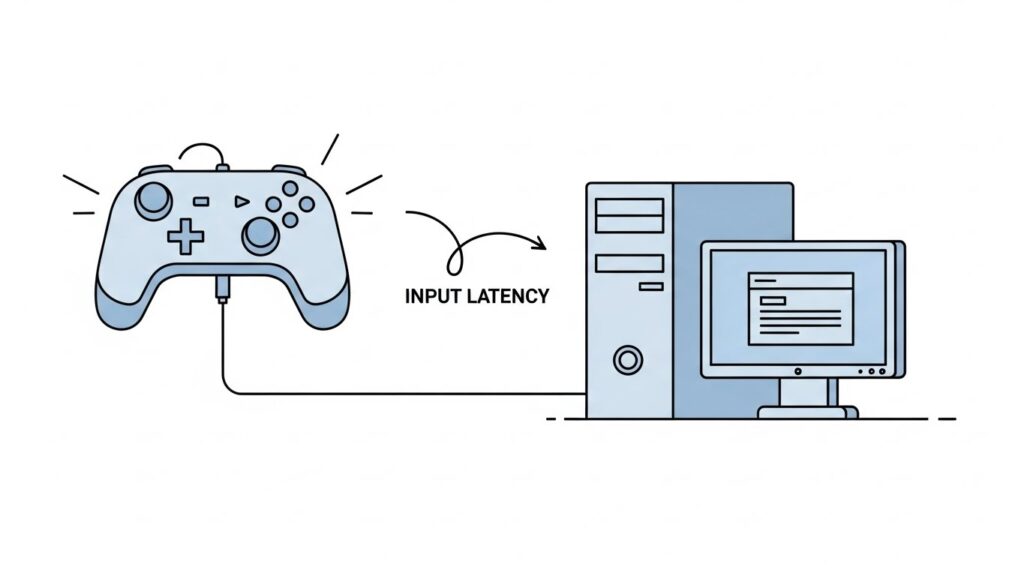
There are several approaches to measuring controller latency, ranging from simple perception tests to scientific hardware measurements.
1. The Human Perception Test
While not quantifiable, this basic test helps you compare controllers subjectively. Play the same game section with different controllers and note which feels most responsive. This method works for personal preference but lacks scientific accuracy.
2. Software-Based Testing
Various software tools can measure the time between controller input and system registration. These tools typically use timestamp comparisons and are accessible for most gamers.
3. High-Speed Camera Method
This professional-grade approach uses high-speed cameras (240fps or higher) to record button presses and on-screen responses simultaneously. By counting frames between input and action, you can calculate precise latency.
4. Hardware Latency Analyzers
Dedicated devices like the NVIDIA LDAT (Latency Display Analysis Tool) or custom Arduino-based solutions provide the most accurate measurements by directly monitoring electrical signals.
5. Oscilloscope Testing
For electronics enthusiasts, oscilloscopes can measure the exact time between button contact closure and signal transmission, providing component-level latency data.
Software Tools for Latency Measurement
Several software solutions can help you measure gamepad latency without specialized hardware.
GamePad Tester (Web-Based)
Online HTML5 gamepad testers can verify button functionality and provide basic response time feedback. While not precise for latency measurement, they help identify dead zones and calibration issues.
Best for: Quick functionality checks and joystick calibration.
Gamepad Test Apps
Dedicated applications like “Gamepad Viewer” or “Controllers” (for different platforms) show real-time input data and can help identify delayed responses.
Best for: Comparing relative responsiveness between controllers.
Input Lag Testing Software
Programs like “Is It Snappy” (Windows) or custom scripts using the HTML5 Gamepad API can measure the time between button press and system registration with reasonable accuracy.
Best for: PC gamers wanting quantifiable data without expensive equipment.
Console Developer Tools
PlayStation and Xbox developer kits include input latency testing tools, though these are typically only available to registered developers.
Best for: Professional game developers and testers.
Hardware-Based Testing Methods
For the most accurate latency measurements, hardware solutions provide scientific precision.
High-Speed Camera Setup
What you need:
- High-speed camera (240fps minimum, 480fps or higher preferred)
- Controller with LED mod or visible button travel
- Display showing immediate visual feedback
- Video editing software for frame counting
Process:
- Set up your camera to capture both the controller button and screen simultaneously
- Record yourself pressing a button that produces immediate visual feedback
- Count frames between button press and screen response
- Calculate latency: (frames ÷ camera fps) × 1000 = latency in milliseconds
Accuracy: ±2-4ms depending on camera frame rate
Arduino-Based Latency Tester
DIY enthusiasts can build custom latency testers using Arduino microcontrollers, photodiodes, and momentary switches to measure end-to-end input lag with high precision.
Accuracy: ±0.5-1ms with proper calibration
Commercial Latency Analysis Tools
Professional tools like the NVIDIA LDAT or Leo Bodnar Lag Tester provide research-grade measurements but cost several hundred to thousand dollars.
Accuracy: Sub-millisecond precision
Step-by-Step Guide: Testing Your Controller
Here’s a practical method for testing gamepad latency using accessible tools.
Method: High-Speed Camera Test (Recommended for Most Users)
Step 1: Gather Your Equipment
- Smartphone with 240fps slow-motion capability (or dedicated high-speed camera)
- The gamepad you want to test
- Gaming system connected to a display
- Game with immediate visual feedback (fighting games work well)
Step 2: Set Up Your Testing Environment
Position your camera so both the controller button and the relevant screen area are clearly visible in frame. Ensure good lighting on the controller so button presses are obvious.
Step 3: Choose Your Test Action
Select an in-game action with instant visual feedback. Fighting game punches, menu selections, or flash patterns specifically designed for latency testing work best.
Step 4: Record Your Test
Start recording in slow-motion mode and press the button multiple times. Perform at least 10 button presses for statistical accuracy.
Step 5: Analyze the Footage
Using frame-by-frame playback, count the exact number of frames between:
- The moment the button makes contact/depresses
- The first frame where the screen shows a response
Step 6: Calculate Average Latency
For each button press, use this formula:
Latency (ms) = (Frame count ÷ Camera FPS) × 1000
For example, if you counted 3 frames at 240fps:
(3 ÷ 240) × 1000 = 12.5ms
Calculate the average across all your test presses for the most accurate result.
Method: Software-Based Testing (PC)
Step 1: Download Testing Software
Use a program like “Is It Snappy” or access an HTML5 gamepad tester online.
Step 2: Connect Your Controller
Plug in your gamepad and ensure it’s properly recognized by your system.
Step 3: Run the Test
Follow the software’s instructions, typically involving pressing buttons when prompted while the software measures timestamp differences.
Step 4: Review Results
Most software will display average latency, minimum and maximum values, and polling rate information.
Interpreting Your Results
Once you’ve collected latency data, understanding what the numbers mean helps you make informed decisions.
Comparing to Benchmarks
Research published latency figures for popular controllers:
- Xbox Elite Controller (wired): ~3-4ms
- PlayStation DualSense (USB): ~3-5ms
- PlayStation DualSense (Bluetooth): ~15-20ms
- Xbox Controller (wireless): ~5-8ms
- Budget third-party controllers: ~10-30ms
If your results significantly exceed these benchmarks, investigate potential issues.
Variance Matters
Consistent latency is sometimes more important than absolute minimum latency. A controller that varies between 5-8ms provides a more predictable experience than one fluctuating between 3-15ms.
Total System Latency
Remember that controller latency is just one component. Your total input-to-screen latency also includes:
- Display lag (varies by monitor/TV, typically 5-50ms)
- Game engine processing (2-10ms)
- Network latency for online games (20-100ms+)
A 5ms improvement in controller latency won’t help much if your display has 40ms of lag.
How to Reduce Controller Latency
After testing, you may want to optimize your setup for lower latency.
Use Wired Connections When Possible
Switching from wireless to wired can reduce latency by 3-10ms depending on the wireless protocol used. Use quality USB cables rated for data transfer, not just charging.
Update Firmware and Drivers
Controller manufacturers regularly release firmware updates that can improve responsiveness. Check for updates regularly through official software.
Optimize USB Polling Rate
On PC, ensure your controller is polling at maximum rate. Some systems default to lower polling rates for power saving. Tools like “USB Device Tree Viewer” can verify polling rates.
Reduce Wireless Interference
For wireless controllers:
- Keep the controller closer to the receiver
- Remove obstacles between controller and console
- Minimize nearby wireless devices operating on the same frequency
- Use the dedicated wireless adapter rather than generic Bluetooth
Maintain Battery Health
Keep wireless controllers adequately charged. Some controllers slow polling rates when battery drops below certain levels.
Minimize Input Processing
Disable unnecessary controller features like excessive vibration, motion controls, or RGB lighting that may consume processing resources.
Choose the Right USB Port
Connect to USB 3.0 ports when available, and avoid USB hubs which can introduce additional latency.
💡 Developer’s Pro Tip: The Bluetooth Paradox “Here is a secret that surprises most people: Bluetooth isn’t always slower than wired. In my testing with the DualSense (PS5) controller, Bluetooth actually achieves a higher native polling rate on PC than a standard USB connection does out of the box. However, the ‘cost’ of Bluetooth is instability. If you have a router or a smartphone near your PC, you’ll see ‘spikes’ in your latency data on our tool. My recommendation? If you want the absolute lowest average lag, go Bluetooth and overclock. But if you want the most stable experience for competitive play, stick to a high-quality USB-C cable plugged directly into your motherboard’s rear I/O port—avoid front-panel cases or USB hubs at all costs.
Comparing Different Gamepad Types
Different controller categories exhibit characteristic latency profiles.
| Controller Model | Connection Type | Polling Rate (Hz) | Real-World Latency (ms) |
| Sony DualSense | Wired (Standard) | 250Hz | ~4.0ms |
| Sony DualSense | Bluetooth (PC) | 1000Hz | ~1.2ms (Variable) |
| Xbox Series X/S | Wired | 125Hz | ~8.0ms |
| Razer Wolverine V3 | Wired (Pro Mode) | 1000Hz | ~1.0ms |
Want to See More Gamepadscan’s Guide [CLICK THIS]
Frequently Asked Questions
What is acceptable latency for competitive gaming?
For competitive gaming, aim for under 10ms of controller latency. Professional players typically prefer controllers with 5ms or less. Combined with a low-latency monitor (under 10ms) and stable network connection, this provides the responsiveness needed for competitive play. However, individual sensitivity varies—some players won’t notice differences under 15ms, while others can feel 5ms differences.
Does wireless latency matter for casual gaming?
For most casual gaming experiences, wireless latency between 10-20ms is perfectly acceptable and won’t noticeably affect gameplay. Single-player games, RPGs, and adventure games are much more forgiving than competitive fighting games or first-person shooters. The convenience of wireless often outweighs the minimal latency increase for non-competitive players.
How do I know if my controller has high latency?
Signs of high controller latency include: noticeable delays between button presses and on-screen actions, difficulty executing precise timing-based moves, feeling “disconnected” from the game, and consistently performing better with different controllers. Objective testing using the methods described in this guide provides definitive answers.
Can software updates improve controller latency?
Yes, firmware updates can significantly improve controller latency. Manufacturers optimize input processing algorithms, improve wireless protocols, and fix bugs that cause delays. Both Xbox and PlayStation have released updates that reduced controller latency by several milliseconds. Always keep your controller firmware and system software updated.
Is USB 2.0 vs USB 3.0 important for controller latency?
USB 3.0 generally offers better performance for gaming controllers due to improved power delivery and higher potential polling rates. However, the practical difference is often minimal (1-2ms) since controller data requirements are modest. The quality of the cable and port implementation matters more than the USB version in most cases.
What polling rate should my controller use?
Higher polling rates reduce latency. Ideal polling rates are 500Hz (2ms) or 1000Hz (1ms) for competitive gaming. Many console controllers poll at 250Hz (4ms), which is still acceptable. On PC, you can often increase polling rates through driver settings or third-party software. Be aware that higher polling rates consume more system resources, though modern PCs handle this easily.
Does controller latency differ between PC and console?
The same controller can exhibit different latency on PC versus console due to driver implementation, operating system overhead, and USB stack optimization. Generally, consoles provide more optimized, consistent latency for their native controllers, while PC offers more customization options but potentially more variability. Testing on your specific platform gives the most relevant results.
Conclusion and Key Takeaways
Understanding and measuring gamepad latency empowers you to optimize your gaming setup for the best possible performance. While casual gamers may not need scientific precision, competitive players can gain meaningful advantages by minimizing input delay.
Key Takeaways:
✅ Controller latency matters: Even small delays (5-10ms) can impact competitive gaming performance, though casual players may not notice differences under 20ms.
✅ Wired connections win: When absolute minimum latency is crucial, wired controllers consistently outperform wireless alternatives by 3-10ms.
✅ Modern wireless is competitive: Proprietary wireless protocols from Xbox and PlayStation offer near-wired performance (4-8ms), making them viable for competitive play.
✅ Testing is accessible: You don’t need expensive equipment—a smartphone with slow-motion recording can provide reasonably accurate latency measurements.
✅ Multiple factors contribute: Controller latency is just one piece of total input lag. Your display, game engine, and network connection also significantly impact responsiveness.
✅ Optimization helps: Simple steps like updating firmware, using quality cables, and maintaining battery health can reduce latency by several milliseconds.
✅ Know your requirements: Match your controller choice to your gaming style. Competitive players should prioritize low latency, while casual gamers can prioritize comfort and features.
By applying the testing methods and optimization techniques covered in this guide, you can ensure your gamepad performs at its best and eliminate input lag as a variable in your gaming performance.
Whether you’re competing at the highest levels or simply want the most responsive gaming experience possible, understanding controller latency puts you in control of your setup and your performance.