
How Browser Gamepad APIs Work (Full Developer Guide)
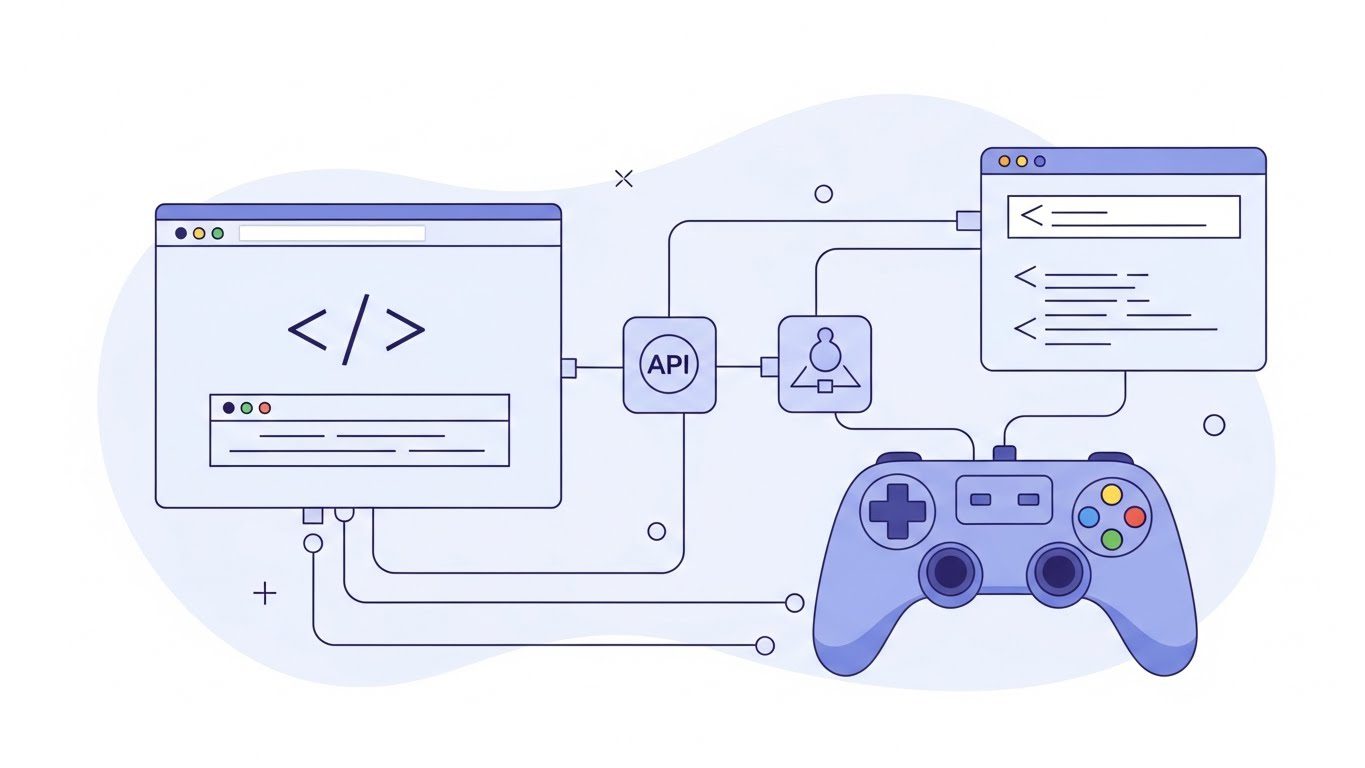
The world of web gaming has come a long way—from simple keyboard controls in Flash games to fully responsive 3D experiences powered by WebGL and WebGPU. One crucial innovation behind this evolution is the Browser Gamepad API, which bridges physical controllers and web-based experiences.
In this comprehensive guide, you’ll understand how browser gamepad APIs work, how to detect and handle controller input in JavaScript, and how to build games that respond smoothly to joysticks, triggers, and buttons—just like native applications.
Whether you’re building a web-based console emulator, a browser racing game, or an online joystick tester, this article walks you through everything step-by-step.
Table of Contents
What Is the Gamepad API?
The HTML5 Gamepad API is a browser feature that allows websites to access input from USB, Bluetooth, or wireless game controllers—like Xbox, PlayStation, and generic PC gamepads—using JavaScript.
It gives developers direct, real-time access to:
- Analog stick axes (like the left and right thumbsticks)
- Button presses and trigger values
- Controller connection events
The API was standardized by the W3C (World Wide Web Consortium) and is implemented in most modern browsers, including Chrome, Firefox, Edge, and Safari.
Why the Gamepad API Matters
Not long ago, browser games were mostly click-and-keyboard driven. Today, the Gamepad API allows developers to offer:
- Console-like gameplay right in the browser.
- Cross-platform compatibility (one code works with many controllers).
- No plugin dependencies—goodbye, Flash or custom drivers.
- Faster iteration for UI testing, emulators, and arcade-style projects.
In short: It brings the richness of console input directly into the open web ecosystem.
Supported Browsers and Devices
As of 2024, the Gamepad API works across:
| Browser | Supported Since | Notes |
|---|---|---|
| Google Chrome | v21+ | Full standard support |
| Mozilla Firefox | v29+ | Excellent support |
| Microsoft Edge | v12+ | Chromium-based versions use standard API |
| Safari | v10+ | Partial support; limited vibration control |
| Opera | v15+ | Built on Chromium implementation |
Supported Controller Types
- Xbox Series & Xbox One controllers (USB and Bluetooth)
- PlayStation DualShock / DualSense controllers
- Nintendo Switch Pro Controller
- Generic USB gamepads and arcade sticks
How Browser Gamepad APIs Work (Under the Hood)
1. Hardware Communication Layer
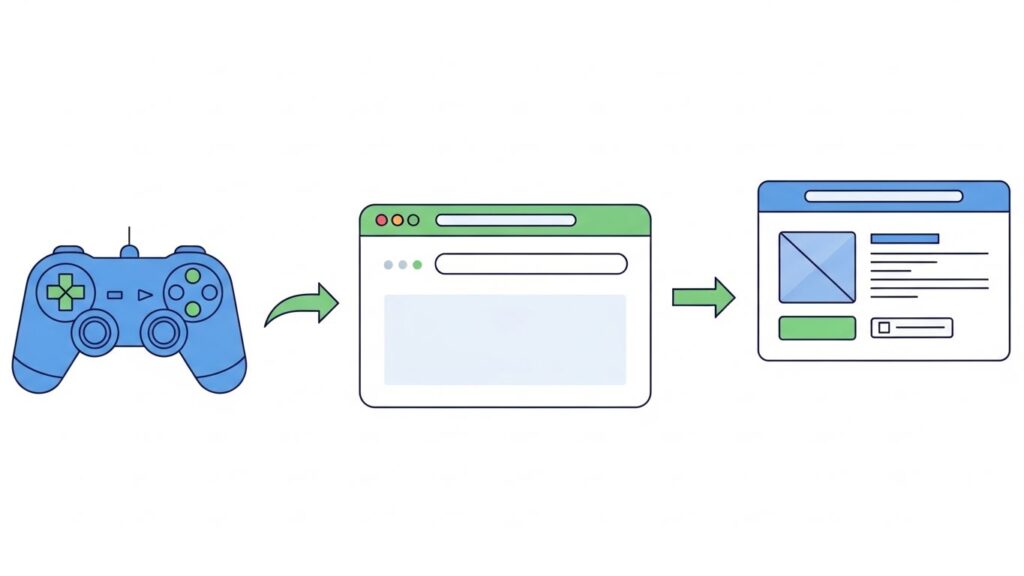
When you plug in a controller (via USB or wireless), the operating system detects and registers it as a gamepad device. Each gamepad exposes a set of axes (e.g., analog sticks) and buttons.
2. Browser Interface Layer
The browser’s Gamepad API queries these device signals at a regular polling rate (often synced to the animation frame rate). It exposes structured data through a JavaScript-accessible object model.
3. JavaScript Access Layer
Developers use navigator.getGamepads() to retrieve an array of connected controllers. Each gamepad object contains:
id– the controller name and versionindex– numeric ID (helpful when multiple controllers connected)buttons– array of button statesaxes– array of joystick input values
4. Event Model
Whenever a gamepad connects or disconnects, the browser fires events:
JavaScriptwindow.addEventListener("gamepadconnected", e => console.log("Gamepad connected:", e.gamepad));
window.addEventListener("gamepaddisconnected", e => console.log("Gamepad disconnected:", e.gamepad));
This allows apps to respond dynamically without refreshing.
Detecting Gamepad Connections
The simplest way to detect if a controller is connected is through an event listener. Example:
JavaScriptwindow.addEventListener("gamepadconnected", event => {
  const gp = event.gamepad;
  console.log(`Gamepad connected: ${gp.id} (index ${gp.index})`);
});
Alternatively, polling methods can be used for older browser versions or fallback compatibility:
JavaScriptconst gamepads = navigator.getGamepads ? navigator.getGamepads() : [];Accessing Gamepad Data in JavaScript
To read button or axis inputs, poll the gamepad state on each animation frame (with requestAnimationFrame):
JavaScriptfunction gameLoop() {
  const gp = navigator.getGamepads()[0];
  if (gp) {
    console.log("Left Stick X:", gp.axes[0]);
    console.log("Button A pressed:", gp.buttons[0].pressed);
  }
  requestAnimationFrame(gameLoop);
}

gameLoop();
This continuous loop provides smooth, real-time input updates for your game logic.
Understanding Axes, Buttons, and Mappings
Buttons
Each button provides these values:
pressed(boolean)value(analog pressure between 0–1, useful for triggers)
Axes
Each joystick or trigger corresponds to axis values from -1 to 1.
axes[0]→ Left stick horizontalaxes[1]→ Left stick verticalaxes[2]→ Right stick horizontalaxes[3]→ Right stick vertical
Controller Mappings
Different controllers have different layouts, but the API returns a standard mapping for most popular devices (marked as "mapping": "standard").
Tip: Always check gamepad.mapping for "standard" or "none" to decide how to map inputs consistently.
Practical Example: Basic Gamepad Listener
Here’s a minimal example to print gamepad input directly to the console:
HTML<script>
function loop() {
  const gp = navigator.getGamepads()[0];
  if (gp) {
    document.getElementById('status').textContent = `
      Buttons: ${gp.buttons.map(b => b.pressed ? "●" : "○").join(" ")}
      Axes: ${gp.axes.map(a => a.toFixed(2)).join(", ")}
    `;
  }
  requestAnimationFrame(loop);
}

window.addEventListener("gamepadconnected", () => {
  console.log("Gamepad connected!");
  loop();
});
</script>
<p id="status">Connect a controller and press a button...</p>
This simple display helps you prototype responsiveness in real time.
Common Challenges and Best Practices
1. Dead Zone Handling:
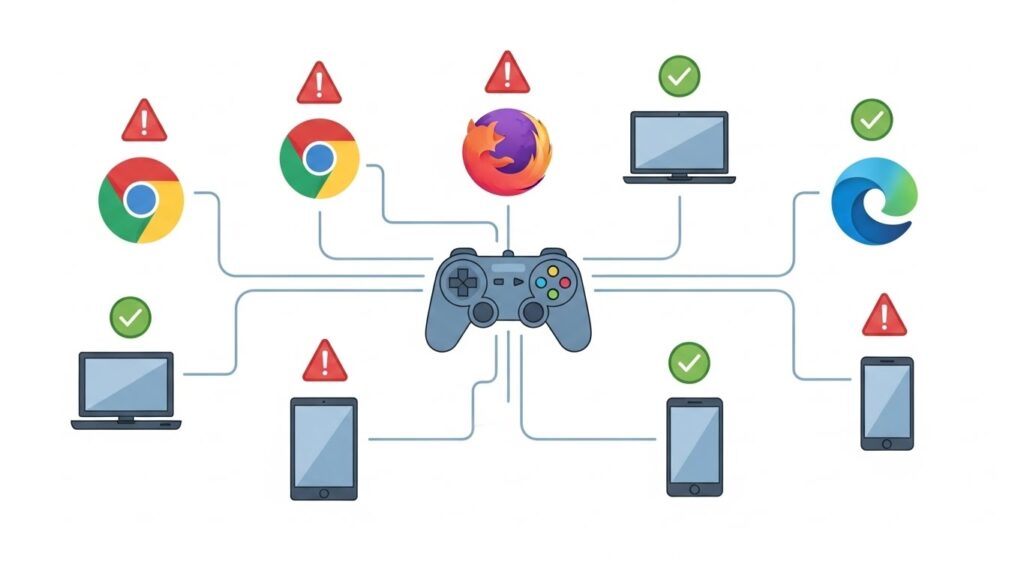
Analog sticks often register tiny movements even at rest. Implement a dead zone (e.g., ignore inputs between -0.15 and 0.15) to prevent unwanted drift.
2. Controller Variations:
Mappings can differ; for standardized layout, use known indices or libraries like Gamepad.js.
3. Polling Performance:
Poll inside your requestAnimationFrame() rather than using set intervals for smoother input timing.
4. User Interaction Requirements:
Modern browsers sometimes restrict input APIs until a user interacts with the page (e.g., clicks or taps).
5. Testing Multiple Controllers:
Always iterate through navigator.getGamepads() to handle multiple players gracefully.
Testing and Debugging Gamepad Input
Use these tools and tips to ensure accurate performance:
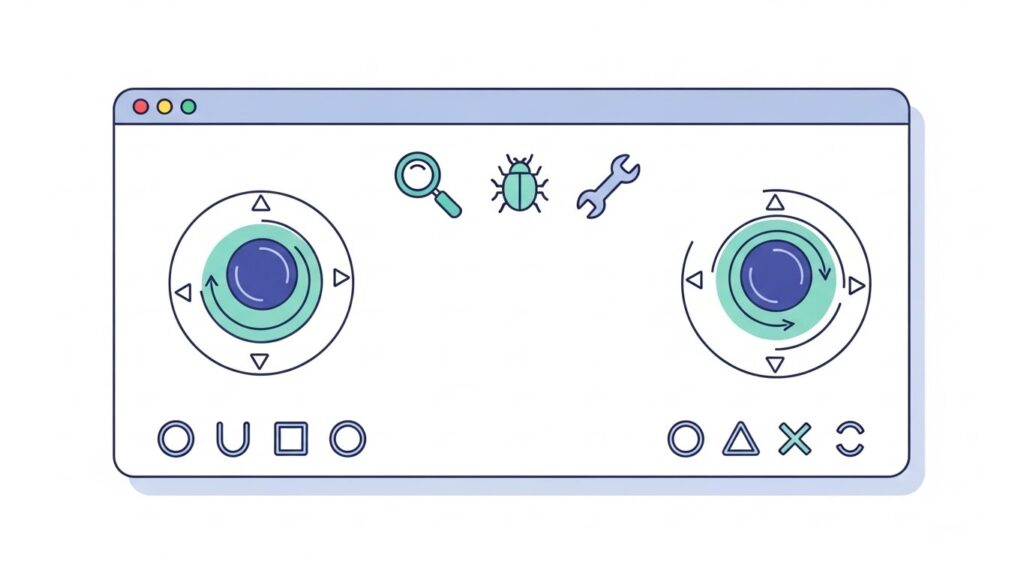
- In-browser tester: Search for “HTML5 Gamepad Tester Tool” to visualize input.
- Developer Tools: Use browser console logs or custom UI overlays.
- GamepadTest.com or HTML5Gamepad.com as external debugging utilities.
- For drift issues: Check analog readings and apply dead zone calibration.
Advanced Uses: Vibration, Mapping, and Multi-Controller Setup
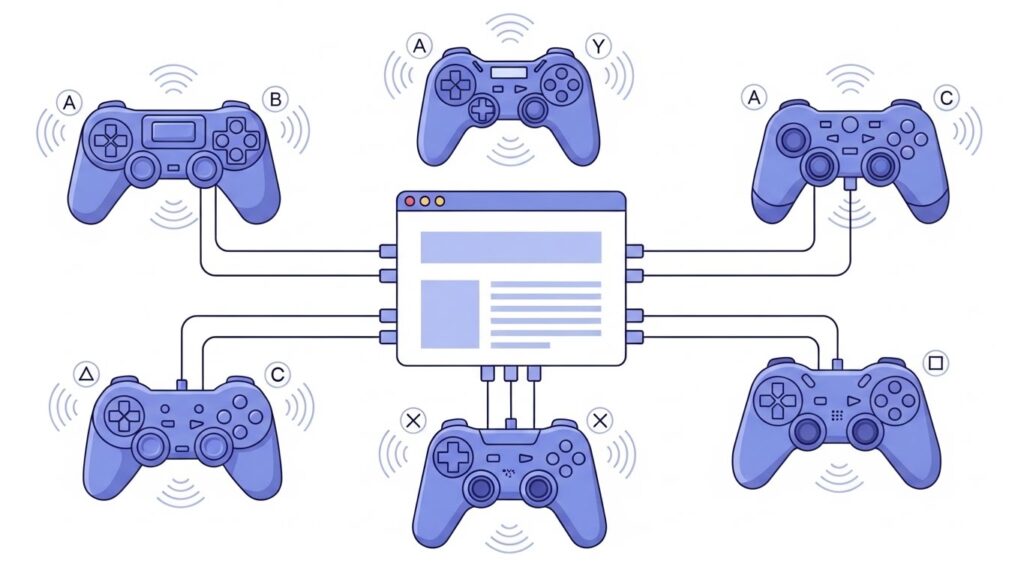
The Gamepad API can do more than just read input.
- Vibration Actuators:
Some browsers (mainly Chromium) support vibration usinggamepad.vibrationActuator.playEffect("dual-rumble", { duration: 300, strongMagnitude: 1.0, weakMagnitude: 1.0 }). - Custom Mappings:
For exotic or retro controllers, remap based on the controller’sidproperty. - Multi-Controller Input:
Access each gamepad by index vianavigator.getGamepads()[i], allowing multiplayer browser games.
Security, Permissions, and Privacy
The Gamepad API is generally safe, as it doesn’t expose personal data—only input states. However, browsers may:
- Require a secure context (https) to prevent spoofing.
- Demand a user gesture before starting to read input.
Browser Gamepad API Cheat Sheet
| Purpose | Code Snippet |
|---|---|
| Detect a controller | window.addEventListener("gamepadconnected", e => console.log(e.gamepad)); |
| Access data | navigator.getGamepads()[0] |
| Read axis | gp.axes[index] |
| Read button | gp.buttons[index].pressed |
| Loop input | requestAnimationFrame(gameLoop) |
| Handle multiple devices | Loop through navigator.getGamepads() |
FAQs
1. What is the Gamepad API in JavaScript?
It’s a web API that lets you access connected controllers directly from your browser using JavaScript.
2. Which browsers support the Gamepad API?
Most modern browsers—Chrome, Firefox, Edge, Opera, and Safari (partially)—support it.
3. How do I test if my gamepad is working in the browser?
Use navigator.getGamepads() in the console or try online tools like HTML5 Gamepad Tester.
4. Can I use the Gamepad API for mobile devices?
Currently, it works best on desktop operating systems, though mobile browsers may detect Bluetooth controllers in some cases.
5. How often should I poll gamepad data?
Once per animation frame (about 60 times per second) for smooth and responsive input updates.
Conclusion and Key Takeaways
Browser Gamepad APIs bring console-grade input control to the web—no plugins, no fuss. By accessing axes and buttons directly via JavaScript, you can build cross-platform browser games, emulators, control dashboards, and input testers with precision and speed.
Key takeaways:
- The Gamepad API bridges web apps and physical controllers.
- Use
navigator.getGamepads()for polling and event listeners for connections. - Handle dead zones and mappings carefully for consistent UX.
- Explore vibration, multi-user support, and custom mapping for advanced setups.
For further reading, reference:
If you’re building a real-time web game or emulator, implementing the Gamepad API is your ticket to truly immersive, responsive gameplay directly in the browser—no controller drivers required, just a few lines of smart JavaScript.