
Introduction-Gamepad Tester with Cloud Gaming Platforms
Cloud gaming feels like magic until you press a button and your character reacts half a second later. The biggest mistake I see gamers make is blaming their internet for every bit of ‘floaty’ movement. In reality, you are dealing with Double Lag: the time it takes for your controller to talk to your PC, plus the time it takes for your PC to talk to a server 500 miles away. At GamepadScan, we believe you can’t fix what you can’t measure. In this guide, I’ll show you how to ‘de-bottleneck’ your local controller setup so that your cloud gaming experience feels as close to local hardware as possible
Enter Gamepad Tester, a simple yet powerful tool for checking, calibrating, and optimizing your controller for cloud gaming services like NVIDIA GeForce Now, Xbox Cloud Gaming (xCloud), and others.
In this comprehensive guide, you’ll learn how to use Gamepad Tester effectively with cloud platforms, identify and fix drift or latency issues, and ensure your thumbsticks, triggers, and buttons are working at their best before diving into competitive play.
Table of Contents
What Is Gamepad Tester?
Gamepad Tester is a browser-based tool (or downloadable utility) that lets you test every button, axis, trigger, and vibration feature on your gaming controller. It works through the HTML5 Gamepad API, which means most modern browsers can detect and communicate directly with your connected controller—whether it’s a wired USB controller, a Bluetooth Xbox gamepad, or a PlayStation DualSense.
You can access a reliable online version simply by Clicking “HTML5 Gamepad Tester”—it show a live visualization of your controller’s inputs in real time.
In short:
- Gamepad Tester shows whether your device is recognized properly.
- It reveals problems like joystick drift, dead zones, or unresponsive buttons.
- It helps diagnose issues before launching your cloud session.
Why Use Gamepad Tester Before Cloud Gaming?
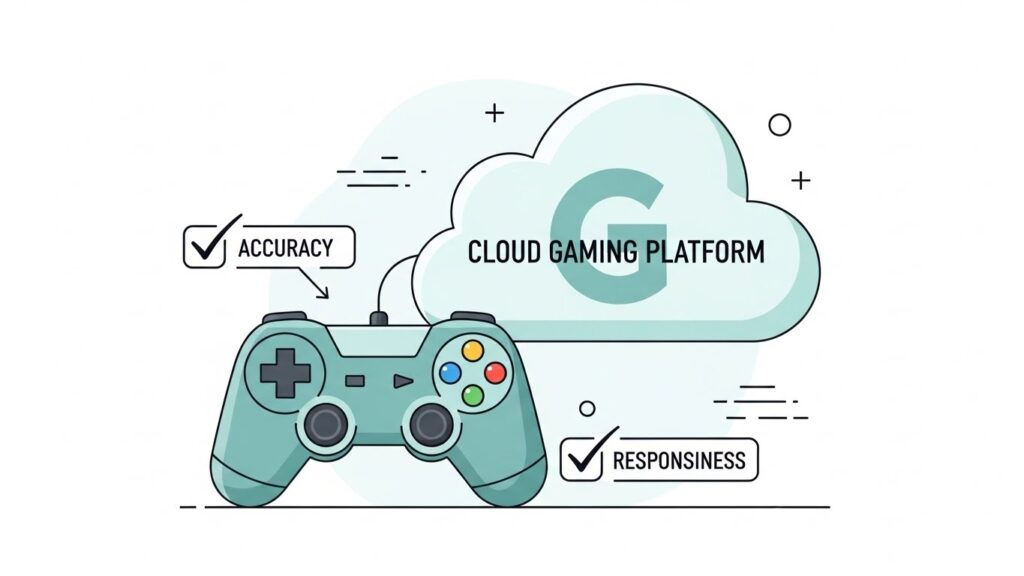
Cloud gaming platforms like GeForce Now and xCloud rely on perfect input detection. Your button presses are sent to a remote server in milliseconds and mirrored back as gameplay. Any issue at your device level—like a sticky trigger or inconsistent joystick—gets amplified over the cloud network.
Here’s why testing matters:
- Prevent input lag issues: If your triggers or sticks behave unpredictably, you’ll feel severe lag in cloud environments.
- Check compatibility: Some browsers or network layers don’t always read controller inputs correctly; Gamepad Tester shows if the browser recognizes your device.
- Calibrate controls: A quick calibration can fix off-center stick drift or dead zones before they ruin your aim or movement.
- Improve experience: Smooth input equals smoother cloud play—especially important in shooters or racing games.
Think of it as checking your car’s steering before hitting the track.
How Gamepad Tester Works (and Why It Matters)
Gamepad Tester uses the HTML5 Gamepad API to listen for signals sent by your device. When you move an analog stick, press buttons, or squeeze triggers, the browser receives numerical data representing movement and pressure values (from -1.0 to +1.0).
The tester interface will usually show:
- Stick positions: Crosshair indicators that move as you tilt each analog stick.
- Button states: Boxes or circles that light up when pressed.
- Axis readings: Numeric outputs showing analog sensitivity.
- Connection feedback: Controller name, ID, and button map.
With this data visible, you can quickly identify if something isn’t right—like a joystick that doesn’t return to zero, or a button that sticks “on.”
Setting Up Gamepad Tester: Step-by-Step Guide
Testing your controller is quick and easy. Here’s how to get started:
Step 1: Connect Your Controller
- Plug in your USB controller or pair your Bluetooth one.
- Windows, macOS, Android, and most browsers (like Chrome or Edge) will auto-detect it.
Step 2: Open a Gamepad Tester Site
- Visit a trusted online Gamepad Tester URL.
- Wait for your browser to request permission to access the controller.
Step 3: Confirm Connection
- Move your joysticks or press buttons.
- The on-screen tester visualization should react instantly.
Step 4: Test All Inputs
Check for:
- Button press responsiveness.
- Stick drift: If the cursor moves without touching the stick, drift exists.
- Trigger sensitivity: Squeeze gently—you should see smooth 0–1 range changes.
- D-pad registration: Ensure all four directions work distinctly.
Step 5: Adjust Controller Calibration
If your sticks seem off-center or range-limited:
- Use your OS’s calibration tool (Windows Game Controller Settings).
- On macOS or Steam, recalibration options are available under controller settings.
By doing this before streaming cloud games, you save yourself from random camera spins or delayed motion once inside the game.
Using Gamepad Tester with GeForce Now
Why Testing Is Crucial for GeForce Now
GeForce Now streams PC games from NVIDIA’s servers to your device. It supports most modern controllers—but it depends entirely on how your local input is read. If your web browser or desktop client doesn’t correctly interpret the controller signals, your in-game behavior can feel unpredictable.
Step-by-Step for GeForce Now
- Before launching GeForce Now: visit Gamepad Tester.
- Plug your controller (Xbox, DualShock, or generic USB) and confirm it registers correctly.
- Open GeForce Now app or web version.
- Select your game—preferably one that natively supports controllers (like Rocket League or Fortnite).
- Play for a few minutes and note if controls feel responsive.
If any inputs act up in-game but appear fine in the tester, the issue might be platform mapping or in-game settings—adjust controller type under “Preferences” in GeForce Now.
Pro tip:
Use wired mode whenever possible. Even if Bluetooth works, wired controllers reduce both local and cloud latency.
Recommended Controllers for GeForce Now
- Xbox One / Series X Controller
- DualShock 4
- Logitech F310 / F710 (USB)
- NVIDIA Shield Controller
Using Gamepad Tester with Xbox Cloud Gaming (xCloud)
xCloud, now part of Xbox Game Pass Ultimate, allows you to stream Xbox games to PCs, phones, and browsers. It’s incredibly convenient—but picky about input consistency.
Steps for Testing with xCloud
- Connect your Xbox or compatible controller via Bluetooth or USB.
- Open Gamepad Tester in your mobile or PC browser.
- Press every button and trigger—make sure they light up properly.
- Note button labels: Xbox’s A/B layout differs from PlayStation’s X/O. Ensure correct mapping before launching a game.
- Open the xCloud platform at xbox.com/play or the Xbox app.
- Launch a test title (Forza, Halo, or Minecraft). Try basic movement and camera tests.
If the input feels “floaty,” there are two possible culprits:
- Bluetooth latency (try wired mode or low-latency Bluetooth adapters).
- Browser interpretation issues (Edge works best for xCloud).
Fix Mismatched Inputs
Sometimes on non-Xbox controllers, button configuration may flip.
Solution:
- Go to xCloud controller remapping settings or use Steam Input to redefine layout globally.
Fixing Common Controller Issues for Cloud Play
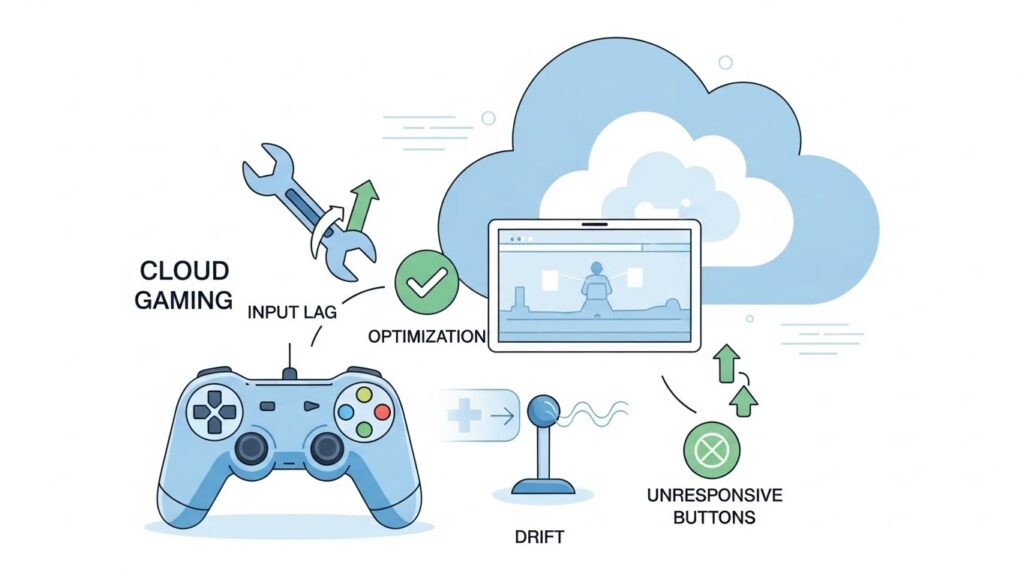
Even after testing, problems can linger. Here’s how to tackle the most common ones:
1. Joystick Drift
- Symptom: Cursor moves by itself.
- Fix: Calibrate via OS tool or try dead zone adjustment in-game.
2. Unresponsive Buttons
- Symptom: Some buttons don’t register in the tester.
- Fix: Clean the controller contacts; ensure no remapping software overrides are active.
3. Latency or Input Lag
- Symptom: Noticeable delay in response.
- Fix:
- Use a wired connection.
- Close background apps.
- Reduce display latency (use “Game Mode” on TVs).
4. Wrong Button Mapping
- Symptom: Buttons trigger incorrect actions.
- Fix:
- Check input type (XInput vs DirectInput).
- Use remapping tools like AntiMicroX or JoyToKey if necessary.
5. Browser Doesn’t Detect Controller
- Fix:
- Update your browser to the latest version.
- Allow “Controller Access” when prompted in the browser.
- Switch to Chrome or Edge, which best support HTML5 Gamepad API.
💡 Developer’s Pro Tip: The 60Hz Sync Secret “Here is a technical ‘gotcha’ I’ve found: Most cloud services stream at 60 FPS. If your monitor is set to 144Hz or 240Hz, but your controller is polling at a rate that doesn’t align with a 60 FPS container, you will experience micro-stutter. My recommendation? If you are cloud gaming, try setting your monitor to exactly 60Hz or 120Hz. Then, check your latency on GamepadScan. You want to see a stable, consistent polling interval. If your input timing is ‘jittery’ on our tool, it’s going to feel ten times worse once it’s sent over the internet to a cloud server.
Comparison Table (Cloud Gaming Input Performance)
| Service | Recommended Connection | Ideal Browser | Potential Input Issue |
| Xbox Cloud (XCloud) | Wired / Xbox Wireless Adapter | Edge (Clarity Boost) | High BT Latency on Android |
| NVIDIA GeForce Now | Wired (USB-C) | Chrome / GFN App | V-Sync ‘Input Heavy’ feel |
| Amazon Luna | WiFi (Direct-to-Cloud) | Any | High Jitter on 2.4GHz WiFi |
| PlayStation Plus | Wired | Native App | Limited 3rd-Party Support |
Best Practices for Accurate Testing
To get the most reliable results from Gamepad Tester:
- Use a wired connection whenever possible for stable input.
- Close other apps that may hijack controller input (Steam, DS4Windows, etc.).
- Test before every major session on cloud platforms; updates can occasionally shift input mapping.
- Test in the same browser you plan to use for gameplay (Edge for xCloud, Chrome for GeForce Now).
- Record results—note stick values, dead zones, or lag times for comparison over time.
Pro idea: create a small calibration ritual—30 seconds of button and stick tests—before each multiplayer match. Your in-game performance will thank you.
FAQs
Q1. What is the HTML5 Gamepad API?
It’s a web standard allowing browsers to read controller input directly, enabling online tools like Gamepad Tester to display live data.
Q2. Can I use Gamepad Tester on mobile?
Yes, if your phone supports USB-C or Bluetooth controllers and your browser supports the Gamepad API (Chrome and Edge Mobile generally do).
Q3. Why does my controller work on Gamepad Tester but not in GeForce Now?
Possible cause: GeForce Now may recognize only specific controller profiles. Try enabling XInput mode or switch USB ports.
Q4. How do I fix joystick drift detected in Gamepad Tester?
Use your OS calibration feature or insert a small dead zone value in your games to neutralize minor drift automatically.
Q5. Is Gamepad Tester safe?
Reputable online testers don’t collect any personal data—they simply read live input via your browser, no installations required.
(These FAQs can be easily marked up with FAQ schema for SEO enhancement.)
External Link:
External Authority Sources
These links provide credibility signals and boost topical authority.
Conclusion and Key Takeaways
Using Gamepad Tester before jumping into cloud gaming platforms like GeForce Now and xCloud is like tuning a musical instrument before the concert—it ensures every note (or in this case, every button press) registers perfectly.
By following a simple pre-check routine, you:
- Detect and fix drift or mapping errors early.
- Eliminate input lag caused by hardware or software mismatches.
- Maintain responsive, accurate gameplay in cloud environments.
With a stable controller setup, your cloud gaming sessions feel as seamless as local play—no misfires, no drift, just pure precision.
Keep your connections tight, your calibration sharp, and your thumbs warmed up—the cloud is your new console. 🎮