
Introduction-Gamepad Compatibility List for PC Browsers
Playing browser-based games with a controller feels like magic when it works—and like a mini tragedy when it doesn’t. Whether you’re testing an indie HTML5 title, calibrating a joystick, or checking if your Xbox or PlayStation controller connects properly, browser gamepad compatibility matters more than most people think.
This guide covers everything:
✅ Which PC browsers support gamepads.
✅ The HTML5 Gamepad API and how it works.
✅ Supported controllers (Xbox, PlayStation, Nintendo, generic USB).
✅ Troubleshooting tips, FAQs, and expert-level insights.
By the end, you’ll have a detailed reference you can bookmark, link, or share on any developer forum or gamer community.
Table of Contents
Understanding How Browser Gamepad Support Works
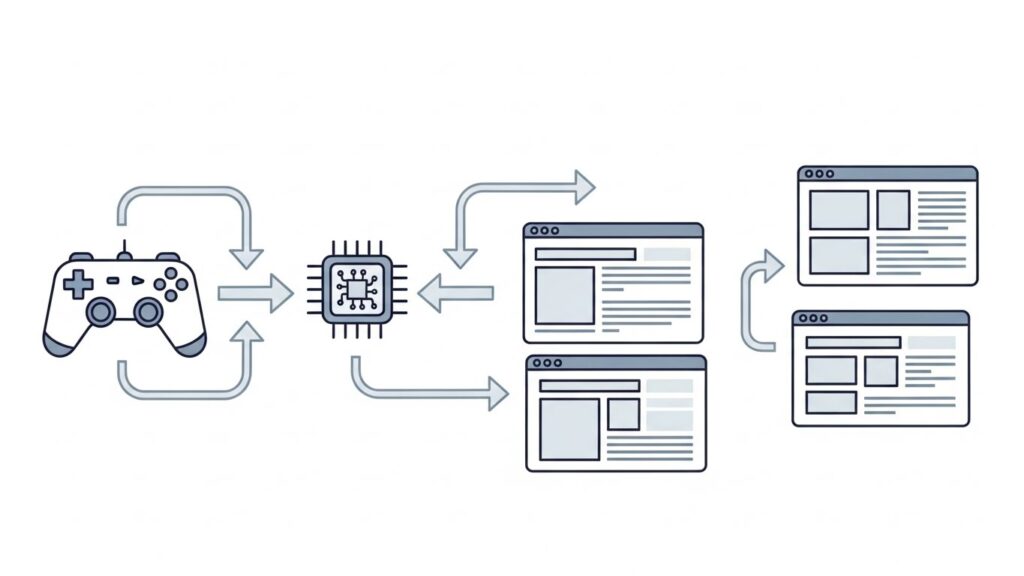
Let’s start with the invisible technology that makes this all possible.
What Is the HTML5 Gamepad API?
The HTML5 Gamepad API is the standard that lets browsers detect game controller inputs (buttons, triggers, and joysticks) in real time. Developers can read gamepad status using JavaScript events like:
JavaScriptwindow.addEventListener("gamepadconnected", e => {
  console.log("Gamepad connected:", e.gamepad.id);
});
The API sends data at about 60 frames per second—fast enough for responsive gameplay in web titles built with JavaScript, WebGL, or Unity WebGL exports.
Key functions include:
navigator.getGamepads()→ Lists connected controllers.gamepad.buttons→ Monitors button press intensity (pressure-sensitive triggers).gamepad.axes→ Tracks analog stick positions.
How the Browser Detects Your Controller
When you plug in a USB or Bluetooth gamepad, your OS first recognizes the device using standard HID (Human Interface Device) protocols.
Then, your browser’s Gamepad API translates that hardware signal into usable input data for web apps.
Fun fact: Even though browsers standardize detection, button mappings may differ by manufacturer (e.g., Nintendo swaps A/B vs. Xbox layout).
Browser-by-Browser Compatibility List (2025)
Browser gamepad support is not identical across all options. Here’s the latest compatibility breakdown as of 2025.
| Browser | Gamepad API Support | Native Mapping Accuracy | Bluetooth Support | Notes |
|---|---|---|---|---|
| Google Chrome | ✅ Full support | Excellent | ✅ | Best overall for PC gaming. |
| Microsoft Edge | ✅ Full (Chromium core) | Excellent | ✅ | Same engine as Chrome. |
| Mozilla Firefox | ✅ Partial to full | Good | ✅ | Intermittent mapping on older builds. |
| Opera / Opera GX | ✅ Full | Excellent | ✅ | Popular among gamers. |
| Safari (macOS) | ⚠️ Experimental | Fair | ⚠️ Limited | Gamepad API supported partially on Safari 15+. |
| Brave / Vivaldi | ✅ Full (Chromium-based) | Excellent | ✅ | Essentially Chrome performance. |
Google Chrome
Chrome pioneered full adoption of the Gamepad API and remains the gold standard for browser controller experience.
Highlights:
- Supports virtually all USB and Bluetooth gamepads.
- Works perfectly with Xbox, PlayStation DualShock/DualSense, and Switch Pro controllers.
- Gamepad dead zones can be fine-tuned using dev tools or web testers.
Pro Tip: If your controller feels laggy, turn off background tabs or hardware acceleration conflicts in Chrome’s Settings → System section.
Microsoft Edge
Since Edge’s rebirth on Chromium, it mirrors Chrome’s compatibility.
Added bonus: Edge handles multiple controller sessions well, useful for split-screen browser games.
Best For: Windows 10/11 users who want system-level integration with Xbox accessories.
Mozilla Firefox
Firefox was late to standardize the Gamepad API but has improved substantially.
On Windows and Linux, it now supports most major controllers, though button IDs may vary.
Developer note: Firefox’s gamepadconnected event may fire asynchronously; always verify using navigator.getGamepads() within a game loop.
Opera & Opera GX
Opera GX, the gamer-centric browser, unsurprisingly nails controller support.
Its use of the Chromium engine ensures near-perfect mapping, making it ideal for browser-based emulators or HTML5 indie titles.
Cool Feature: GX Control panel lets you limit CPU/RAM so controller latency remains stable.
Safari (macOS)
Safari has partial support starting from version 15.
Gamepad access must be granted per session for security reasons.
You might need to enable:
Preferences → Advanced → Experimental Features → Gamepad API
Limitation: Some macOS Bluetooth controllers (e.g., DualShock 4) work inconsistently.
Brave, Vivaldi, and Chromium Variants
These Chrome-alternatives are essentially identical in controller performance due to their Chromium backbone.
Best Part: They respect privacy while maintaining compatibility with online controller testers and gamepad-based web apps.
Supported Controllers on Each Browser
| Controller Type | Chrome / Edge / Opera | Firefox | Safari | Notes |
|---|---|---|---|---|
| Xbox (One / Series) | ✅ | ✅ | ⚠️ | Recommended; native Windows support |
| PlayStation DualShock 4 / DualSense | ✅ | ✅ | ⚠️ | Button mapping differs slightly |
| Switch Pro Controller | ✅ | ⚠️ Partial | ⚠️ | Reverse A/B buttons |
| Generic USB Gamepads | ✅ | ✅ | ⚠️ | May need calibration |
| Bluetooth Controllers (8BitDo, etc.) | ✅ | ✅ | ⚠️ | May show different button labels |
Note: Chrome’s official builds automatically normalize button layouts for Xbox and DualShock controllers.
How to Test Gamepad Connection Online
Using Online Gamepad Testers
A gamepad tester (sometimes called a joystick diagnostic tool) helps verify if your controller sends proper inputs to your browser.
Examples of trusted testers:
Simply open the site, plug in or pair your controller, and you’ll see button feedback in real time.
Look for:
- Proper axis movement for both analog sticks.
- Button press detection consistency.
- No unsolicited drift (in case of analog drift).
Checking Input Mapping
Browser games usually follow the Xbox layout (A-B-X-Y). If your DualShock inputs look swapped, that’s normal—just a difference in naming conventions.
You can remap buttons manually in:
- Steam Input Configurations
- DS4Windows (for DualShock)
- reWASD or Joy2Key (for generic pads)
These tools create “virtual Xbox layouts” compatible with most browsers.
Troubleshooting Controller Detection
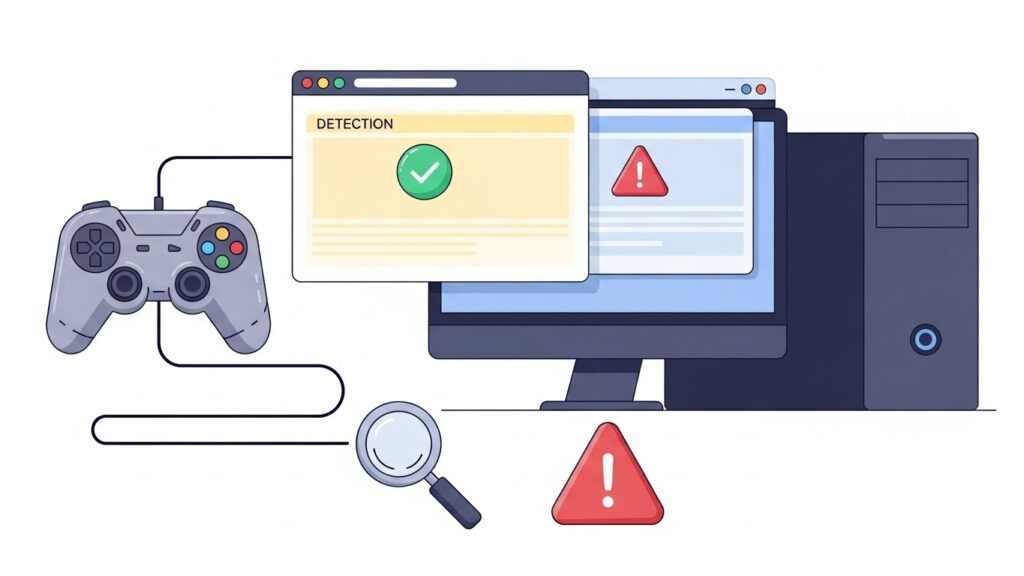
If your browser doesn’t recognize a controller:
- Reconnect USB/Bluetooth. Simple but 80% effective.
- Restart browser. Gamepad detection loads on startup only on some engines.
- Update drivers. Especially for Xbox/PlayStation controllers.
- Check OS permissions. macOS and ChromeOS sometimes block HID devices.
- Use latest browser version. Older releases might lack full API support.
- Avoid multiple input devices. If you have 3 controllers plugged in, some browsers default to the first ID slot only.
Pro Tip: Use your browser’s console (F12) → “navigator.getGamepads()” to see if the device ID appears. If not, it’s likely a driver issue, not browser-wide.
Pro Tips for Web Game Developers
If you’re building or testing a browser-based game:
- Normalize input: Always map controls dynamically (avoid hardcoding button IDs).
- Handle connection events gracefully using both
gamepadconnectedandgamepaddisconnected. - Account for dead zones (~15% typical threshold).
- Offer remapping UI — players love control customization.
- Include fallback keyboard input for unsupported setups.
- Use HTTPS: Some browsers require secure contexts for Gamepad API to function.
Sample minimal test code:
JavaScriptfunction pollGamepads() {
  const gamepads = navigator.getGamepads();
  for (let pad of gamepads) {
    if (pad) console.log(`${pad.index}: ${pad.id}`);
  }
  requestAnimationFrame(pollGamepads);
}
pollGamepads();
Best Practices for Users and Developers
For Users:
- Prefer wired USB for latency-free play.
- Update firmware for Bluetooth controllers.
- Calibrate analog inputs regularly using system tools or web testers.
For Developers:
- Test across multiple browsers (Chrome, Firefox, Edge at minimum).
- Document known compatibility quirks.
- Encourage users to test controllers pre-game start using built-in diagnostics.
Bonus Tip: Adding “Controller Tester” or “Gamepad Calibration” buttons inside your web game improves SEO and user satisfaction simultaneously.
FAQs
Q1. Which browsers support the HTML5 Gamepad API?
A1. Most modern browsers do—Chrome, Edge, Opera, Brave, Vivaldi, and Firefox. Safari supports it partially as of version 15.
Q2. Does the Gamepad API work over Bluetooth?
A2. Yes, as long as your OS recognizes the device as a standard HID gamepad.
Q3. Why isn’t my controller detected in Chrome?
A3. Restart the browser, ensure only one controller is connected, and update your drivers. Also, test using navigator.getGamepads() in console mode.
Q4. How do I test my controller online?
A4. Visit trusted sites like gamepad-tester.com to check input signals and detect button drift or dead zone issues.
Q5. Are Xbox controllers the most compatible?
A5. Yes. Xbox One and Series controllers have native Windows drivers and standard mappings recognized universally across browsers.
Conclusion & Key Takeaways
Browser-based controller support has matured dramatically, thanks to the HTML5 Gamepad API. As of 2025, nearly every major PC browser seamlessly handles gamepads—making web gaming and testing smoother than ever.
Key takeaways:
- Chrome and Edge remain best-in-class for stable, universal gamepad compatibility.
- Firefox and Opera GX provide excellent alternatives for diverse environments.
- Safari is improving but still experimental.
- Online testers and calibration tools are your best debug allies.
Keep this guide bookmarked for reference. Developers can link to it in documentation, and players can use it as their go-to gamepad compatibility handbook for PC browsers.
External resources: