
🎮 Gamepad Tester
Test your controller buttons, joysticks, and triggers in real-time
- 🔌 Make sure your controller is plugged in via USB or paired via Bluetooth
- 🔄 Press any button on your controller to wake it up
- 🌐 Refresh the page after connecting your controller
- ✅ Use a modern browser (Chrome, Edge, Firefox) with Gamepad API enabled
- 🖱️ Click anywhere on this page after connecting (some browsers require user interaction)
Game-Pad Tester — Test Your Controller Online Instantly
Welcome to GamepadScan’s Controller Tester — a quick and convenient online tool designed to check the performance of your game controller right from your browser. Whether you use an Xbox, PlayStation, Nintendo, or any standard USB gamepad, this free utility instantly identifies each button, trigger, joystick, and vibration function without requiring any downloads.
Powered by the HTML5 Gamepad API, it provides live feedback so you can easily spot problems like joystick drift, unresponsive buttons, or dead zones. If you want to make sure your controller is working as it should, this tool offers everything you need in one place.
How the Game-Pad Tester Works
Our Game-Pad Tester runs directly in your browser. When you connect a controller via USB or Bluetooth, the tool automatically detects it and displays every input live.
Here’s how it works step-by-step:
- Our Game-Pad Tester operates directly within your web browser.
- When you connect a controller using USB or Bluetooth, the tool automatically identifies it and displays all inputs in real-time.
- Connect your controller to your computer or laptop
- Press any button to enable access to the browser’s Gamepad API.
- The tester presents immediate feedback on button presses, joystick movements, and trigger pressure.
- If your controller has a vibration feature, the tool allows you to initiate a vibration test
- Review the results — if a button is unresponsive or a stick exhibits drifting, you’ve identified the problem.
- It’s entirely secure — no installation required, no data collection, and no tracking. Everything is processed locally on your device.
It’s completely safe — no installation, no data collection, and no tracking. Everything happens locally on your device.
Supported Controllers
The Game-Pad Tester supports most modern and classic controllers, including:
- Xbox 360 / Xbox One / Xbox Series X & S
- PlayStation 4 (DualShock 4) and PlayStation 5 (DualSense)
- Nintendo Switch Pro Controller
- Generic USB and Bluetooth gamepads
- Logitech, PDP, and 8BitDo models
If your controller supports the HTML5 Gamepad API, this tester will recognize it instantly.
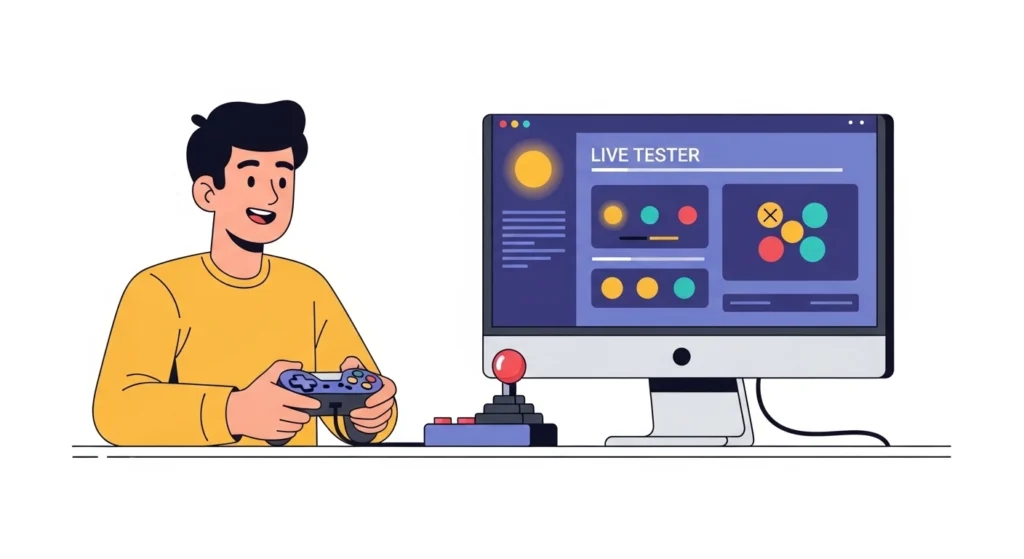
Why Use Our Game-Pad Tester?
Many gamers face input lag, drift, or button issues and don’t know whether the problem lies in the controller, the game, or the connection. Our tool solves that uncertainty.
✅ Instant Testing
No software or installation required — open the page, plug in your gamepad, and start testing in seconds.
🏆 Accurate Input Display
See exact values for buttons, triggers, and joysticks. Detect even the smallest drift or dead zone.
🔒 Private and Secure
Your inputs are processed locally in your browser. No data leaves your device.
🕹️ Universal Compatibility
Works with Windows, macOS, Linux, and ChromeOS on Chrome, Edge, Firefox, and Opera browsers.
⚡ Fast & Free
Completely free to use and optimized for quick testing.
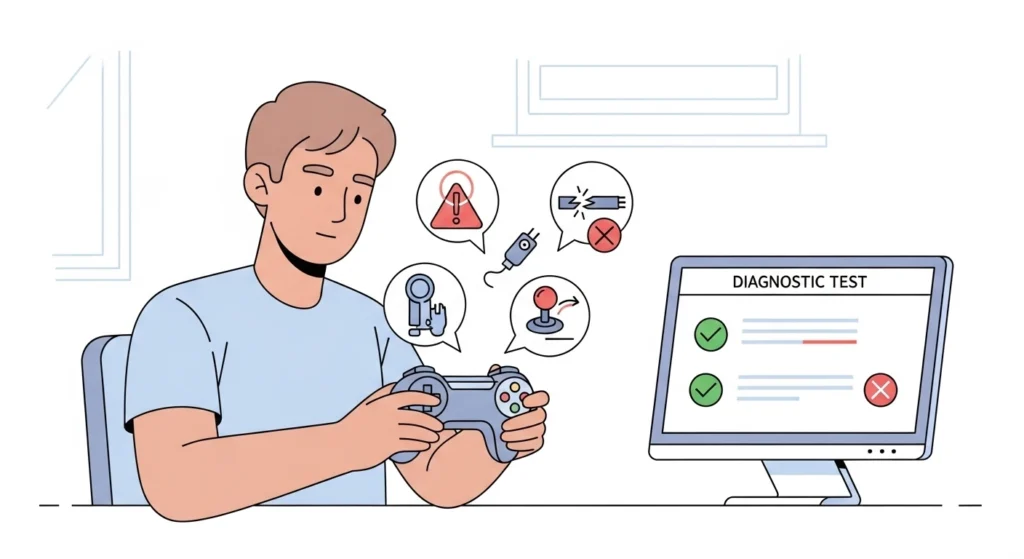
How to Fix Common Controller Problems
If your controller’s buttons don’t respond or the analog sticks seem to drift, try the following troubleshooting steps:
- Disconnect and reconnect your controller, or test it using a different USB port or cable.
- Make sure your drivers or firmware are up to date through your console or computer.
- If you’re using a wireless controller, remove it from your Bluetooth list and pair it again.
- Gently clean around the analog sticks using compressed air or a soft cloth slightly dampened with rubbing alcohol.
- Recalibrate your controller through your operating system’s calibration settings.
Once you’ve made these adjustments, open the Game-Pad Tester again to confirm the improvements — you’ll be able to see the changes instantly on-screen.ediately.
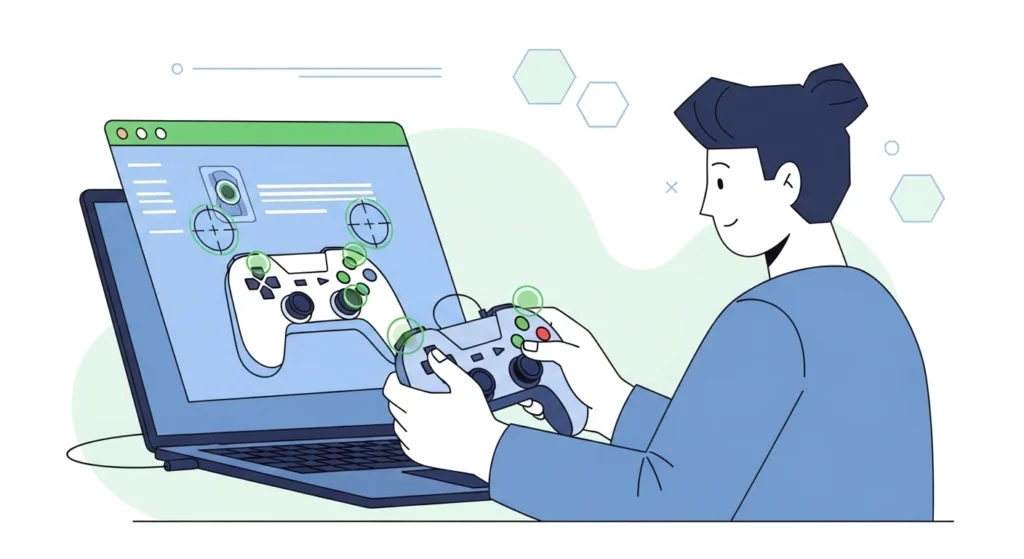
Tips for Accurate Testing
1.Close any games or background controller utilities before starting a test.
2.Keep your controller fully charged or connect it with a cable to ensure consistent readings.
3.For vibration testing, browsers such as Chrome and Edge usually provide the best haptic feedback support.
4.When checking several controllers, connect and test them one at a time to avoid input conflicts.
Detailed Guides
- How to Test Your Game-pad Online & PC [Step-by-Step Guide]
- How Gamepad Tester Tool Works: A Complete Technical Breakdown(2026)
- How to Check if Your Joystick Is Drifting Using an Online Tester(2026)
FAQs — Game-Pad Tester
1.What is a Game-Pad Tester?
A Game-Pad Tester is an online tool that helps you check if your controller’s buttons, triggers, and sticks are functioning properly. It detects your inputs in real time and shows how your controller responds.
2.Do I need to install any software?
No installation or registration is required. The tool runs entirely in your browser using the HTML5 Gamepad API, so it’s 100% safe and private.
3. Which browsers support this tool?
For the best performance, use Google Chrome, Microsoft Edge, or Mozilla Firefox. Safari and mobile browsers may have limited support for gamepad features
4. Can I test Bluetooth controllers?
Yes! Simply connect your Bluetooth gamepad to your PC or laptop, ensure it’s paired, and then open the Game-Pad Tester page. Your controller will appear automatically.
5. Does this tool store any of my data?
No, it doesn’t. All testing happens locally in your browser. We never store or transmit your controller inputs, ensuring full privacy and security.