
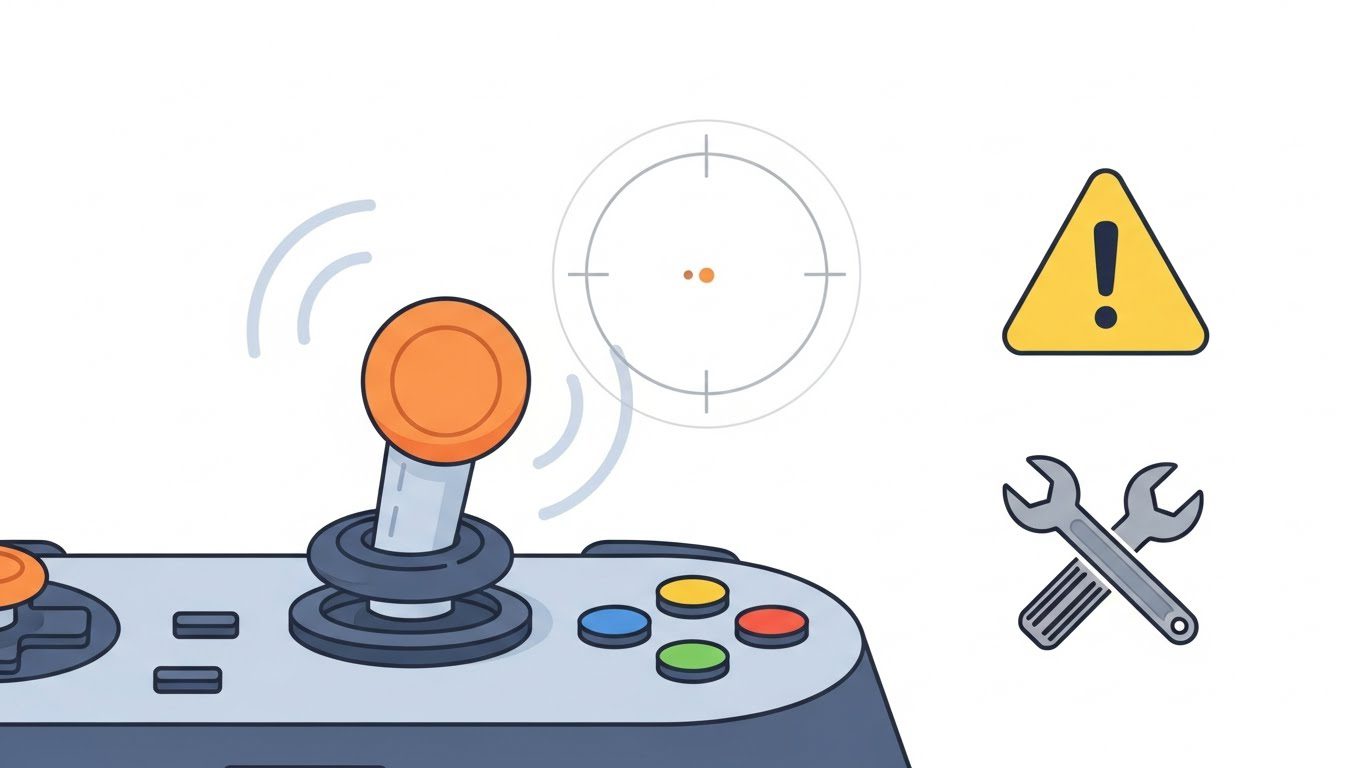
If your game character keeps wandering off when you’re not even touching the joystick, welcome to the club — you’ve met the dreaded joystick drift.
It’s one of the most frustrating problems for gamers. Whether you’re on a PlayStation 5, Xbox Series X, Nintendo Switch, or PC controller, joystick drift can ruin both your aim and your mood.
In this comprehensive, SEO-optimized guide, we’ll explore what causes joystick drift, how to diagnose it, and most importantly, how to fix joystick drift on any console. You’ll get practical step-by-step instructions, prevention tips, and answers to the most common questions gamers ask worldwide.
Table of Contents
What Is Joystick Drift?
Joystick drift (also called analog stick drift or controller drift) is when your controller registers unintended movement — your in-game character or camera moves even though you’re not pushing the stick.
It’s like your gamepad is haunted…except the ghost is probably dust.
Drift can affect:
- The left stick, making characters move on their own.
- The right stick, moving camera angles unpredictably.
- Both sticks at once (the ultimate gaming kryptonite).
Why Joystick Drift Happens (Causes Explained)

Joystick drift isn’t random — it’s usually caused by one or more of these common issues:
- Dust and Debris: Tiny particles sneak under the analog stick, interrupting the electrical contacts.
- Sensor (Potentiometer) Wear: These little components measure stick movement. Over time, they lose precision — especially with heavy play.
- Poor Calibration: Sometimes, a controller just “forgets” where the stick’s neutral position is.
- Humidity or Sweat Build-Up: Moisture and grime can affect internal circuits.
- Manufacturing Defects: Some models (e.g., early Switch Joy-Cons) had notoriously fragile analog sticks.
Pro Tip: If your controller is fairly new, always check for firmware updates or warranty options before attempting a full disassembly.
How to Test for Joystick Drift
Before you start fixing, verify that drift is actually happening — not just a case of weird sensitivity settings.
Online Controller Tester Tools
Use free browser tools like:
These tools visually display joystick input.
If your stick moves or jitters on its own — bingo, it’s drifting.
Keywords to notice: gamepad calibration, USB controller test, joystick dead zone check.
In-Console Calibration Tools
Each major console includes built-in calibration software:
- PS5 / PS4:
Go to Settings > Accessories > Controllers > Adjust Analog Stick. - Xbox Series X / One:
Navigate to Settings > Devices & Accessories > Controller > Calibrate. - Nintendo Switch:
Head to System Settings > Controllers and Sensors > Calibrate Control Sticks.
These tools show real-time joystick position — ideal for confirming drift.
Step-by-Step Fixes for Joystick Drift

Here comes the core of the guide — detailed, console-specific solutions.
Fix Joystick Drift on PlayStation (PS4/PS5)
Common models affected: DualShock 4, DualSense.
Fix Options:
1. Clean the Joystick
- Power off your PS5 or PS4 controller.
- Dip a cotton swab in 90% isopropyl alcohol.
- Gently lift the rubber ring around the analog stick.
- Clean underneath, rotating the stick in circles.
- Let it dry for at least 10 minutes.
This removes dust that often causes false movement readings.
2. Recalibrate and Reset
- Use a paperclip to press the small reset button on the back (near L2).
- Reconnect the controller to your console via USB and test again.
3. Update Firmware
- On PS5: Settings > Accessories > Controllers > Wireless Controller Device Software.
An outdated firmware can cause drift miscalibration.
4. Replace Stick Modules
If the drift persists, you may need a joystick module replacement.
You can order ALPS RKJXV replacements — they’re the same ones used in Sony and Xbox controllers.
Fix Joystick Drift on Xbox (One/Series X|S)
Affected models: Xbox One Controller, Elite Series 2, Series X|S Controller.
Quick Fix Method
- Power off the controller.
- Use compressed air to blow out particles around the stick.
- Gently rotate the sticks to loosen any debris.
- Wipe with alcohol on a microfiber cloth.
Advanced Fix
If that doesn’t help, recalibrate your controller on PC:
- Connect via USB.
- Open Control Panel > Devices and Printers.
- Right-click controller → Game Controller Settings > Properties.
- Use the Settings → Calibrate wizard to reset stick centers.
Replace Analog Modules
Use Xbox-compatible ALPS thumbstick modules (same as DualShock). If you’re comfortable with soldering, this is a permanent solution.
Fix Joystick Drift on Nintendo Switch (Joy-Cons & Pro Controller)
Ah, the infamous Joy-Con drift — so notorious it sparked class-action lawsuits.
Try These Fixes First
- Calibrate in software: Settings → Controllers & Sensors → Calibrate Control Sticks.
- Clean physically: Use a can of compressed air under the stick cap. Then, dip a cotton swab in alcohol and clean the base.
- Update your firmware: Go to System Settings → Controllers and Sensors → Update Controllers.
- Reset controllers: Hold down the tiny sync button for 15 seconds, then reconnect.
If Still Drifting…
Nintendo offers free Joy-Con repairs in many regions — even out of warranty. Visit Nintendo’s official support website to start a repair request.
Fix Joystick Drift on PC Controllers (Logitech, DualSense, etc.)
For PC users, drift can show up in racing games, emulators, or gamepad testers.
Step-by-Step
- Open Gamepad Testers: Use HTML5 Gamepad API Tester.
- Recalibrate in Windows:
- Control Panel → Devices → Calibrate Game Controller.
- Clean the hardware: Same alcohol swab method as above.
- Adjust Dead Zones in Software:
- Steam users: Settings → Controller → General Controller Settings → Calibrate.
Increase dead zone until drift disappears.
- Steam users: Settings → Controller → General Controller Settings → Calibrate.
How to Prevent Joystick Drift in the Future
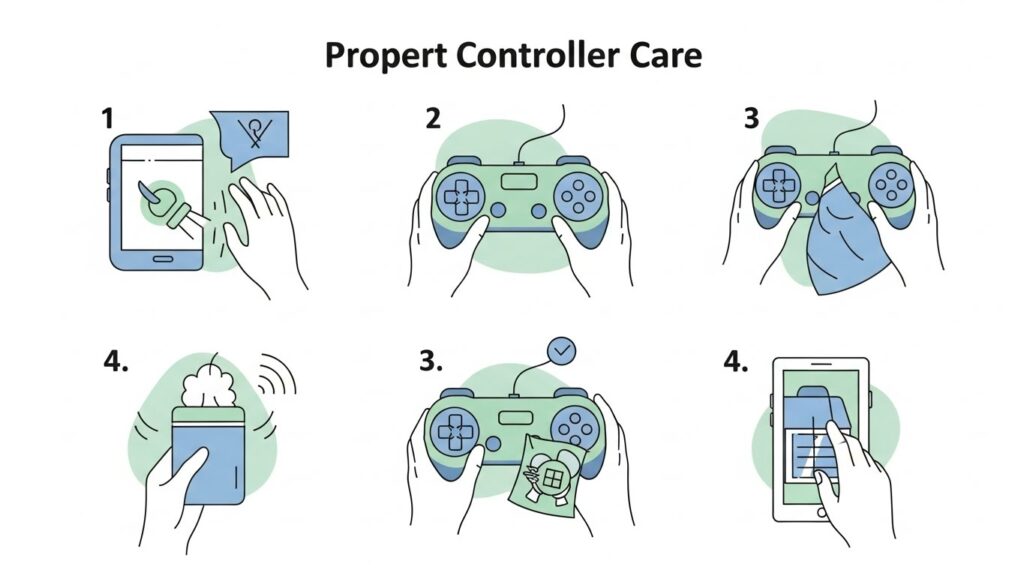
You’ve fixed it — now let’s make sure it stays fixed.
Preventive Tips
- Store controllers in dust-free areas.
- Avoid pressing the sticks while powering on (it can reset neutral position incorrectly).
- Clean weekly with a dry microfiber cloth.
- Reduce excessive force when holding or clicking L3/R3.
- Use protective thumbstick caps to limit debris entry.
Pro Tip
If you play shooters or long sessions, consider rotating between two controllers. It balances wear and extends lifespan.
When to Replace or Send for Repair
If cleaning and calibration don’t work, it may be hardware damage.
- Out-of-warranty PS5/Xbox: Replace analog modules (cheap and DIY-friendly).
- Nintendo Joy-Cons: Submit for official repair.
- Elite/Pro Controllers: Contact manufacturer support for repair kits.
Sometimes, replacing just one analog module costs less than $10 — far cheaper than a new controller.
Advanced Explanation: How Joysticks Actually Work
Understanding why drift happens requires peeking inside the analog stick itself.
Each joystick uses two potentiometers (tiny rotating sensors) — one for the X-axis (left/right) and one for the Y-axis (up/down).
When the stick moves, the potentiometer changes electrical resistance, sending movement data to your console.
Over time:
- The contact pads wear down.
- Dirt changes resistance values.
- The controller’s signal misreads “center” as movement.
This is why recalibration sometimes helps — it tells the software to “re-learn” where neutral center is.
FAQs – Fixing Joystick Drift
1. What causes controller drift?
Usually dust, wear of potentiometers, or miscalibration. Every analog stick slowly degrades with heavy use.
2. Can cleaning alone fix drift?
Yes, in many cases! Alcohol cleaning removes grime causing false sensor readings.
3. Is joystick drift covered under warranty?
Yes, for most brands — Sony, Microsoft, and Nintendo all offer warranty repairs for drift issues.
4. Can I fix drift without opening the controller?
Definitely. Start with software calibration and gentle cleaning. Only open it as a last resort.
5. Why does my controller drift after updates?
Firmware updates can slightly change calibration data. Always recalibrate afterward.
Conclusion & Key Takeaways
Joystick drift is the gamer’s version of a leaky faucet — small but maddening. Fortunately, it’s fixable with patience and a little rubbing alcohol.
In summary:
- Confirm drift using calibration tools or online controller testers.
- Try easy fixes first: cleaning and calibration.
- If it persists, consider hardware replacement or official repair.
- Prevent it through clean habits and gentle handling.
A steady stick means smoother gameplay and fewer unnecessary rage-quits — in short, peace for both your virtual characters and your thumbs.
Related Posts:
- Joystick Not Centering Properly? How to Detect and Fix Sensor Drift(Ultimate 2026 Guide)
- How to Check if Your Joystick Is Drifting Using an Online Tester(2026)
External Links: