
Introduction-Controller Calibration Errors
Modern gaming is all about control—literally. Whether you’re in a tense online shooter or a relaxing indie adventure, your controller acts as the bridge between you and the game world. But when calibration errors strike—joysticks drifting, triggers misfiring, or buttons behaving erratically—it can break immersion and drive any gamer up the wall.
The good news? You don’t need to panic or toss your gamepad into the nearest digital abyss. This deep-dive guide explains exactly how controller calibration works, why it fails, and most importantly, how you can reset and fix your gamepad settings across multiple platforms.
Related Post: Controller Buttons Not Responding? Fix Them Fast
Table of Contents
What Is Controller Calibration Errors?
Controller calibration is the process of aligning your gamepad’s sensors—especially joysticks and triggers—so that input is accurately reflected in your game. Each analog stick contains sensors that translate physical movement into digital signals. Over time, these sensors can lose precision, leading to misaligned input readings.
In simpler terms:
- When properly calibrated: moving the stick slightly gives expected, smooth movement.
- When miscalibrated: characters drift, aim slides uncontrollably, or motion feels “sluggish” even when your thumb is steady.
This is commonly referred to as joystick drift or dead zone error, depending on the symptoms.
Common Causes of Calibration Errors
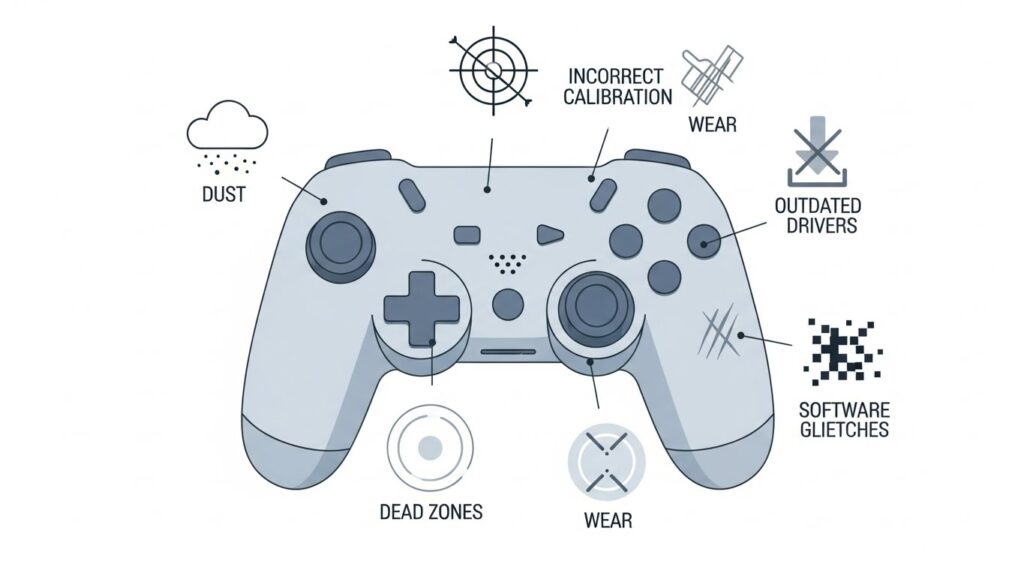
Calibration errors don’t appear out of nowhere; they’re usually caused by one or more of the following culprits:
- Physical wear and tear: Repeated movement can degrade internal components.
- Dust or debris: Particles blocking sensors can cause inconsistent results.
- Software bugs: Firmware updates or system glitches sometimes derail controller mapping.
- Improper recalibration: Holding the stick off-center during setup can “teach” the system wrong neutral values.
- Connection issues: Wireless interference or bad USB cables can affect calibration data.
Think of it like teaching your controller bad habits—it’ll keep repeating the same mistake until you show it the right behavior again.
How to Check If Your Controller Needs Calibration
Before deciding to reset everything, confirm the problem actually lies with calibration and not something else.
Step-by-Step Diagnostic Test
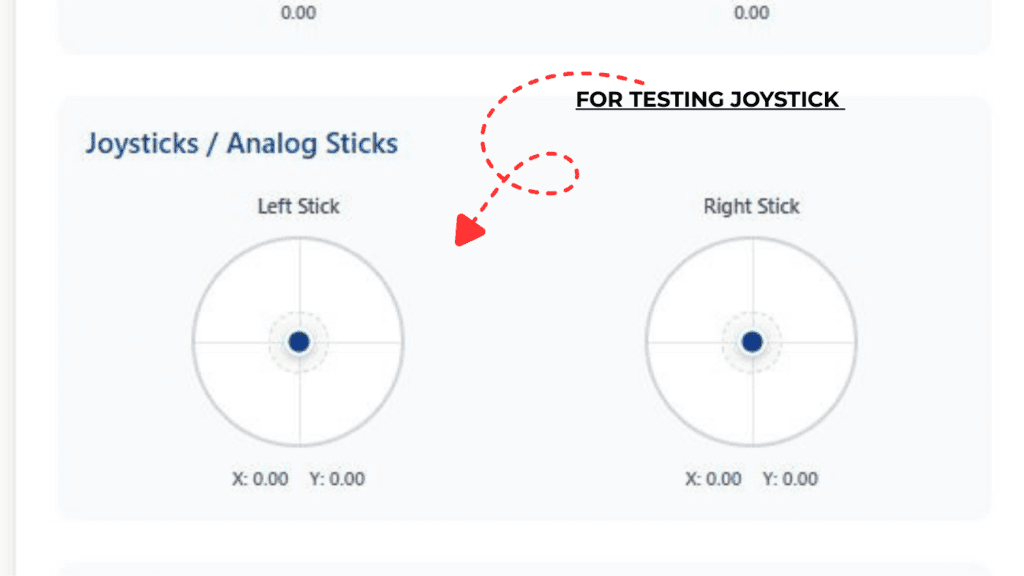
- Use an Online Gamepad Tester:
Try a tool like HTML5 Gamepad Tester . It reads live input data from your controller—perfect for detecting drift or button lag. - Check Dead Zones:
Move your joystick slightly. If small movements don’t register or the pointer shifts by itself, you have dead zone or drift issues. - Test on Another Device:
Plug your controller into a different PC or console. If the issue persists, it’s likely calibration-related. - Observe LED or Vibration Behavior:
Some gamepads blink or vibrate irregularly when miscalibrated or desynced.
Resetting Gamepad Settings by Platform
Each gaming platform has its own calibration process. Follow the guide below for your specific device.
Reset Xbox Controllers
Option 1: Soft Reset via Settings (Xbox Series X/S or Xbox One)
- Press the Xbox button to open the guide.
- Navigate to Profile & system → Settings → Devices & connections → Accessories.
- Choose your controller → Configure → Reset to default.
- Restart your console and check if drift is gone.
Option 2: Recalibrate on Windows (for Xbox controllers on PC)
- Connect controller via USB.
- Open Control Panel → Devices and Printers.
- Right-click your Xbox controller → Game Controller Settings → Properties → Settings tab.
- Click Calibrate, then follow the on-screen wizard.
- Save settings and test again using a gamepad tester.
Reset PlayStation Controllers
Option 1: Hard Reset DualShock 4 or DualSense
- Power off the controller completely.
- Find the small reset hole at the back near the L2 button.
- Insert a pin and hold for 5 seconds.
- Reconnect via USB cable to your PS4/PS5 or PC.
Option 2: Recalibrate Motion and Analog Input
If using on PC:
- Go to Game Controllers → Properties (as above).
- Follow calibration wizard for both sticks and triggers.
- Test again in Steam under Controller → Calibration & Dead Zone Settings.
Pro Tip: For Steam users, enable Generic Gamepad Configuration to access more fine-grained tuning options.
Reset Nintendo Switch Controllers
- On your Switch home screen, go to System Settings → Controllers and Sensors.
- Select Calibrate Control Sticks.
- Follow the prompts—when asked to press each stick, make sure it returns perfectly to center.
- Repeat for motion sensors if using Joy-Cons.
If drift persists, try fully turning off the console, unpairing and repairing the Joy-Con controllers.
Calibrate PC Gamepads (Windows/macOS)
For Windows:
- Connect controller via USB or Bluetooth.
- Open Control Panel → Devices and Printers.
- Right-click → Game Controller Settings → Properties → Settings tab → Calibrate.
- Follow the calibration wizard for both axes and triggers.
- Save profile, then test via a tool like HTML5 Gamepad Tool.
For macOS:
- Open System Settings → Bluetooth → Devices → select your controller.
- Use a calibration app like Controllers Lite from the App Store.
- Run joystick calibration scripts or manually map axes as needed.
Advanced Joystick Calibration Tips
If simple resets don’t fix the problem, try these next-level tactics:
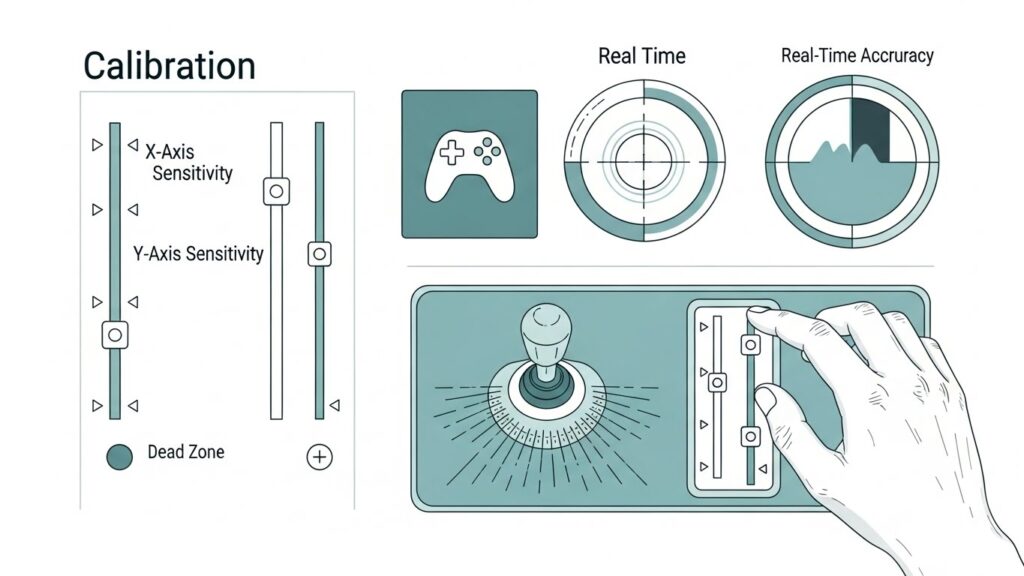
- Adjust Dead Zone Sensitivity:
Some games (like Fortnite or Apex Legends) let you tweak joystick dead zones directly in settings. - Clean the Analog Modules:
Use compressed air or isopropyl alcohol on the joystick base to remove grime affecting sensor readings. - Update Firmware:
Developers often release controller firmware updates that fix calibration bugs. Check the official support site for your model. - Use Third-Party Calibration Software:
Tools like DS4Windows, reWASD, or Steam Input offer precise analog tuning beyond default OS controls. - Replace the Potentiometer (Advanced DIY):
If one, single joystick keeps drifting even after resets, hardware replacement might be necessary. This should only be done by those comfortable with electronics repair—or by a professional.
How to Prevent Future Calibration Issues
A little preventive care goes a long way in keeping your gamepad happy and accurate.
- Store controllers properly: Avoid leaving sticks pushed against something.
- Regularly clean ports and sensor areas.
- Recalibrate every few months—especially if switching between PC and console.
- Avoid overcharging wireless units, as heat can accelerate sensor wear.
- Don’t press sticks while booting calibration tools; keep them perfectly centered.
You can also bookmark your favorite calibration web app to test your controller every few weeks, catching minor issues before they worsen.
FAQs
1. What causes my controller to drift even after recalibration?
If recalibration doesn’t work, hardware degradation may be the culprit. The analog stick’s potentiometer might be worn out or dirty, which no software reset can fix.
2. How often should I calibrate my controller?
For regular gamers, once every 2–3 months is a healthy maintenance routine. Competitive players may recalibrate weekly for maximum precision.
3. Can I fix PlayStation stick drift without opening the controller?
Yes—try cleaning the stick base with compressed air and recalibrating within Steam or your console system first. Only consider disassembly if all else fails.
4. Is it safe to use third-party calibration software?
Mostly yes, as long as you download from reputable developers and official links. Avoid random “driver boosters” that promise miracles—they often cause more issues than they solve.
5. Why does my controller act fine in one game but not another?
Some games apply unique dead zone or sensitivity settings. Calibrate your controller system-wide first, then fine-tune within each game’s options.
Key Takeaways
- Calibration is critical for accurate analog input and responsive gameplay.
- Reset and recalibrate regularly across platforms—Xbox, PlayStation, Nintendo, or PC.
- Simple maintenance (cleaning, updates, dead zone adjustments) often beats hardware repair.
- Tools like HTML5 Gamepad Tester help detect drift quickly.
- Consistent calibration routines prevent long-term sensor wear and frustration.
External Sources
External sources:
- Microsoft Support: Xbox Accessories Calibration
- Steam Controller Configuration Guide
- Nintendo Support: Joy-Con Calibration
If your controller could sigh in relief, it probably would right now. With proper reset, calibration, and upkeep, your next gaming session will feel sharper—and so will your reflexes. Grab that controller, re-center those sticks, and get back to playing the way you were meant to: flawlessly in control.