
Introduction-How to Check if Your Joystick Is Drifting
Ever been in the middle of an intense gaming session only to watch your character slowly moonwalk across the map—while you swear your thumbs are nowhere near the sticks? Welcome to the world of joystick drift, the stealthy nemesis of gamers everywhere.
This guide will teach you how to check if your joystick is drifting using a reliable online controller tester, understand what causes drift, and explore what to do next. Whether you’re rocking an Xbox, PlayStation, Nintendo Switch, or PC controller, you’ll soon know exactly how to diagnose that sneaky self-moving stick.
Table of Contents
What Is Joystick Drift?
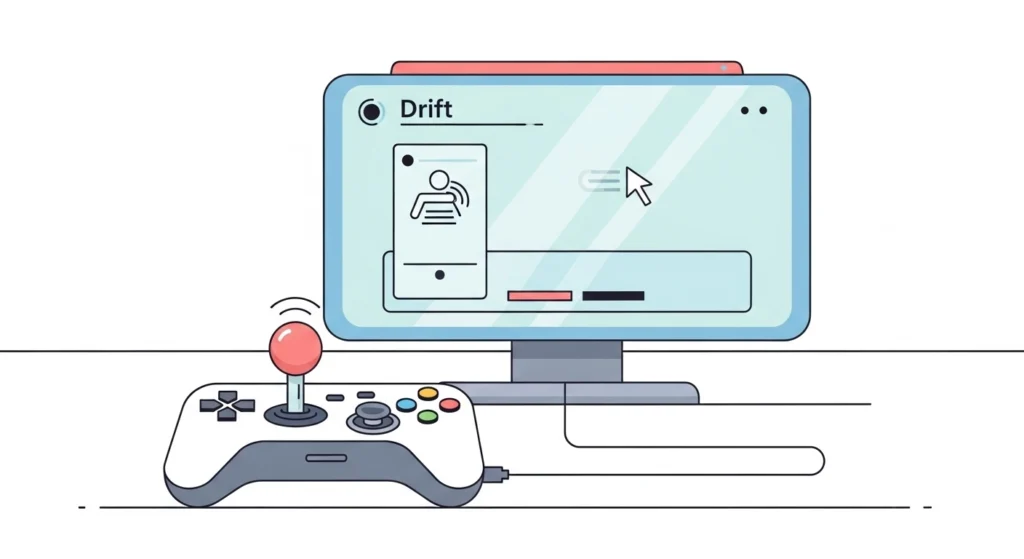
Joystick drift—also known as controller drift or stick drift—happens when your controller’s analog sticks detect movement even though they’re at rest. On screen, this means your game character moves or your aim shifts slightly on its own.
Common Symptoms of Drift:
- Your character moves without touch input.
- Aiming cursor or camera slowly pans in one direction.
- Calibration settings or in-game sensitivity feel off.
- Dead zone adjustment doesn’t fix movement anomalies.
It’s not just annoying—it can diminish performance in competitive gaming, ruin immersion, and sometimes even interfere with menu navigation.
Why Joysticks Start Drifting
Understanding the root causes of drift helps you both diagnose and prevent it.
Here are the usual culprits:
- Dust and debris: Grit inside the analog module causes false movement readings.
- Wear and tear: Over time, the potentiometers in the joystick mechanism degrade.
- Moisture or sweat: Conductive residues can confuse sensors.
- Firmware or calibration issues: Sometimes, your controller just needs a reset.
- Manufacturing tolerances: Slight variances in hardware components can make one controller more prone to drift than another.
How an Online Controller Tester Works
An online joystick tester (or HTML5 gamepad tester) is a browser-based tool that detects your game controller using the HTML5 Gamepad API. This allows you to visualize and measure input data in real-time—no extra software required.
It Shows You:
- Pressed buttons and trigger sensitivity.
- Joystick X and Y axis positions (usually between -1.00 and +1.00).
- Dead zone thresholds for analog movement.
- Vibration, rumble, and connection status.
If your joystick drifts, you’ll see a non-zero reading even when the stick is untouched.
Detailed Guide:How Gamepad Tester Tool Works: A Complete Technical Breakdown(2026)
Step-by-Step: Checking for Joystick Drift
Below is a full guide to test joystick drift using an online tester. You can complete this in about two minutes—less time than it takes to rage-throw your controller.
Pillar Blog:How to Test Your Game-pad Online & PC [Step-by-Step Guide]
Step 1: Connect Your Controller
- Plug in your controller using USB, or pair it via Bluetooth.
- Ensure it’s recognized by your computer. You can double-check in the system’s controller/device settings.
(Tip: Using a cable connection ensures fewer input dropouts during the test.)
Step 2: Visit a Reliable Online Gamepad Tester
Open your web browser and head to one of these popular testers:
These sites automatically detect your connected gamepad and start visualizing inputs.
(Note: Make sure to allow browser permissions to read gamepad inputs.)
Step 3: Observe Stick Movements
- Each joystick should show two axis readings: X-axis (left-right) and Y-axis (up-down).
- Without touching the stick, both values should hover around 0.00.
Example:
text
Left Stick X: 0.02
Left Stick Y: -0.03
Small fluctuations under ±0.05 are normal. But if values like 0.20 or -0.25 persist, that’s a sign of drift.
Step 4: Note Input Values and Dead Zones
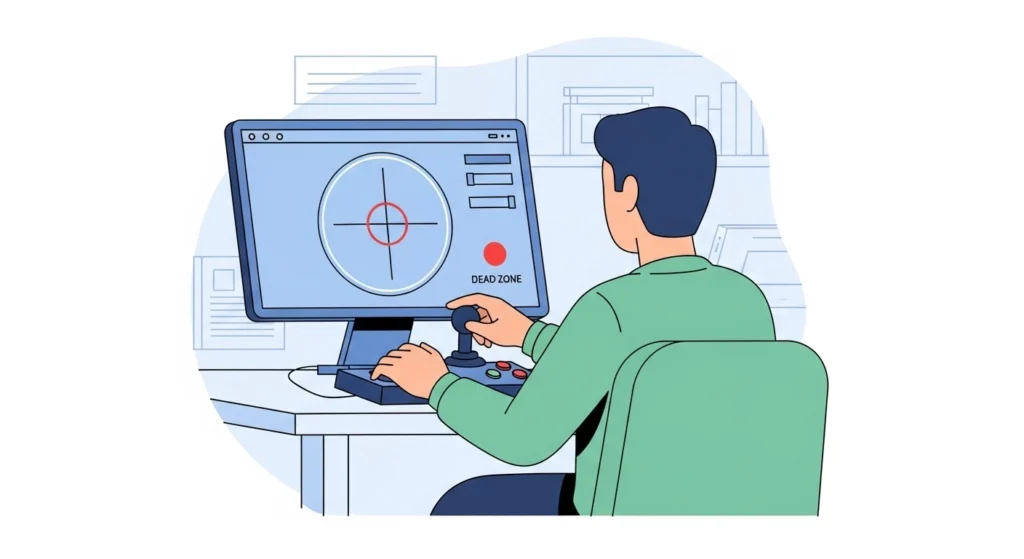
Move each stick slowly around its circle. Note how far you can move before the tester registers new input. That’s your dead zone—the small neutral range preventing micro-fluctuations.
You can define or adjust it in your game settings or calibration tool to reduce unwanted drift sensitivity.
Step 5: Repeat Tests on Both Joysticks
Controllers feature two main sticks—Left for movement and Right for aim/camera. Test both separately since drift can occur in either.
If both drift significantly, environmental factors like dust or humidity could be at play.
How Steam’s Built-In Controller Tester Works
If you use Steam, you already have a powerful calibration and input monitor tool installed.
To Use Steam’s Joystick Drift Tester:
- Open Steam and go to Settings → Controller → General Controller Settings.
- Select your connected controller (Xbox, PS5, DualSense, or Switch Pro).
- Choose Calibrate Joysticks.
- Watch the live input feedback window—it displays stick movement in real time.
If your joysticks appear to move slightly even when untouched, you’re seeing drift. Steam also allows you to re-center and recalibrate directly, which is extremely useful before trying physical cleaning.
(Pro tip: Steam’s tester is great for PC-based gamers who don’t want to open a webpage mid-session.)
Top Free Online Joystick Tester Tools
1. Our Free Online Joystick Drift Tester
- URL: https://gamepadscan.com/game-pad-tester/
- Detects drift using real-time input tracking and drift severity visualization.
- Compatible with Xbox, PlayStation, Switch, and generic PC controllers.
- Offers calibration guides and dead zone configuration suggestions.
(We built it for accuracy and simplicity—open browser, plug in, and it just works.)
2. Steam Controller Tester (Built Into Steam)
Perfect for anyone using Steam on Windows, macOS, or Linux.
Pros:
- Shows live axis movement with graphical input visualization.
- Allows in-app calibration.
Cons: - Requires Steam installation; not ideal for quick browser-based checks.
1. Gamepad Tester (gamepad-tester.com)
A sleek, accurate HTML5-based tool that detects buttons, axes, and vibration feedback. Shows clean numeric input data for pinpoint drift detection.
2. HTML5 Gamepad Viewer (gamepadviewer.com)
Popular among streamers for showing controller inputs live. You can immediately see ghost movements from drift.
3. HardwareTester.com Gamepad Tool
Provides input visualization and highlights active axes dynamically—very useful for diagnosing intermittent stick behavior.
4. Windows Built-in Game Controller Settings
Search “Set up USB game controllers” in Windows. Check the Properties → Test tab for drift without needing an online tool.
Understanding Joystick Calibration and Dead Zones
Calibration aligns your controller’s hardware readings with the software’s expected values. If the center position is off, you’ll see drift even if the hardware’s fine.
How to Calibrate:
- On Windows:
- Go to Control Panel → Devices and Printers → Controller Properties → Settings → Calibrate.
- On PlayStation or Xbox Consoles:
- Use system settings under Devices → Accessories → Calibrate Analog Sticks.
- On Nintendo Switch:
- Go to System Settings → Controllers and Sensors → Calibrate Control Sticks.
Resetting calibration can drastically reduce perceived drift.
Adjusting Dead Zones in Games
Many modern titles—especially shooters and racing games—let you manually tweak dead zones to mask minor drift.
- Increase the dead zone if drift persists.
- Decrease it only if stick response feels sluggish.
Troubleshooting Drift After Testing
Found drift? Don’t despair—several solutions exist before replacing your beloved controller.
1. Recalibrate the Joystick
Software recalibration often corrects misalignment issues.
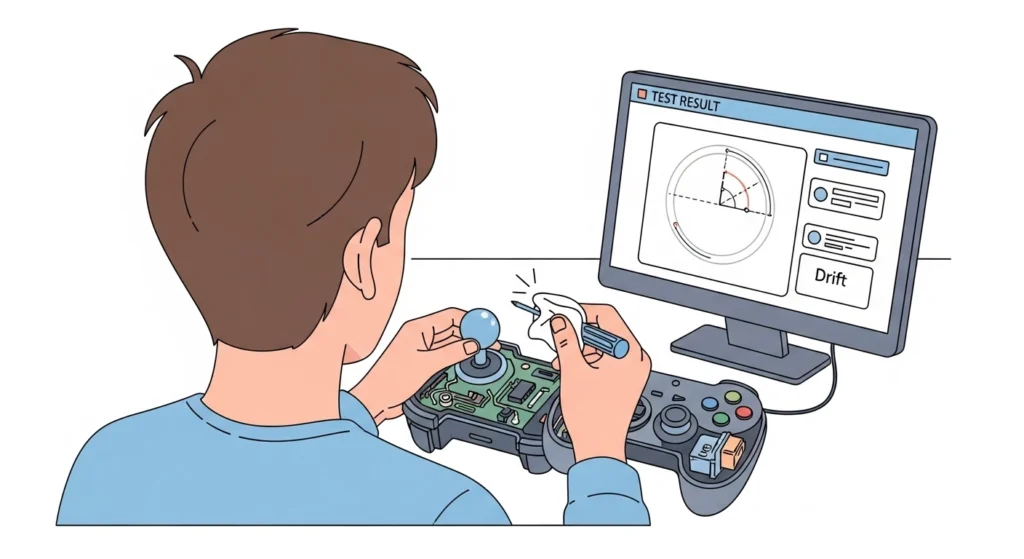
2. Clean the Analog Stick
Use compressed air or isopropyl alcohol on a cotton swab to gently clean around the base of the stick.
3. Update Firmware/Drivers
Manufacturers occasionally release firmware updates to fine-tune analog behavior.
4. Replace the Potentiometer Module
If you’re technically skilled, you can swap out the joystick module (available on sites like iFixit or Amazon).
5. Professional Repair or Warranty Claim
If cleaning or recalibration doesn’t help, contact the manufacturer. Many Xbox and PlayStation controllers have repair programs for drift-prone sticks.
Preventing Future Joystick Drift
A bit of maintenance and mindful handling goes a long way.
Pro Tips:
- Store controllers clean and dry—dust is the silent killer.
- Avoid pressing the stick too hard; gentle control is key.
- Disconnect controllers properly to avoid repeated strain on ports.
- Use controller covers or thumb grips to reduce wear.
- Periodically check for firmware updates and recalibration.
Gamers who regularly test and calibrate their controllers tend to enjoy longer hardware lifespans and smoother gameplay.
Frequently Asked Questions (FAQs)
Q1: What’s the most accurate online joystick drift tester?
A: Among free tools, Gamepad-tester.com and HardwareTester.com both provide precise numerical data and work with nearly every modern browser.
Q2: Is joystick drift permanent?
A: Not necessarily. Minor drift can often be fixed with cleaning or recalibration. But severe drift caused by hardware wear may require replacing the joystick module.
Q3: Can I test Switch Joy-Cons with an online tester?
A: Yes, if connected to a computer via Bluetooth. The HTML5 Gamepad API reads them like other controllers.
Q4: What dead zone should I set to hide drift?
A: Start with around 0.05 (5%), then increase gradually until unintentional movement stops—without making controls feel unresponsive.
Q5: Why does drift happen so much with modern controllers?
A: Modern analog sticks use compact potentiometers that are more sensitive to dust and wear. The tighter tolerances of today’s designs trade durability for precision.
Conclusion and Key Takeaways
Joystick drift can turn epic victories into irrational defeats—but with the right approach, diagnosing it is quick and easy.
Using a free online joystick tester, you can visually confirm whether your stick is sending false inputs, measure deviation, and decide your next action—whether that’s recalibrating, cleaning, or calling for warranty service.
Key Takeaways:
- Online testers instantly show hardware behavior through the HTML5 Gamepad API.
- Drift appears as non-zero input values at rest.
- Adjusting dead zones or recalibrating often fixes minor drift.
- Regular testing and gentle handling prevent long-term controller damage.
So next time your character takes an unwanted stroll, you’ll know exactly what’s happening—and how to stop it.
External Authority Sources: