
Introduction-How Browsers Read Joystick Data
Ever plugged in your controller and wondered how your browser magically “knows” which buttons you press? Your PC or console might make sense, but how on Earth does Chrome or Firefox pick up that movement instantly?
The answer lies in a powerful yet surprisingly underused piece of web technology: the Web Gamepad API.
This article breaks down how browsers read joystick and controller data, why it matters for web game developers, and how you can use it to create interactive experiences that work right inside your browser.
Related Post: XInput vs DirectInput Explained
Table of Contents
What Is the Web Gamepad API?
The Web Gamepad API is part of the official HTML5 specification, designed to let web pages detect and respond to physical game controllers such as joysticks, steering wheels, and handheld gamepads.
Unlike older browser APIs that only handled keyboard and mouse events, the Gamepad API gives web apps a direct line to the buttons, triggers, and analog sticks on your controller.
In simpler terms, it lets a web game “feel” what your controller is doing — when you press “A,” tilt your joystick, or squeeze a trigger, the data is available to JavaScript in real-time.
Key facts about the Web Gamepad API:
- Introduced as part of the HTML5 ecosystem for gaming.
- Supported by major browsers: Chrome, Edge, Firefox, Opera (partial Safari support).
- Allows low-latency polling of controller state — ideal for real-time gameplay.
- Uses standardized button mappings for familiar devices (Xbox, PlayStation, Logitech).
How Browsers Detect Game Controllers
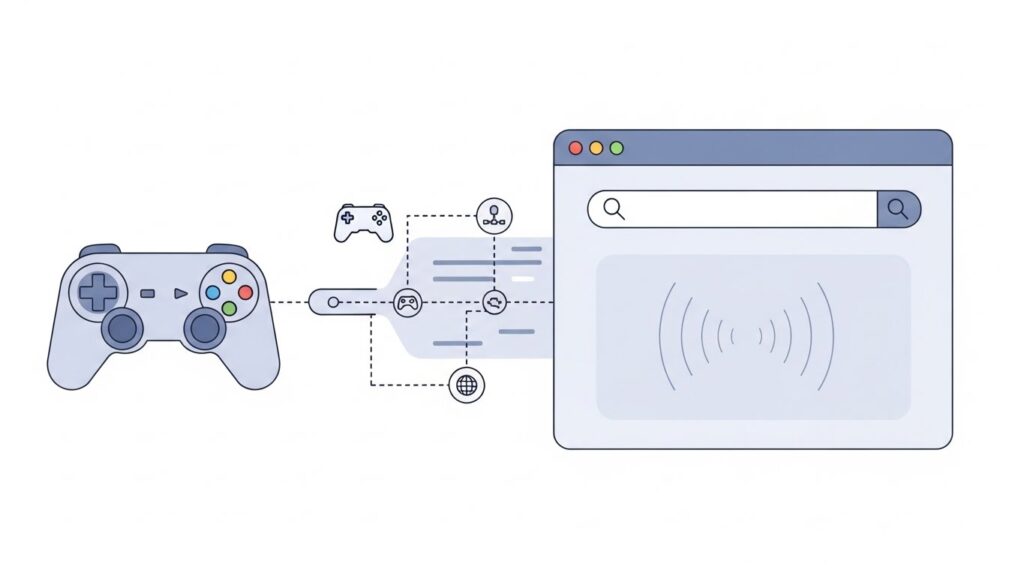
When you plug in your joystick or connect a controller via Bluetooth, your operating system first recognizes it as a Human Interface Device (HID). The browser then accesses that information through the underlying driver layer.
Once your device is registered:
- The browser periodically checks for connected gamepads.
- When a gamepad connects, it triggers the
gamepadconnectedevent. - The browser assigns it an internal ID, including properties like:
- Index (e.g., gamepad[0])
- ID string (e.g., “Xbox Wireless Controller”)
- Axes (analog stick positions)
- Buttons (digital and analog trigger states)
From there, JavaScript can start listening and reading those data values every frame — almost like how a game engine polls controller input.
The Joystick Data Structure Explained
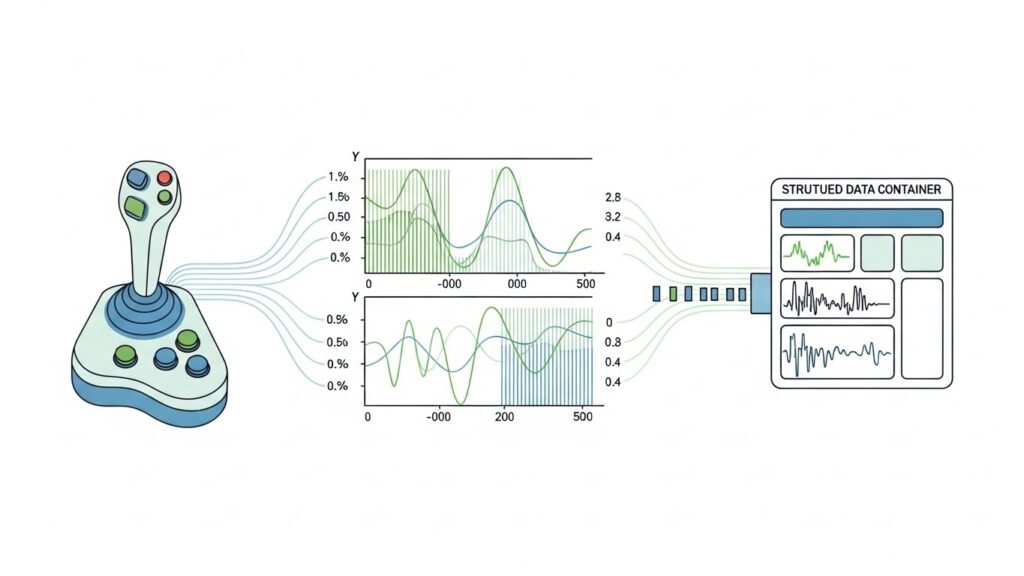
Each connected controller is represented by a Gamepad object in JavaScript. Think of it as a snapshot of every current button and axis on your device.
Here’s what the structure typically includes:
| Property | Description |
|---|---|
id | Descriptive name of the controller |
index | Unique number assigned by browser |
connected | Boolean flag (true if active) |
mapping | “standard” or “custom” button layout |
buttons[] | Array of button states (pressed / value) |
axes[] | Array of analog stick positions (-1 to 1) |
timestamp | Last time the data was updated |
Example Interpretation
If you push your left joystick fully upward, its Y-axis value might read -1.
If you half-press a trigger, its corresponding button value could be 0.5 — since triggers are analog, not just on/off.
Think of the axes and button arrays as constantly updating streams. By reading them continuously, a web app can smoothly map physical movement to in-game motion.
How the Gamepad API Works Step-by-Step
Let’s walk through what happens under the hood when your gamepad interacts with a web page.
Step 1: Controller Connection
- You plug in or connect your Bluetooth controller.
- The browser fires a
gamepadconnectedevent, which contains device details.
Step 2: Polling the Device State
- The JavaScript code continuously calls
navigator.getGamepads(). - This method returns an array of all detected controllers.
Step 3: Reading Button and Axis Values
- Each gamepad object shows:
buttons[0].pressed– true/falseaxes[0]– analog value from -1.0 to +1.0
Step 4: Acting on Input
- The web app can respond immediately — moving a sprite, firing a weapon, accelerating a car, etc.
Step 5: Disconnect Handling
- If a controller disconnects, the browser emits
gamepaddisconnected. - The JavaScript can gracefully stop polling or notify the user.
The entire cycle repeats as long as the web app is running, usually synced with a requestAnimationFrame loop for smooth gameplay.
Code Example: Reading Controller Input
Here’s a simple snippet that demonstrates the concept:
JavaScriptwindow.addEventListener("gamepadconnected", (event) => {
  console.log("Gamepad connected:", event.gamepad.id);
});

function gameLoop() {
  const gamepads = navigator.getGamepads();
  const gp = gamepads[0];
  if (gp) {
    // Example: Check 'A' button (index 0)
    if (gp.buttons[0].pressed) {
      console.log("A button pressed!");
    }

    // Example: Joystick X-axis
    console.log("Left stick X:", gp.axes[0]);
  }

  requestAnimationFrame(gameLoop);
}

requestAnimationFrame(gameLoop);
This miniature demo continuously reads the controller state and logs real-time updates as you press buttons.
Common Use Cases (Beyond Gaming)
While it sounds tailor-made for web games, the Joystick API has more versatile applications:
- Online Joystick Testers: Sites that help users verify controller inputs, button mapping, or drift calibration.
- Virtual Reality (VR) & AR apps: Smooth motion tracking using standard input devices.
- Browser-based robotics control: Send joystick movements directly to a robot via WebSockets.
- Music and creative tools: Map analog sticks to mix sound or visual effects interactively.
With the rise of progressive web apps (PWAs) and WebGPU-based games, the Gamepad API is becoming a cornerstone of truly native-like web experiences.
Limitations and Security Concerns
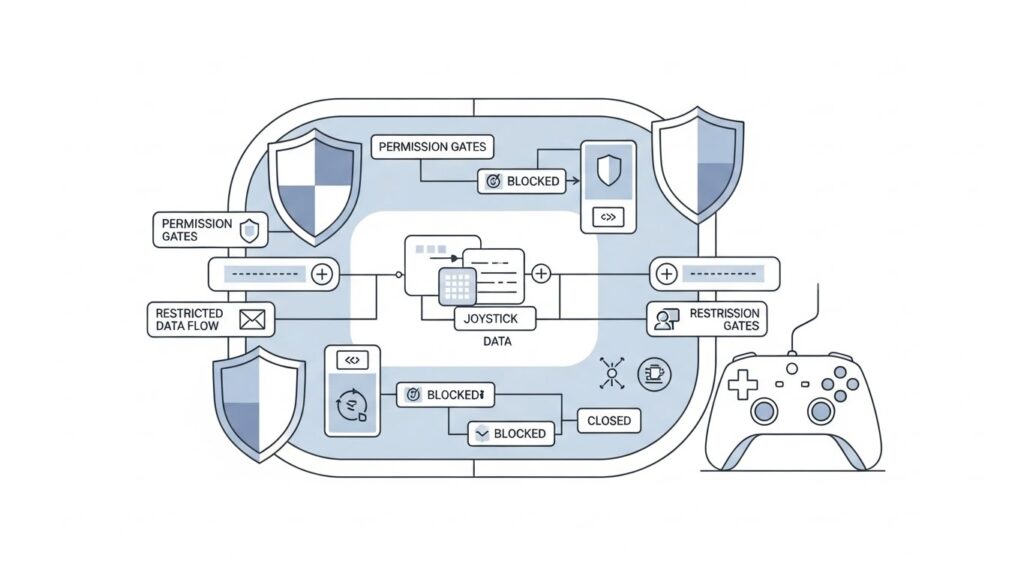
Despite its brilliance, the Web Gamepad API isn’t perfect.
1. Limited Browser Support
Safari still has partial support; you may need flags or experimental settings to make it work reliably.
2. No Device Vibration or Force Feedback (Yet)
Although discussed in the W3C spec, rumble features aren’t uniformly supported.
3. Privacy Protections
Browsers prevent fingerprinting abuse — users must typically interact (click, keypress) before input polling starts.
4. No Unified Dead Zone Handling
Controllers differ slightly; you might need to implement custom dead zone logic to ignore tiny analog stick jitters.
Still, these are solvable problems with careful implementation — and the future looks bright for richer browser control input.
Troubleshooting Controller Detection
If your controller isn’t detected:
- Restart your browser after connecting the device.
- Try another port or reconnect via Bluetooth.
- Test on a controller tester site (using the same Gamepad API).
- Open DevTools → Console → run
navigator.getGamepads(). - Make sure you’ve interacted with the page (click/tap) before polling input.
Remember — browsers block “idle scripts,” so the first press might seem delayed until user activation occurs.
FAQs
1. What types of controllers work with the Web Gamepad API?
Most modern USB and Bluetooth controllers — Xbox, PlayStation, Logitech, and generic joysticks — are supported, as long as your OS recognizes them.
2. Does it work on mobile browsers?
Partial support exists for Android browsers if you connect a Bluetooth controller. iOS support is still limited.
3. How often should I poll input for best performance?
Use requestAnimationFrame for smooth updates (~60 times per second). It syncs naturally with your game’s render cycle.
4. Can I detect multiple gamepads?
Yes. Each connected device gets its own index, so multiplayer browser games are possible.
5. Is the Web Gamepad API safe to use?
Yes. It’s sandboxed in the browser — it can’t alter system settings or read unrelated hardware data.
Conclusion and Key Takeaways
The Web Gamepad API quietly bridges the gap between hardware controllers and browser-based apps, giving the web a seat at the gaming table once reserved for native platforms.
Here’s what you should remember:
- Browsers read joystick data through standardized HID interfaces.
- Developers access that data via
navigator.getGamepads()in real-time. - The data includes precise analog and button states for full controller support.
- It’s ideal not just for games but for online testing tools and creative applications.
- With consistent updates, it’s becoming a key part of the Modern Web Platform.
In short, the Gamepad API makes it possible for your web game to truly “feel” your joystick — no extra plugins, no downloads, just pure browser magic.
External Resources: