
Introduction-Gamepad Tester Beats Windows Calibration
If you’ve ever tried to calibrate a controller on Windows, you probably used the joy.cpl command—a tool that looks like it hasn’t been updated since Windows 95. While it’s fine for a 2-second check to see if a button works, it’s remarkably bad at detecting the subtle issues that ruin modern competitive gaming. Windows ‘averages’ your stick movements, which actually hides small jitters and drift instead of showing them. At GamepadScan, we built our tool to show you the raw, unfiltered data that Windows tries to sweep under the rug.
In this detailed guide, we’ll explore why using a dedicated gamepad tester—like an online controller tester or HTML5 gamepad API-based tool—is far superior to sticking with the default Windows option.
Related Post: Top Gamepad Diagnostic Apps: Pros, Cons, and Accuracy (Ultimate 2026 Guide)
Table of Contents
The Hidden Limitations of Windows Calibration
The Windows Game Controller Settings (often accessed via “joy.cpl”) has been around since Windows XP. It displays basic axis charts and helps you set a “neutral” position for your joystick.
However, that’s about all it does. It’s like using a flip phone in the age of smartphones—it gets the job done but misses out on modern power.
Gamers, streamers, and even developers now rely on dedicated gamepad tester tools for real-time data visualization, stick drift detection, and input precision testing. These tools not only give you instant feedback but also present your controller’s performance in ways the Windows tool never could.
What Is a Gamepad Tester?
A gamepad tester (also known as a joystick tester, controller analyzer, or input monitor) is a tool that reads and displays all the signals your controller sends—button presses, stick movements, trigger pulls, and even vibration feedback patterns.
Modern online testers use the HTML5 Gamepad API to communicate directly with your connected controller through your browser—no software installation required.
You can:
- Identify analog stick dead zones
- Test trigger sensitivity
- Check for button latency
- See real-time input visualization on charts or diagrams
In comparison, Windows calibration tools show only raw input points and expect you to “manually guess” at thresholds. Dedicated testers, on the other hand, do the math for you—and display the results beautifully.
How Windows Calibration Works (and Why It’s Not Enough)
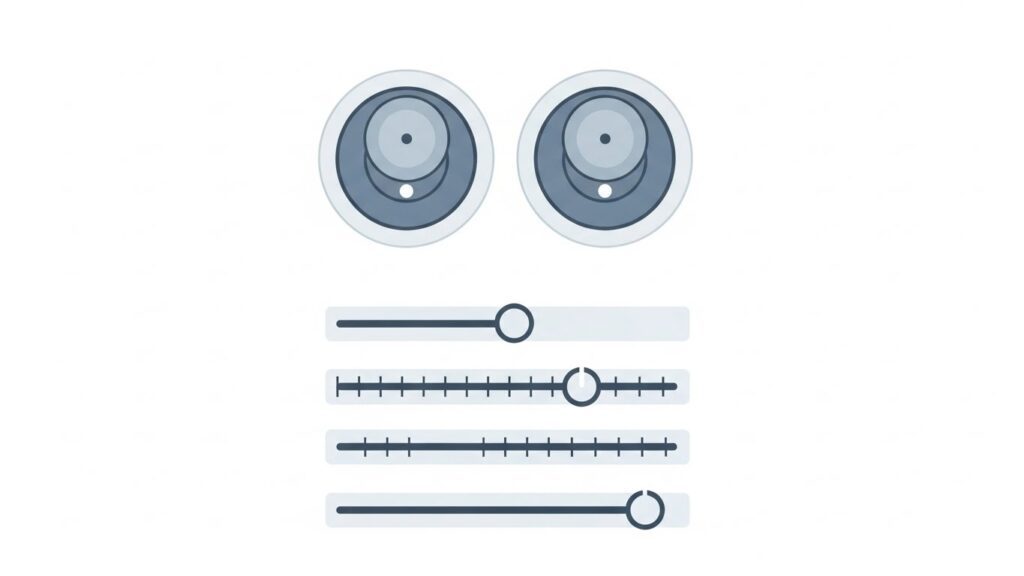
Let’s peek under the hood of the built-in calibration tool.
- Open it: You run “joy.cpl,” select your controller, and click Properties.
- Calibrate: The wizard walks you through neutral positions and range testing for each axis.
- Save Settings: Windows creates a profile and stores those calibration values in the system registry.
Sounds fine, right? Unfortunately, here’s the catch:
- Static Calibration: It doesn’t adapt—once set, it stays until you recalibrate manually.
- No Drift Detection: If your analog stick starts drifting slightly, the tool can’t identify the problem.
- Limited Precision: Windows calibration uses rounded values, which can affect fine aiming or racing precision.
- No Trigger Visibility: Triggers on Xbox or PlayStation controllers aren’t visualized in detail.
- No Multi-Controller Support: Testing several controllers quickly is tedious.
Essentially, it’s a diagnostic dinosaur.
If you look at recent deep-dives on r/Controller or the HardwareTester community, there’s a growing consensus that ‘Software Calibration’ is often just a band-aid for hardware failure. Users on Reddit have pointed out that Windows calibration essentially ‘stretches’ your controller’s deadzones to make a broken stick appear centered. The community of GitHub developers working on Gamepad API projects (like the DualShock-Tools GUI) argue that this can actually reduce your stick’s resolution, making fine aim in games like Valorant feel ‘steppy’ rather than smooth. Our web-based tool shows you the raw 16-bit integer values, so you know exactly what your hardware is doing before Windows meddles with it.
Why Dedicated Gamepad Testers Win
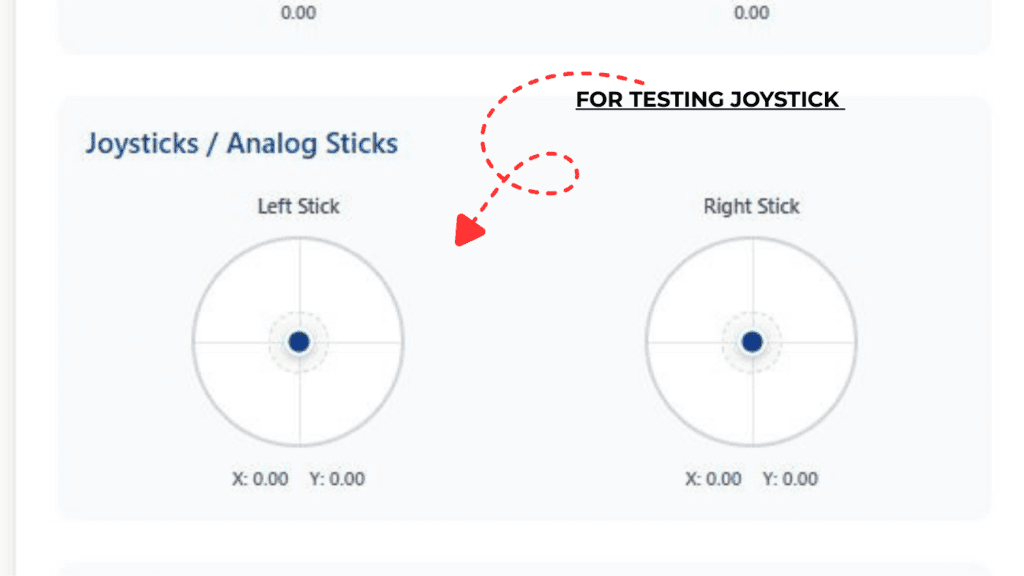
FIGURE 1: SHOWS JOYSTICK MOVEMENT IN OUR TESTER
Dedicated testers transform your controller from a black box into a transparent data feed. Let’s break it down.
1. Real-Time Input Accuracy
Online controller testers capture raw input data directly from your device with zero processing interference. That means:
- Every movement is visible in real time.
- You can monitor subtle axis fluctuations (useful for drift detection).
- Ideal for competitive gamers who need pinpoint accuracy.
Some testers even display numeric values for each input (like X-axis: -0.12), so you can measure sensitivity down to the decimal.
2. Intuitive Data Visualization
Unlike Windows’ lifeless crosshairs, gamepad testers visualize:
- Circular range maps for analog sticks
- Color-coded buttons that light up
- Graphs showing movement curves
With one glance, you can tell whether a stick reaches its full range or hits a plateau early.
It’s a difference between “barely seeing motion dots” and “watching your controller’s heartbeat in real time.”
3. Cross-Platform Compatibility
Windows calibration is, well, Windows-only. Dedicated gamepad testers often work on:
- Windows
- macOS
- Linux
- Android (using Chrome)
- Steam Deck via browser
That universality is powered by the HTML5 Gamepad API, which treats your controller as a universal input device. So no matter your system, your controller testing experience remains consistent.
4. Detecting Dead Zones and Drift
One of the biggest advantages? Drift diagnostics.
Joystick drift happens when your analog stick sends small input signals even when idle. Dedicated testers let you:
- Identify whether the drift is on the X-axis or Y-axis
- Measure drift amplitude
- Adjust your in-game dead zones accordingly
Where Windows simply shows an “off-center” cross, testers give you numbers and visuals you can act on.
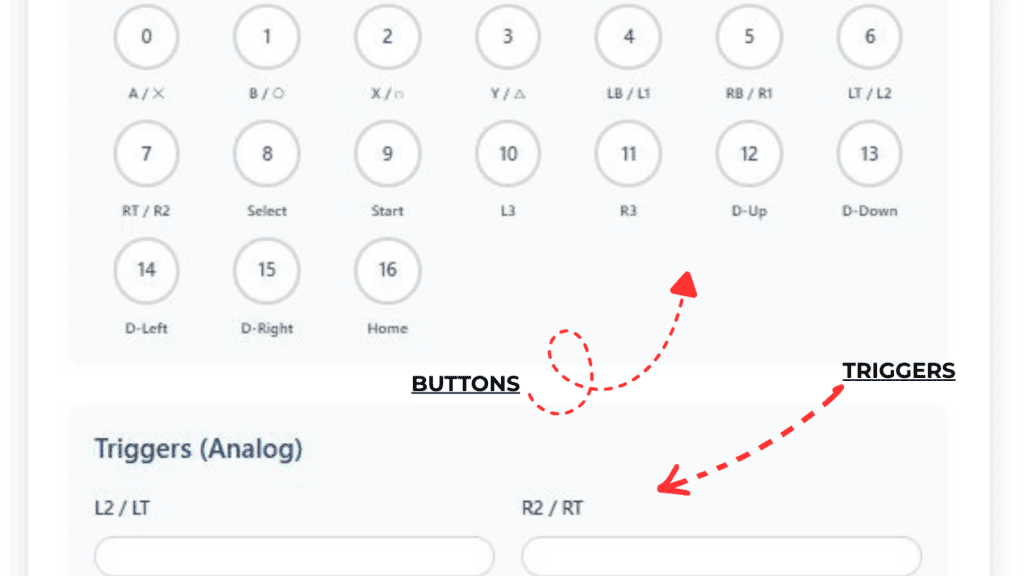
5. Custom Testing Features
Some modern gamepad testers include:
- Button test counters (how many times a button is pressed)
- Vibration feedback control
- Pressure sensitivity graphs for triggers
- Profile saving for multiple controllers
Think of these as the diagnostic toolkit of a professional game tech—without needing a lab coat.
💡 Developer’s Pro Tip: The 1.00000 Fallacy “One thing Windows won’t tell you is your ‘Circularity Error.’ When you push your stick to the edge, it should ideally form a perfect circle in the data. Windows calibration often ‘forces’ your stick to hit 100% in all directions, even if your physical sensor is failing. My recommendation? Use our tester to check your circularity percentage. If your error is over 10%, your ‘outer’ deadzone is too small, and you’ll find that you can’t hit maximum turn speed in racing games or shooters. Don’t calibrate it in Windows—clean the sensor or adjust your in-game ‘Outer Threshold’ to keep your stick’s movement feeling natural.
Step-by-Step: Testing Your Controller the Right Way
Here’s how to test your controller with a dedicated tester effectively.
- Connect your controller via USB or Bluetooth.
- Open your preferred online controller tester (for example, HTML5 Gamepad Tester).
- Allow browser access when prompted.
- Watch inputs live as you move sticks and press buttons.
- Note any drift, lag, or range issues.
- Compare both sticks and triggers for symmetry.
Optional: take screenshots or export readings if available. This helps when contacting controller support or adjusting in-game configurations.
Comparing Dedicated Gamepad Testers vs Windows Tool
| Feature | Dedicated Gamepad Tester | Windows Calibration Tool |
|---|---|---|
| Real-time visualization | ✅ Yes | ⚠️ Basic cross view only |
| Dead zone detection | ✅ Precise numeric data | 🚫 Not supported |
| Cross-platform support | ✅ Browser-based (all OS) | ❌ Windows-only |
| Multiple controller profiles | ✅ Save and load profiles | 🚫 Manual setup required |
| UI & user experience | 🌈 Interactive and modern | 🧱 Outdated interface |
| Accuracy | ✅ Raw, exact readings | ⚠️ Rounded approximations |
| Ease of use | ✅ Plug-and-play simplicity | ⚙️ Multiple dialog steps |
Best Dedicated Gamepad Testers (Free & Online)
If you’re ready to upgrade your calibration experience, here are some top recommendations:
- Gamepad Tester (HTML5) – https://gamepadscan.com/game-pad-tester/
- Live axis data, button mapping, and drift visualization.
- HTML5 Gamepad Viewer – https://html5gamepad.com
- Great for developers; shows gamepad index and API properties.
- Controllers.app
- Desktop app for advanced testing (supports Xbox, PS, and Switch Pro controllers).
- Steam Big Picture Controller Configurator
- Built into Steam’s settings for real-game testing.
These platforms maintain accurate readings using open web APIs, making them reliable for gamers, developers, and testers alike.
FAQs
1. Can I fix stick drift using a gamepad tester?
Not directly—but you can measure drift values to adjust in-game dead zones or identify if your controller needs repair. Think of it as the doctor’s diagnostic tool before treatment.
2. Is Windows calibration ever useful?
Yes, for initial setup or basic axis alignment. But for diagnosing detailed issues or cross-checking precision, dedicated testers are superior.
3. Do gamepad testers work with wireless controllers?
Absolutely. As long as the controller is recognized by your system or browser, the HTML5 Gamepad API will detect it—Bluetooth or wired.
4. Can I use these testers for PlayStation, Xbox, or Switch controllers?
Yes, most modern browsers recognize all major brands, including DualShock, DualSense, Xbox, and Switch Pro controllers.
Conclusion & Key Takeaways
The old Windows Calibration tool belongs in a museum next to floppy disks. Today’s dedicated gamepad testers provide deeper insights, real-time accuracy, and multi-platform convenience—all in your browser, for free.
Here’s what we’ve learned:
- Dedicated testers offer real-time precision and visual clarity Windows lacks.
- You can detect joystick drift and fine-tune dead zones easily.
- Cross-platform compatibility ensures consistent results everywhere.
- Web testers using the HTML5 Gamepad API deliver clean, accurate diagnostics without installing anything.
For gamers serious about precision, testing with a dedicated tool isn’t optional—it’s essential. The next time your crosshair drifts on its own, skip the outdated calibration wizard and consult a professional-grade, modern gamepad tester instead.
External Authority Sources:
- Microsoft Game Input API Documentation
- Mozilla Developer Network (MDN) – Gamepad API Reference
You’ve got the knowledge—now it’s time to bring your controller inputs up to championship precision.