
Introduction
Is your controller acting weird again—buttons unresponsive, a joystick drifting like it’s perpetually skating on ice, or triggers lagging behind your reflexes? Don’t toss it into the abyss of broken gadgets just yet. Gamepad diagnostic apps are here to untangle the mystery.
These tools let you test controller performance, calibrate joysticks, check input response, and catch hardware issues early. Whether you’re a PC gamer using an Xbox wireless controller, a PlayStation user troubleshooting analog drift, or a retro joystick enthusiast, the right diagnostic app can make all the difference.
In this ultimate guide, we’ll compare the top gamepad diagnostic apps, breaking down pros, cons, and accuracy, plus real-world use cases and expert recommendations.
Table of Contents
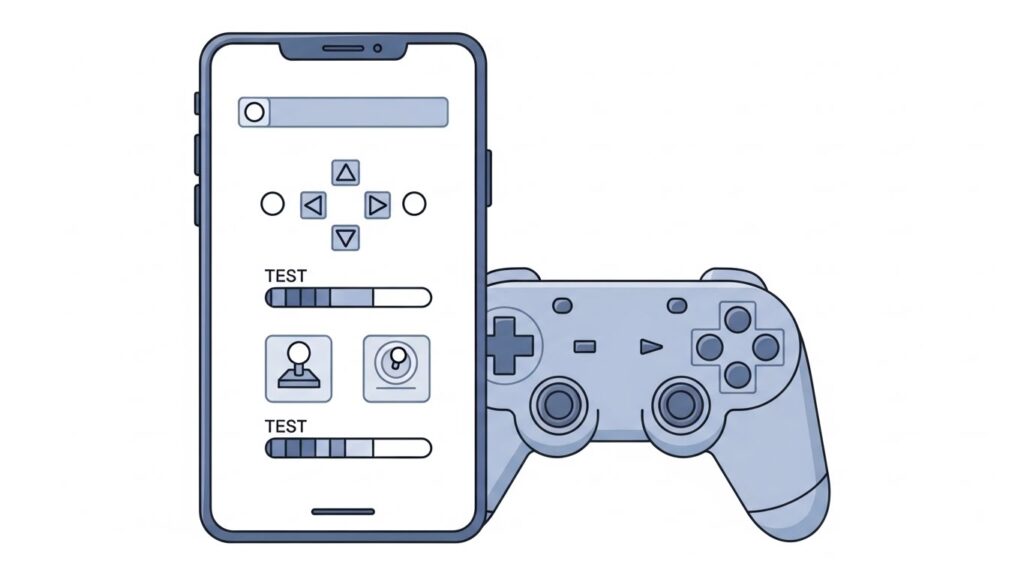
What Are Gamepad Diagnostic Apps?
Gamepad diagnostic apps are utility tools designed to detect, test, and monitor input data coming from gaming controllers. They visualize button presses, joystick movement, analog drift, dead zones, and input latency.
Essentially, they translate invisible controller signals into visual readings, helping you:
- Identify hardware failures (e.g., stuck buttons or dead analog axes).
- Calibrate joystick alignment for optimal accuracy.
- Ensure input mapping is recognized on your system.
- Verify vibration and trigger response functions.
These tools can be web-based (HTML5), standalone software for Windows/macOS/Linux, or mobile apps for Android and iOS.
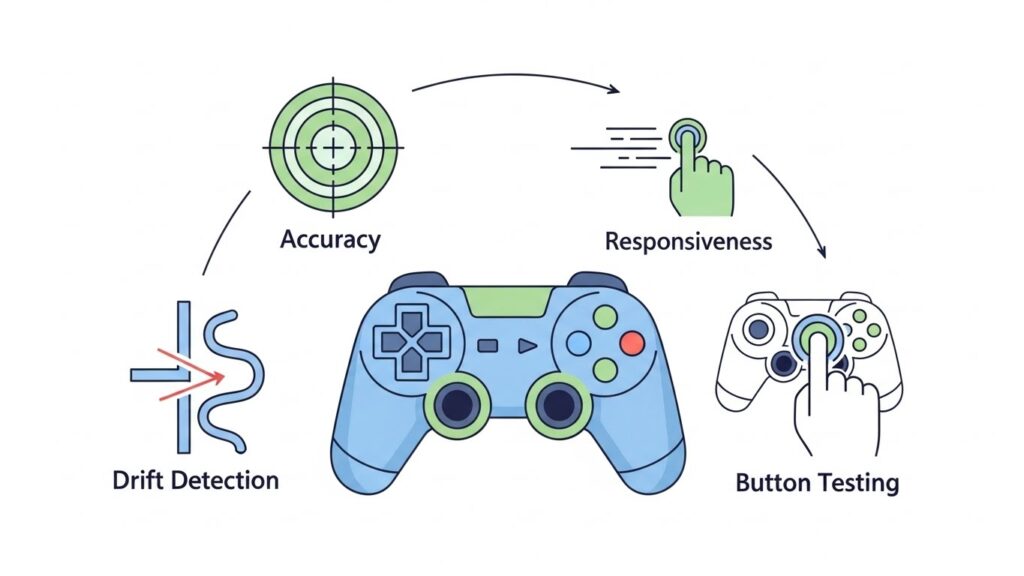
Why Use a Gamepad Diagnostic Tool?
You might think your controller is fine until your in-game aim drifts left when you’re not touching anything. That’s joystick drift — and these tools are your first line of diagnosis.
Common Reasons to Test Your Gamepad
- Joystick drift check: Does your analog stick report movement when centered?
- Button input test: Are some buttons double-pressing or missing inputs?
- Trigger calibration: Testing analog pressure levels on triggers.
- Response delay: Measuring latency from press to action.
- Compatibility confirmation: Ensuring the system recognizes all input signals.
A good gamepad tester prevents unnecessary controller replacements and can even help you troubleshoot firmware or driver conflicts.
Top 7 Gamepad Diagnostic Apps – Detailed Review
Let’s break down the most accurate and popular diagnostic tools currently available.
1. Gamepad Tester (Online)
Platform: Browser (Web-based)
Best For: Quick plug-and-play testing via the HTML5 Gamepad API.
Overview:
Gamepad Tester is a free online tool that instantly detects connected controllers. It uses the HTML5 Gamepad API and displays real-time feedback for buttons, triggers, and analogs with colorful visual indicators.
Pros:
- No software installation needed.
- Works with most controllers (Xbox, PlayStation, Switch Pro, generic USB).
- Shows button mapping instantly.
- Excellent for testing multiple devices quickly.
Cons:
- Requires a compatible browser (Chrome, Edge, or Firefox).
- Limited calibration tools.
- No offline access.
Accuracy:
Highly accurate in detecting live input data, though response latency measurement may vary slightly across browsers.
2. HTML5 Gamepad Tester
Platform: Browser
Best For: Developers and testers who want deeper insight into input values.
Overview:
This open-source online tester provides detailed numeric readouts of axes, states, and buttons. It’s particularly useful for joystick axis calibration and verifying dead zone issues.
Pros:
- Lightweight, open-source, and free.
- Shows raw input values (ideal for developers).
- Supports multiple simultaneous controllers.
Cons:
- Barebones interface; no visual flair.
- No built-in fixes or calibration functions.
Accuracy:
Exceptionally precise for raw input analysis. Perfect for debugging or verifying joystick linearity.
3. Joystick Tester (Windows)
Platform: Windows
Best For: PC users needing deep calibration and vibration tests.
Overview:
Joystick Tester is a Windows utility that reads controller input directly from the system’s DirectInput layer. It enables vibration and re-mapping testing, which is great for diagnosing motors or trigger issues.
Pros:
- Offline use and access to advanced diagnostics.
- Vibration motor and LED indicator checks.
- Supports older DirectInput controllers.
- Logs input data over time.
Cons:
- Dated UI design.
- Not cross-platform.
- Requires manual driver configuration.
Accuracy:
Near perfect for Windows-based controllers, providing system-level readings that match actual signals.
4. Controller Test (Android)
Platform: Android
Best For: Mobile gamers using Bluetooth or wired controllers.
Overview:
Controller Test is an Android app used to verify controller input directly on your smartphone or tablet. It visualizes presses, joysticks, and analog triggers with a clean touch-friendly interface.
Pros:
- Simple setup—just connect via USB or Bluetooth.
- Detects wide controller range (Xbox, PS4/PS5, generic USB).
- No ads or in-app clutter (depending on version).
- Handy for mobile gaming setups.
Cons:
- Some devices misreport Android key codes.
- Limited calibration adjustments.
- Minor lag when paired with multiple controllers.
Accuracy:
Fairly accurate for button and stick detection, though input latency depends on device and Android version.
5. Game Controller Tester (Steam)
Platform: Steam (Windows/macOS/Linux)
Best For: Gamers who want to test and log performance through Steam’s controller API.
Overview:
Available in Steam’s Tools section, this software leverages the Steam Input system to visualize controller state and configurations. Perfect for diagnosing issues on Steam Deck or PC setups.
Pros:
- Integrated with Steam Big Picture mode.
- Logs button presses and trigger curves.
- Useful for verifying custom controller profiles.
- Supports community layouts.
Cons:
- Works best only within Steam ecosystem.
- Occasionally misreads third-party devices.
Accuracy:
Steam-level precision—ideal for those using the platform regularly. Results closely mirror game performance.
6. DS4Windows
Platform: Windows
Best For: PlayStation controller users on PC.
Overview:
DS4Windows is a robust utility that emulates PS4 and PS5 controllers as Xbox devices for better compatibility. It includes built-in diagnostic and calibration options.
Pros:
- Deep insights into gyro, touchpad, and triggers.
- Customizable profiles and sensitivity curves.
- Excellent mapping flexibility.
Cons:
- Requires virtual driver setup.
- Interface can overwhelm beginners.
Accuracy:
Extremely accurate for PS controllers, especially in tracking analog and gyro behavior.
7. Controller Companion
Platform: Windows
Best For: Navigation and light diagnostic tasks on Windows desktops.
Overview:
Controller Companion doubles as a diagnostic and desktop navigation app. It can visualize button mapping and even emulate keyboard/mouse actions.
Pros:
- Great for general diagnostics.
- Useful desktop utilities built-in.
- Runs in system tray for convenience.
Cons:
- Paid software.
- Not specialized for deep hardware diagnostics.
Accuracy:
Good for general testing, but limited in raw data analytics.
How Accurate Are Gamepad Diagnostic Apps?
Accuracy varies depending on data source access:
- Web-based testers use standard browser APIs (HTML5 Gamepad API), which rely on the OS-level driver interpretation.
- Desktop applications like Joystick Tester or DS4Windows access DirectInput/XInput, making them more precise in measuring feedback and latency.
- Mobile apps depend on Android/iOS input mapping layers, which can slightly distort readings.
General Accuracy Hierarchy
- Desktop-level apps (e.g., DS4Windows, Joystick Tester)
- Steam-based testers
- Web-based HTML5 tools
- Mobile testing apps
Still, for 95% of troubleshooting or calibration tasks, even an HTML5-based test offers more than enough accuracy.
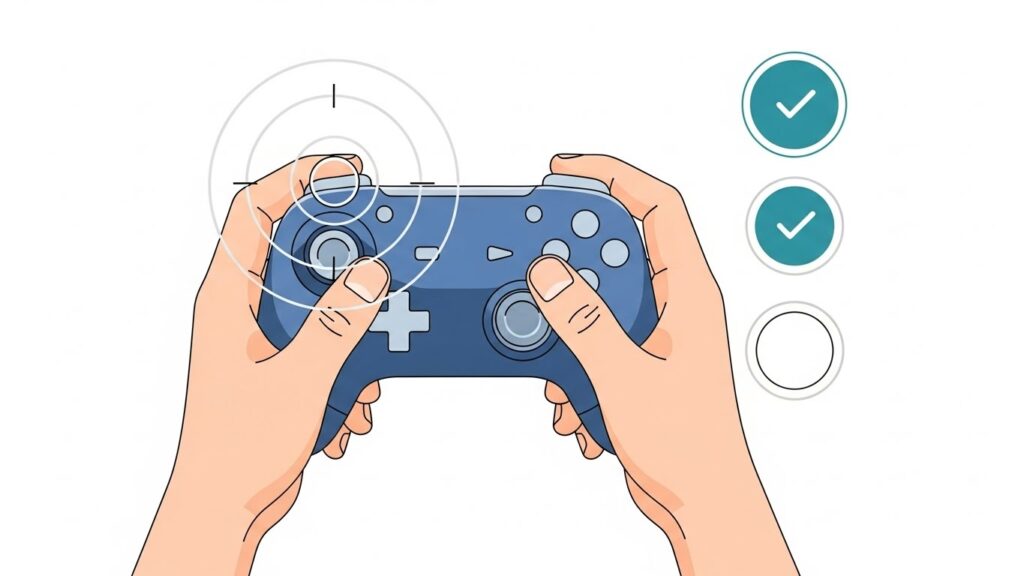
Tips for Reliable Controller Testing
- Use a wired connection when possible—wireless input delay can distort readings.
- Calibrate dead zones after testing to remove unwanted drift.
- Restart your system before each test to ensure no driver conflicts.
- Test across different tools for consistency—one app’s results can confirm another’s.
- Keep firmware updated, especially for Xbox and PS controllers.
For deeper results, consider cross-referencing readings from both Gamepad Tester (web) and DS4Windows (PC).
FAQs
1. Can I test a PS5 controller on PC without DS4Windows?
Yes. Modern browsers and systems with native DualSense drivers can detect and test PS5 controllers through HTML5 gamepad testers or Steam Input directly.
2. How do I fix joystick drift detected in a test?
If drift persists after calibration, gently clean the analog base with compressed air or isopropyl alcohol. If hardware is worn, replacement modules may be needed.
3. Do gamepad testers work for Nintendo Switch Pro controllers?
Yes, most testers (especially HTML5-based tools) support Switch Pro via USB. For Bluetooth use, ensure ‘Pro Controller Wired Communication’ is enabled.
4. How can I test controller input delay?
Use desktop testers that log timestamped data (like Joystick Tester) or game performance overlays that report latency.
5. Are browser-based testers safe to use?
Yes. Reputable sites like gamepad-tester.com do not access personal data and run locally in your browser via the HTML5 Gamepad API.
Conclusion & Key Takeaways
Gamepad diagnostic apps aren’t just utilities—they’re lifesavers for gamers and developers alike. Whether you need to check analog drift, input recognition, or calibration accuracy, these tools empower you to fix issues long before they ruin your gaming session.
Key Takeaways:
- Web-based testers (Gamepad Tester, HTML5 Gamepad Tester) are quick, free, and easy.
- Windows applications (DS4Windows, Joystick Tester) provide the highest precision.
- Mobile apps (Controller Test) help diagnose Bluetooth setup issues.
- Always compare results between two tools for best accuracy.
A few minutes with the right diagnostic app can save you hours of frustration—and maybe even a small fortune on replacement controllers.
More Guides:
- Web-Based vs Software Gamepad Testers: Which One Is More Accurate in 2026?
- The Most Accurate Online Gamepad Tester of 2026 – Full Feature Breakdown & Guide
- Why a Dedicated Gamepad Tester Beats Windows Calibration (2026 Guide)
- Comparing Our Tool With Others: Ultimate Benchmarks
External Authority Sources:
And now your controllers can finally behave like the precision instruments they were meant to be—no more guessing whether that rogue trigger pull was you or your hardware acting up again.