
Introduction-Gamepad Detected but Not Working on Windows
There is a very specific type of rage that comes from seeing your controller listed as ‘Connected’ in Windows Settings, only to open your game and realize none of the buttons work. It’s like the PC is acknowledging the controller exists but is refusing to speak its language. I’ve spent countless hours debugging this on my own dev machines, and usually, it isn’t a hardware failure—it’s a ‘Ghost Device’ conflict or a power-saving setting that Windows decided to turn on without asking you. In this guide, I’ll walk you through the 7 fixes that actually work in 2026, starting with the one most people overlook.
The good news? It’s rarely permanent. Most cases can be fixed with a few quick tweaks.
In this guide, you’ll learn seven tried-and-tested fixes for when your gamepad is detected but not working on Windows. We’ll cover everything from driver updates and calibration to Windows settings and controller-specific solutions.
Pillar Post: Controller Buttons Not Responding? Fix Them Fast with This Gamepad Tester Trick(Ultimate 2025 Guide)
Table of Contents
Why Windows Detects But Doesn’t Register Your Gamepad
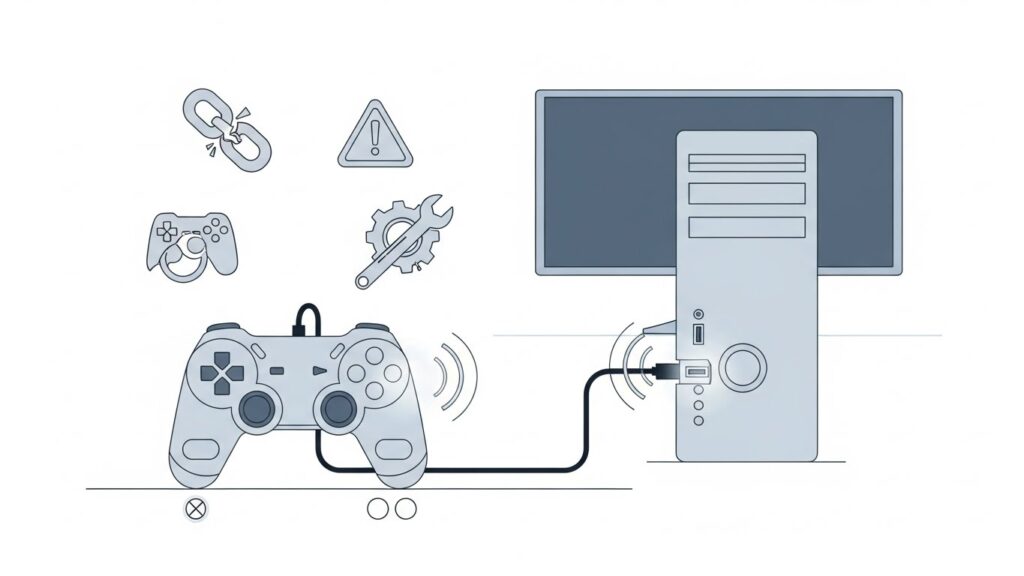
Windows is great at recognizing new hardware—but sometimes, drivers, DirectInput/XInput mode mismatches, or input conflicts stop the gamepad from functioning properly.
Common culprits include:
- Outdated or corrupt drivers
- Wrong input mode (XInput vs DirectInput)
- USB power or connection issues
- Missing Windows updates
- Third-party interference (from apps like DS4Windows or Steam Input)
Understanding the root cause helps you choose the best fix. Let’s dive into each method.
If you’ve been keeping up with the r/WindowsHelp or r/SteamController subreddits lately, you’ll notice a huge spike in complaints following the recent Windows 11 24H2 and 25H2 updates. Many users have reported that Windows is incorrectly tagging standard gamepads as ‘Generic HID’ devices instead of ‘XInput’ devices, which effectively breaks compatibility with the Xbox Game Pass app and EA Play. The community consensus on Reddit is that if your controller shows up in our GamepadScan tester but not in your game, you are likely dealing with a ‘Driver Priority’ conflict where Steam is trying to override a system-level driver.
Fix 1: Check Hardware Connections
Before getting lost in settings screens, start simple—verify your physical connections.
Step-by-step:
- Unplug your controller and reconnect it to a different USB port (preferably direct, not through a hub).
- Use a different USB cable if it’s detachable.
- Test the gamepad on another PC or console to confirm it’s not a hardware fault.
- If you’re using Bluetooth, ensure:
- The controller is charged.
- Your PC’s Bluetooth is on and paired correctly.
- Try removing the device from the Bluetooth list and pairing again.
If the controller works elsewhere, your PC setup is the issue—continue with the next fixes.
Fix 2: Update or Reinstall Gamepad Drivers
Drivers are the bridge between your device and Windows. A corrupted or outdated driver often causes detection-without-function.
Update drivers via Device Manager
- Press Win + X → Device Manager.
- Expand Human Interface Devices or Sound, video and game controllers.
- Right-click your controller → Update driver.
- Choose Search automatically for drivers.
If nothing updates, you can:
- Download the latest driver from the manufacturer’s official site (Xbox Accessories App, Sony DualShock Driver, etc.).
- Or uninstall and reconnect:
- Right-click → Uninstall device.
- Unplug and replug to auto-reinstall.
Developer’s Pro Tip: The ‘Power Management’ Stealth Fix “Before you start reinstalling drivers, try this ‘deep’ fix that most modern Windows menus hide. Open Device Manager, expand the Universal Serial Bus controllers section, right-click on every USB Root Hub, and go to Properties > Power Management. Uncheck the box that says ‘Allow the computer to turn off this device to save power.’ Windows is notorious for ‘sleeping’ your USB ports to save energy, which can cause the controller to stay ‘detected’ but stop sending data packets. I’ve seen this one change fix ‘unresponsive’ controllers for 50% of the users who reach out to me.”
Fix 3: Configure Gamepad Settings in Windows
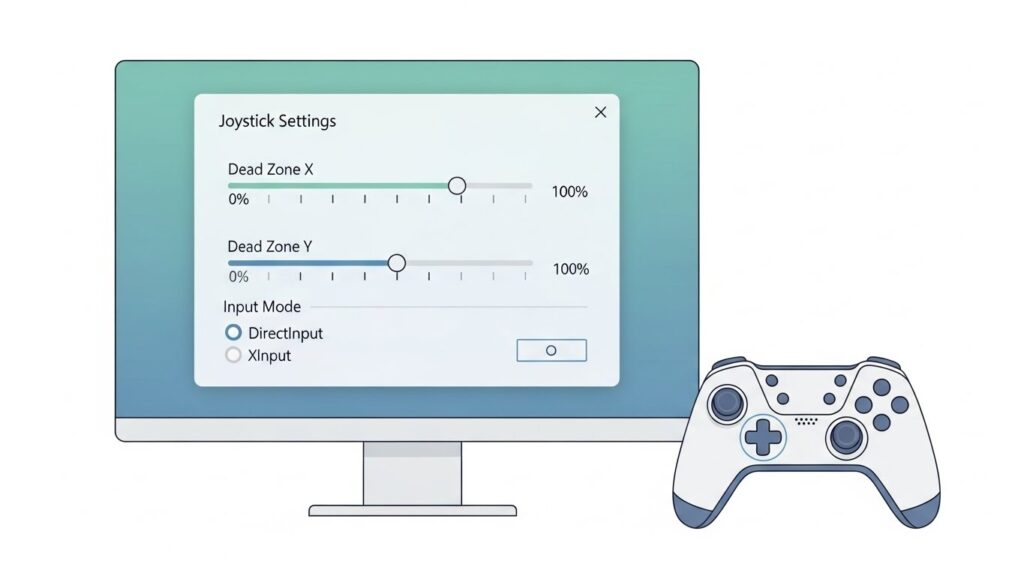
Sometimes the controller is recognized but isn’t registered as the default input device.
Access the Game Controller Settings:
- Press Win + R → type joy.cpl → Enter.
- You’ll see a list of controllers detected.
- Select your controller → choose Properties → check if buttons respond under Test tab.
- If the controller is detected but inputs don’t register:
- Click Advanced → Set as Preferred device.
- Save and re-test.
If you see multiple controllers listed (e.g., “Virtual Controller”), disable extras.
Fix 4: Calibrate Your Controller
Calibration ensures joystick axes and triggers respond accurately. Miscalibration can make Windows think your controller isn’t sending signals.
To recalibrate:
- Open joy.cpl → select your controller → Properties.
- Under Settings, click Calibrate.
- Follow on-screen prompts to move sticks and press triggers.
- Save the calibration and test button responses.
Fix 5: Enable Gamepad Support in Your Game or Emulator
Sometimes, your controller works fine in Windows but not in specific games.
In Steam:
- Go to Steam → Settings → Controller → General Controller Settings.
- Enable the checkbox for your controller type (e.g., “Xbox Configuration Support” or “PlayStation Configuration Support”).
- Restart Steam.
In Emulators or Non-Steam Games:
- For RPCS3, PCSX2, Dolphin, or others—remember to assign controller input in controller settings.
- For Epic Games or UWP apps, ensure gamepad support is enabled under input settings.
Fix 6: Disable Conflicting Devices or Drivers
Some third-party software (like virtual controllers or mapping tools) may interfere.
Steps to isolate conflicts:
- Open Device Manager → View → Show hidden devices.
- Uninstall old or ghosted controllers.
- Disable third-party tools like x360ce, reWASD, or vJoy temporarily.
- Restart your PC.
Additionally, disable Steam Input for individual games if it’s causing duplicate inputs.
Fix 7: Update Windows & Test with HTML5 Gamepad API
If you’ve tried everything else, your system environment may be outdated or misconfigured.
Perform these steps:
- Go to Settings → Windows Update → Check for updates.
- After updating, open your browser and test your controller using an online HTML5 gamepad tester .
- Move sticks, press buttons—if the web app registers input, your controller hardware and Windows drivers are healthy.
If not, Windows input libraries might be broken—consider a system restore or SFC scan.
💡 Command tip:
- Run sfc /scannow in Command Prompt (Admin) to repair core system files.
Comparison Table (Identifying the Culprit)
| If your controller shows… | It likely means… | The Quick Fix |
| Detected in Tester, No in Game | API/Driver Conflict | Enable “Steam Input” or Use DS4Windows |
| Yellow Triangle in Device Manager | Missing/Corrupt Driver | Right-click > Update Driver > Search Automatically |
| Detected but ‘Jumping’ Inputs | Interference / Power Issue | Disable “USB Selective Suspend” in Power Plan |
| Detected only via USB, not BT | Firmware Mismatch | Update via “Xbox Accessories” or “Sony FW” App |
Additional Tips: Tuning Joystick Dead Zones & Input Modes
Controllers like Logitech, 8BitDo, or generic USB pads let you switch between XInput (modern) and DirectInput (legacy).
If your controller isn’t working:
- Try pressing Mode or Input button on the controller to toggle modes.
- Check your game’s compatibility with XInput or DirectInput.
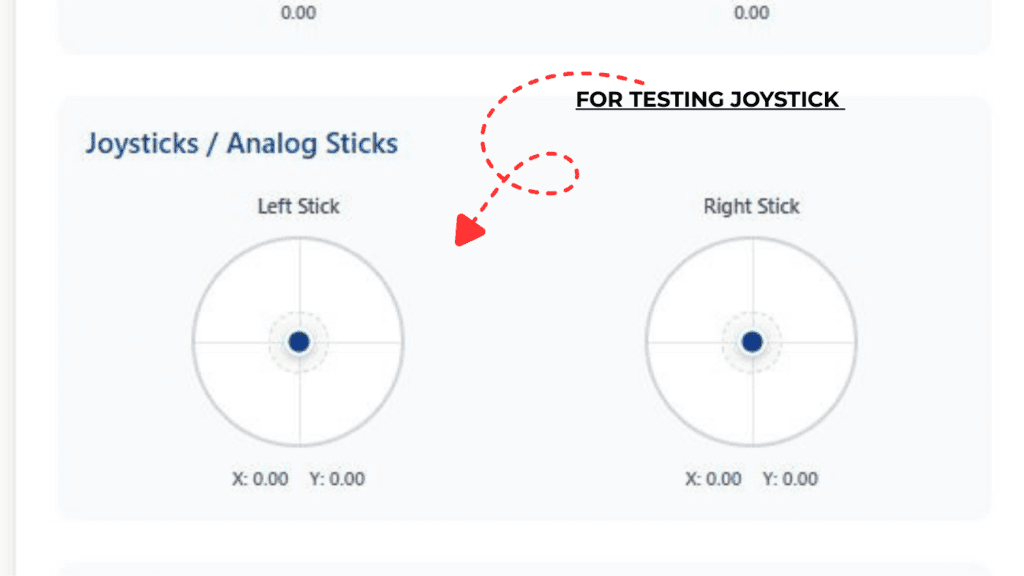
Adjust joystick dead zones:
If your controller has slight drift, use game settings or tools like Steam Input Configurator or DS4Windows to fine-tune dead zones.
FAQs About Gamepads Not Working
Q1. My controller lights up but doesn’t work in games. Why?
Your controller might be using incompatible input mode. Switch between XInput and DirectInput or reconfigure controller preferences in Steam or Windows.
Q2. Why does my gamepad stop working after Windows Update?
Driver compatibility can break after updates. Reinstall gamepad drivers or use the “Roll Back Driver” option in Device Manager.
Q3. How can I test if my controller is working correctly?
Open joy.cpl or use an HTML5 Gamepad Tester in your browser. Button and axis inputs should respond in real time.
Q4. Can I use Bluetooth controllers without the adapter?
Yes, if your PC supports Bluetooth 4.0 or above and the controller uses standard Bluetooth pairing (DualShock 4, Xbox Wireless, etc.).
Q5. Why is my controller input delayed or erratic?
Input lag can occur due to wireless interference, outdated firmware, or conflicting background apps. Try wired connection and disable overlay software.
Conclusion: Smooth Controls, Smooth Gaming
A “gamepad detected but not working” issue can feel mystifying, but it’s rarely unsolvable. Whether it’s a simple driver refresh, quick calibration, or toggling input modes, the fixes above will cover almost every scenario.
Run through them systematically—start with hardware checks, move on to software and driver updates, then test using HTML5 gamepad tools for confirmation. Soon enough, that silent controller will be back in action.
And once it’s all working? Maybe reward yourself with an extra round of your favorite game—this time, with full control restored.
External authority sources: