
Introduction-How to Detect and Fix Sensor Drift
There is nothing more frustrating than being in a high-stakes match and watching your crosshair slowly crawl toward the sky while your thumb isn’t even touching the stick. That is the dreaded stick drift, and if you’ve noticed your joystick isn’t snapping back to a perfect 0,0 center, you aren’t alone. Most ‘guides’ tell you to just buy a new controller, but at GamepadScan, we believe in checking the data first. In this guide, I’m going to show you how to read our axis coordinates to determine if your controller is actually broken or if it just needs a 2-minute software tweak.
In this detailed guide, you’ll learn exactly why joysticks don’t center properly, how to identify sensor drift, and most importantly, what you can do to fix it—from simple recalibrations to advanced hardware cleaning.
Table of Contents
What Is Sensor Drift?
Sensor drift (also called joystick drift or analog stick drift) occurs when your gaming controller’s joystick sends incorrect signals to your console or PC—even when the stick is centered.
Essentially, your controller “thinks” the joystick is being slightly moved in one direction. This causes unwanted movement or inputs in games.
In technical terms, the potentiometers or Hall effect sensors inside the joystick wear down, gather dust, or desynchronize, leading the neutral input to shift from its true center.
If you look at recent threads on r/XboxSupport or the PlayStation forums, you’ll see that modern controllers (especially the DualSense and standard Xbox Series units) use carbon-track potentiometers. These are notorious for wearing down after just 400-600 hours of play. Users on Reddit often report that ‘Left Stick’ drift is usually caused by the physical spring losing tension, while ‘Right Stick’ drift is almost always a sensor debris issue. By using our tester, you can see this in action: if your axis value fluctuates wildly (jittering), it’s likely dust. If it stays at a steady ‘off-center’ number, your sensor is likely worn out or the spring has ‘set’ in a wrong position.
How Joysticks Are Supposed to Center
A modern joystick uses analog sensors to measure the stick’s position along two axes:
- X-axis: Left-right motion
- Y-axis: Up-down motion
When untouched, both readings should hover around a neutral zero value. The controller’s firmware interprets this as “no movement.”
When the stick is pushed in any direction, the sensors report voltage or magnetic field changes corresponding to movement.
But when centering fails—those neutral readings no longer land on zero. The console detects a small but constant offset. The result? Your in-game camera or character creeps endlessly toward one direction, even when your thumbs are off the controls.
Common Signs of Joystick Sensor Drift
You might be facing joystick drift if you notice any of these symptoms:
- Characters move automatically: Even when the joystick is untouched.
- Camera pans slowly: The view shifts without input.
- Aim jitters: Makes precise aiming impossible in FPS games.
- Calibration misreads: Controller tester tools show input activity while idle.
- Dead zone issues: A noticeable lag or gap when input begins.
These indicators show that your controller sensors may not be returning to their true neutral position.
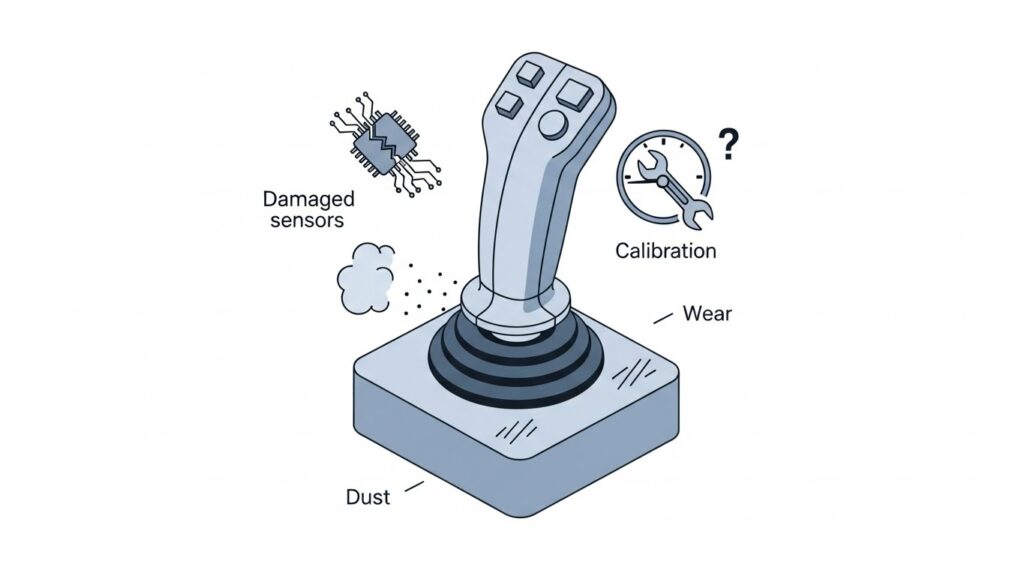
Main Causes of an Off-Center Joystick
Understanding the root causes helps you choose the right fix.
1. Dust and Debris Buildup
Over time, tiny dust particles, skin oils, or snack crumbs (gaming fuel, after all) can slip under the joystick cap and interfere with sensor readings.
2. Worn Potentiometers
Most joysticks rely on potentiometers—mechanical parts that wear out as you move the stick thousands of times. With age, these parts lose precision or develop “dead spots.”
3. Sensor Misalignment
Rough handling or a drop can physically shift the analog module, making it misreport the center.
4. Firmware Glitches
Sometimes, recalibration data stored in firmware gets corrupted or offset due to software bugs or improper shutdowns.
5. Moisture or Oxidation
If moisture sneaks into the joystick housing, it can cause oxidation on sensor contacts—leading to erratic readings.
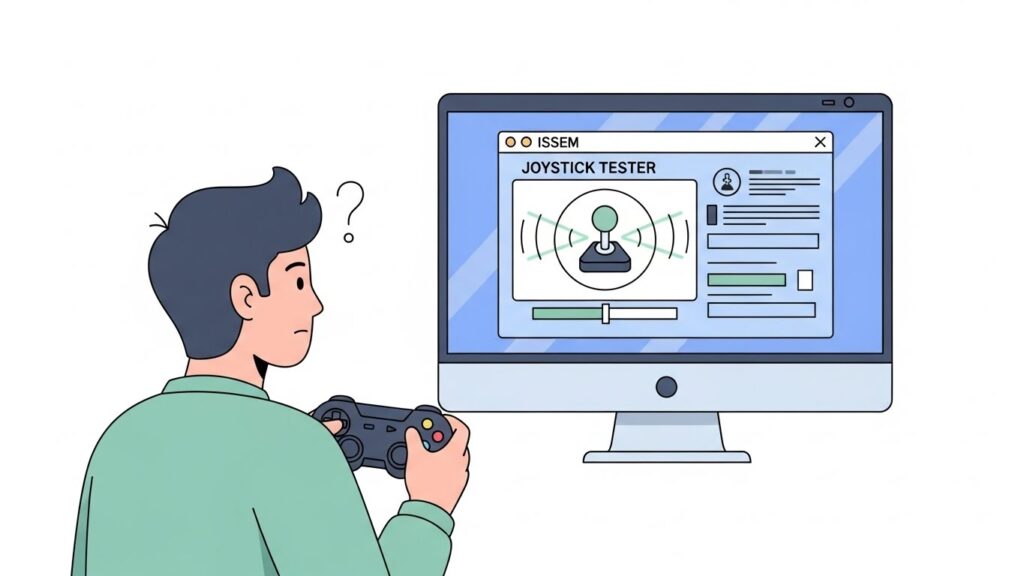
How to Identify Joystick Drift
Before rushing to repair or replace, you should confirm it’s indeed sensor drift. Here’s how you can test and diagnose it.
1. Use a Controller Testing Tool
Try an online gamepad tester or joystick calibration app:
- Gamepad Tester (HTML5)
- Windows Game Controller Settings (Control Panel → Devices → Set up USB Game Controller)
When you move the joystick:
- Observe whether it returns perfectly to zero.
- Look for small ghost movements (tiny floating crosshairs even when joystick is released).
If you see consistent ghost movements, congratulations—you’ve identified drift.
2. Console-Specific Calibration
- Nintendo Switch: Settings → Controllers and Sensors → Calibrate Control Sticks
- PlayStation: Use PS5/PS4 controller test via PC or third-party apps
- Xbox: Try Xbox Accessories app (Windows) → Configure → Calibrate
If the curve doesn’t center visually, that’s drift.
3. Symptom Comparison in Different Games
Sometimes, game-specific sensitivity settings can mimic drift. Test with different genres:
- Try a shooter (like Call of Duty) and a driving game.
- If both show unwanted movement, drift is confirmed.
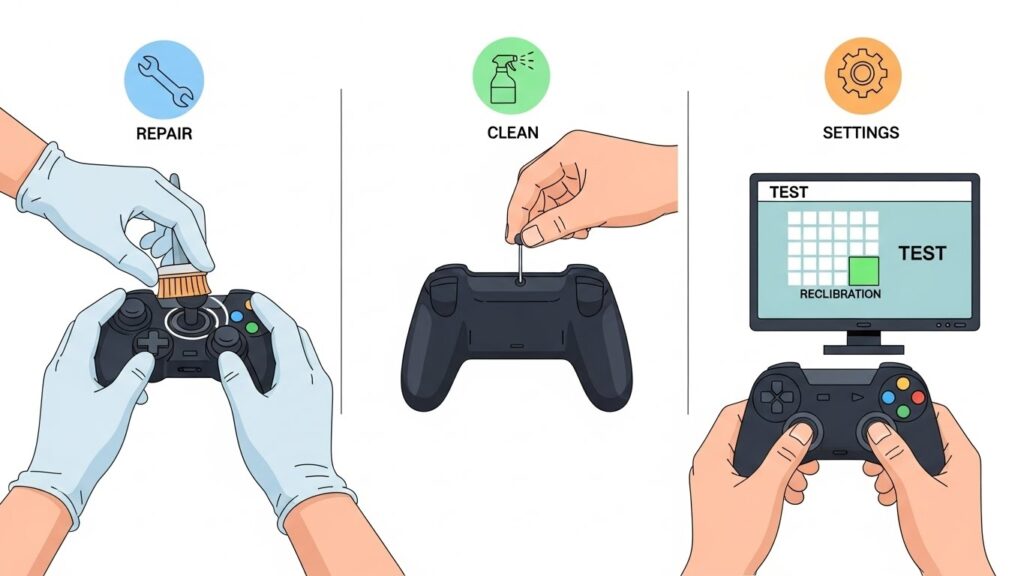
How to Fix Joystick Centering Issues
Depending on what’s causing it, there are several layers of solutions—from quick software fixes to physical maintenance.
1. Recalibrate Your Joystick
Recalibration resets the controller’s understanding of the neutral point.
For Windows:
- Open Control Panel > Devices and Printers
- Right-click your controller → Game Controller Settings → Properties → Settings → Calibrate
For Consoles: Use respective calibration tools in console settings.
Tip: Move the stick gently in all directions, then release it to center before saving calibration.
2. Clean the Joystick Sensors
You’ll need:
- Isopropyl alcohol (at least 70%)
- Cotton swabs
- Compressed air
Steps:
- Power off the controller.
- Push the joystick gently to one side.
- Apply a drop of alcohol on the base and rotate the stick.
- Use compressed air to blow away debris.
- Let the alcohol evaporate completely before powering on.
This clears out dirt and oil affecting the potentiometer.
3. Adjust the Dead Zone in Games
Most games (especially on PC) allow you to adjust the dead zone—the small area where movement input is ignored. Increasing it slightly can mask light drift without physical repair.
Example:
If you raise the dead zone from 0.10 to 0.20, it tells the system to ignore minimal inputs around center.
4. Replace Analog Stick Modules
If cleaning fails, the potentiometers might be physically worn out.
Ready-to-replace joystick modules are affordable (especially for Xbox or DualShock models). You’ll need:
- A repair kit or small screwdriver set
- Desoldering and soldering gear
- Replacement joystick component
It’s a skilled fix but restores precise control when done carefully.
5. Firmware Reset or Update
Sometimes drift results from corrupted firmware calibration. Update or reset your controller firmware using:
- PlayStation Software Update via USB
- Xbox Accessories App Update
- Nintendo Switch firmware restoration
💡 Pro Tip from the Developer: “Before you take a screwdriver to your controller, try the ‘Isoproply Reset’ trick that many pro players swear by. Take a Q-tip with 90% Isopropyl alcohol, rub it around the base of the analog ball, and rotate the stick for 30 seconds. I’ve seen this drop ‘drift values’ on our tool from a massive 0.15 down to a manageable 0.02. If that doesn’t work, don’t forget to check your deadzone settings in-game. Most modern titles like Apex Legends or Call of Duty allow you to set a deadzone that ‘ignores’ minor drift, extending your controller’s life by months.
When to Replace vs. Repair
| Situation | Recommended Action |
| Minor drift or slow panning | Try recalibration and cleaning |
| Moderate drift recurring after cleaning | Adjust dead zone or update firmware |
| Severe persistent drift | Replace analog module |
| Controller under warranty | Send for manufacturer repair instead of DIY |
| Multiple buttons also faulty | Consider full replacement |
If you’ve had your controller for years and repaired it multiple times, sometimes retiring it gracefully is the cost-effective move.
Prevention Tips: Keep Drift at Bay
Once you’ve fixed your joystick, you don’t want drift making a comeback. Follow these habits:
- Store your controller in a cool, dust-free environment.
- Avoid pressing or twisting the sticks roughly.
- Use a controller case when traveling.
- Periodically clean around the analog caps.
- Keep drinks and snacks a safe radius away (tempting as that victory soda may be).
- Update firmware regularly to maintain proper calibration.
FAQs
1. Why does my joystick keep moving on its own?
That’s usually sensor drift—your controller is reading slight movement inputs even when centered. Dust, wear, or miscalibration are common causes.
2. Can I fix joystick drift without opening my controller?
Yes. First, try software calibration and alcohol cleaning around the joystick base. Many cases resolve without internal repairs.
3. Is joystick drift permanent?
Not always. Light drift can be repaired; severe drift caused by worn potentiometers is often permanent without part replacement.
4. Does increasing dead zone hurt gameplay?
Only slightly—it makes tiny movements less sensitive. For precise shooters or racing games, a small increase (10–20%) is typically unnoticeable.
5. What are Hall effect joysticks, and are they better?
Hall effect sticks use magnets instead of physical contact sensors, making them resistant to wear and drift. They’re becoming the premium choice for long-term reliability.
Conclusion & Key Takeaways
When your joystick won’t center properly, the experience can go from “smooth gaming” to “rage-quitting” in seconds. But now you know what’s really going on behind the scenes.
Key takeaways:
- Sensor drift = your joystick sends false movement signals.
- It’s often caused by debris, sensor wear, or miscalibration.
- Testing with a gamepad tester confirms drift visually.
- Cleaning, recalibration, and firmware updates often fix it.
- Regular care prevents most centering issues—and keeps your controller feeling brand new.
No matter your platform, a centered joystick equals a centered gamer spirit. Keep it clean, keep it calibrated, and may your next headshot (or perfect drift corner) land exactly where you intend.
External authority sources: