
Introduction-Controller Buttons Not Responding?
There is a massive difference between a button that is physically broken and a button that is simply failing to register. Most gamers assume that if they press ‘A’ and nothing happens on screen, the controller is trash. But as a developer, I know that the hardware signal is often still reaching your PC—it’s just being ‘filtered out’ because it’s too weak or fast. In this guide, I’m going to show you my favorite ‘Binary Trick’ using our tester to see if your button is truly dead or if you just have a $0.05 piece of dust blocking your path to victory.
This guide reveals a powerful yet simple trick: using an online gamepad tester to identify exactly which buttons, triggers, or joysticks are acting up. You’ll learn how to test your controller, interpret the results, and fix common issues—without spending a dime.
Table of Contents
Why Controller Buttons Not Responding
Before we jump into the tester trick, it helps to know why your gamepad misbehaves. Controller buttons can fail for physical, electrical, or software reasons. Here are the most common culprits:
- Dirt and dust buildup: Sweat, dust, or crumbs (yes, those late-night snack accidents) can interfere with button contacts.
- Worn-out rubber membranes: Over time, the conductive pads beneath the buttons wear down and lose sensitivity.
- Firmware glitches: A minor software hiccup or outdated driver can make even a healthy controller stop responding.
- Connection problems: Loose cables, faulty USB ports, or wireless interference can cause dropped inputs.
- Calibration drift: Joysticks or triggers sometimes register input incorrectly and throw off the whole system.
Knowing the cause is half the battle—now let’s talk about how you can diagnose the issue in a few taps.
Meet the Gamepad Tester Trick
A gamepad tester (also called an online controller tester or HTML5 gamepad API tester) is a browser-based tool that detects your controller inputs in real time. It shows you which buttons, triggers, and sticks are active the moment you press or move them.
Think of it like a doctor’s stethoscope—but for your controller.
Here’s what it can do:
- Instantly verify each button press.
- Detect dead zones or drift in your joystick.
- Confirm that your PC or console recognizes the controller correctly.
- Help you identify specific hardware or calibration issues.
These testers use the HTML5 Gamepad API, which modern browsers like Chrome and Edge support natively. That means no downloads or complicated software—just pure plug-and-play diagnostics.
💡 Developer’s Pro Tip: The ‘Flicker’ Test “Here is the ‘GamepadScan Trick’ I use for 90% of my troubleshooting: Open our tester and hold the unresponsive button down with varying pressure. If the button on your screen ‘flickers’ while you are holding it down, your hardware is fine, but your carbon contact pad is oxidized. My 10-second fix? Don’t take it apart yet. Hold the controller upside down and rapidly press the button 50–100 times while blowing compressed air into the gaps. This friction often ‘scrapes’ the oxidation off the contact point. Check the tester again—if the flicker is gone and the signal is a solid ‘ON,’ you just saved yourself $70.”
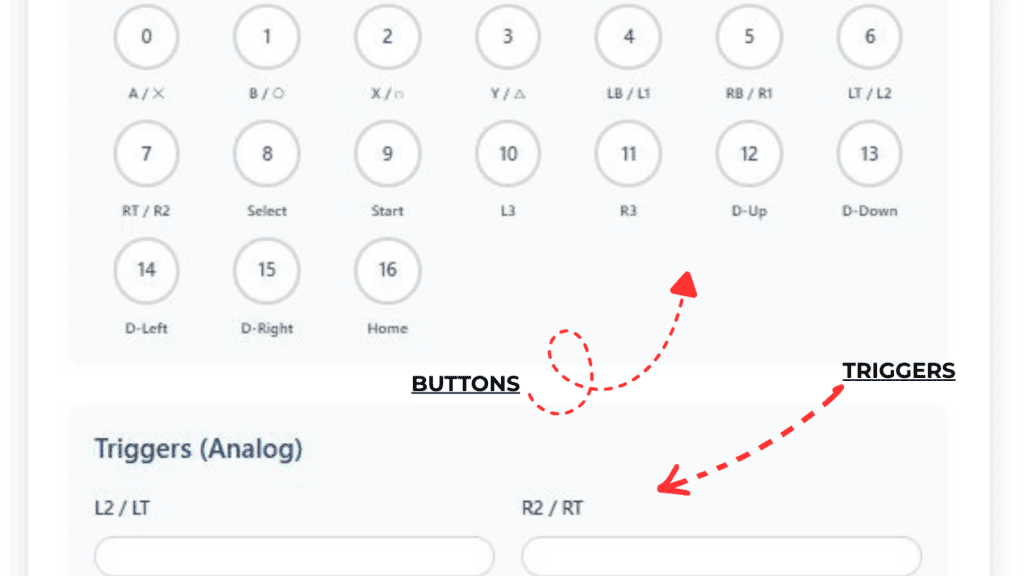
ABOVE IMAGE SHOWS TESTING BUTTONS/TRIGGERS IN OUR TOOLS
How to Use an Online Controller Tester (Step-by-Step)
Testing your controller is surprisingly simple. Here’s how to do it:
Step 1: Connect Your Controller
Plug your controller into your computer via USB or pair it over Bluetooth. Wait a few seconds for your operating system to recognize it.
Pro tip: If your controller works on your console but not on your PC, you might be missing a driver. Update drivers automatically through Device Manager (Windows) or System Preferences (macOS).
Step 2: Open an Online Gamepad Tester
Visit a reliable tester site like gamepad-tester.com or html5gamepad.com.
When the page loads, it should automatically detect your device. If it doesn’t, reload the page or replug your controller.
Step 3: Press Every Button and Move Every Joystick
You’ll see a virtual representation of your controller on-screen.
As you press buttons, they should light up or trigger movement indicators in real time:
- A/B/X/Y or Cross/Square/Triangle/Circle buttons
- Triggers (L2/R2) and bumpers (L1/R1)
- Joysticks and D-pad
- Back/Start/Menu/Share buttons
Step 4: Inspect Response and Accuracy
Note which buttons respond quickly and which are unresponsive or lagging. If a joystick drifts slightly without you touching it—congratulations, you’ve found joystick drift.
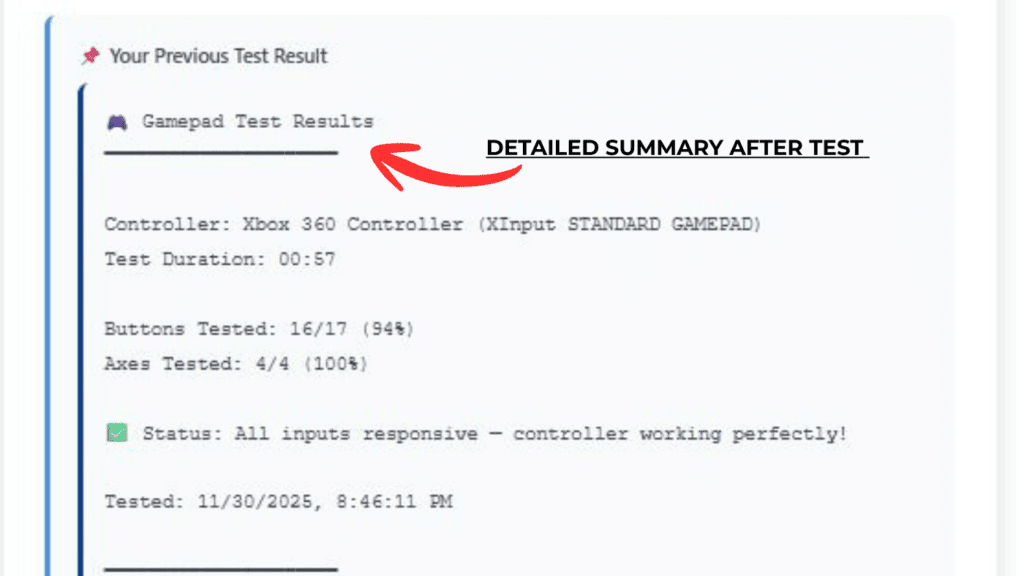
Interpreting Gamepad Test Results
Your results will tell you quite a bit about what’s wrong. Here’s how to decode them:
1. Button Lights Don’t Respond
If certain buttons don’t light up at all:
- Check if debris is stuck underneath.
- Clean the exterior gently with isopropyl alcohol and a microfiber cloth.
- If cleaning doesn’t help, internal contact pads might be worn out and need replacement.
2. Joystick Registered Input Without Touch
If you see your joystick moving on its own, you’re dealing with analog drift.
- Try recalibrating your sticks using your system settings.
- On Windows, open Game Controller Settings → Properties → Calibrate.
3. Triggers or Analog Input Stuck
If triggers seem half-pressed constantly, there might be a calibration offset. A reset or recalibration usually fixes this.
4. All Buttons Register Incorrectly
That might indicate a driver or firmware corruption issue. Disconnect the controller, uninstall the device, and reconnect to reinstall drivers fresh.
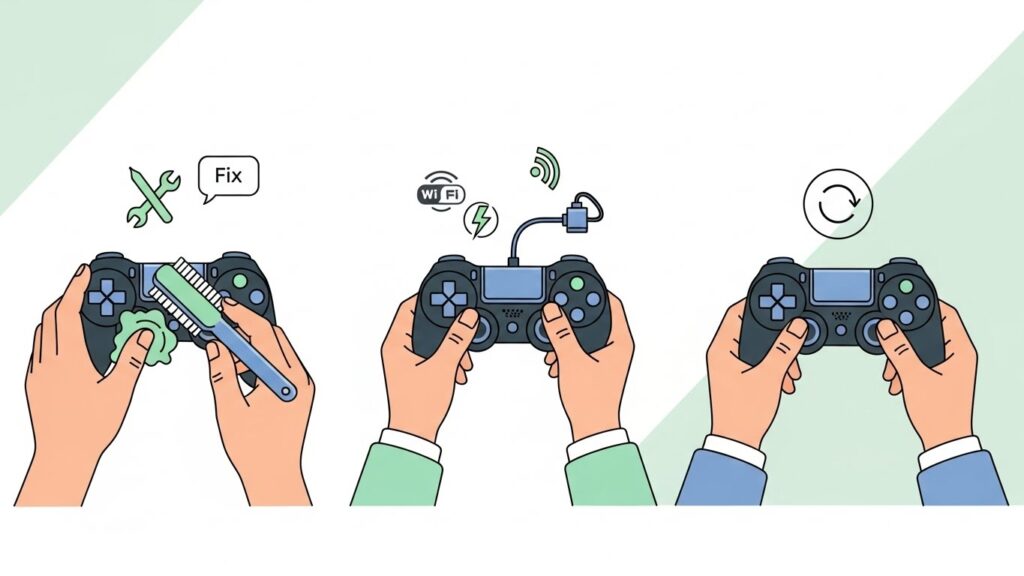
Quick Fixes for Unresponsive Buttons
If certain buttons fail, try these easy fixes before opening the controller up:
1. Clean the Contacts
Dirt is the silent killer of many controllers. Use:
- A cotton swab dipped lightly in 70% isopropyl alcohol.
- Compressed air for dislodging deeper debris.
2. Reset the Controller
Look for a small reset hole (common in DualShock, DualSense, and some Nintendo controllers). Press it with a pin for five seconds.
3. Reconnect or Re-pair
Bluetooth controllers sometimes lose sync. Remove the paired device and reconnect from scratch.
4. Update Firmware
Manufacturers like Xbox, Sony, and 8BitDo offer firmware updates that fix latency, button lag, and drift.
5. Replace Worn Elastomers
If a single button refuses to work despite cleaning, its internal rubber dome may be worn. Replacement kits for most controllers are available online.
Advanced Troubleshooting and Calibration Tips
If the basic fixes didn’t restore responsiveness, move on to deeper calibration:
For Windows Users
- Open Control Panel → Devices and Printers.
- Right-click your controller → Game Controller Settings.
- Select Properties → Settings → Calibrate.
- Follow the on-screen instructions to realign axes and dead zones.
For macOS Users
Use third-party apps like Enjoyable or Gamepad Companion to test and remap input signals.
For Consoles
- PlayStation: Navigate to Settings → Devices → Controllers → Adjust Analog Sticks.
- Xbox: Use the Accessories App on your console or PC to check button mapping and update firmware.
- Nintendo Switch: Go to System Settings → Controllers and Sensors → Calibrate Control Sticks.
Joystick Dead Zone Adjustment
Some online tools and PC apps let you tweak “dead zones”—the small range of movement where your joystick sends no input. Expanding or tightening this range can correct drift sensitivity issues.
Comparison Table (Diagnosing the Failure)
| What you see on GamepadScan | What it means | The Likely Fix |
| No response at all | Dead circuit or snapped wire | Physical repair required |
| Flickering/Intermittent signal | Dirty carbon contact | The “Rapid-Fire” friction trick |
| Delayed “OFF” signal | Sticky membrane/Liquid spill | Isopropyl Alcohol (90%) cleaning |
| Ghost presses (Auto-firing) | Short circuit or moisture | deep clean / Desiccant (Rice/Silica) |
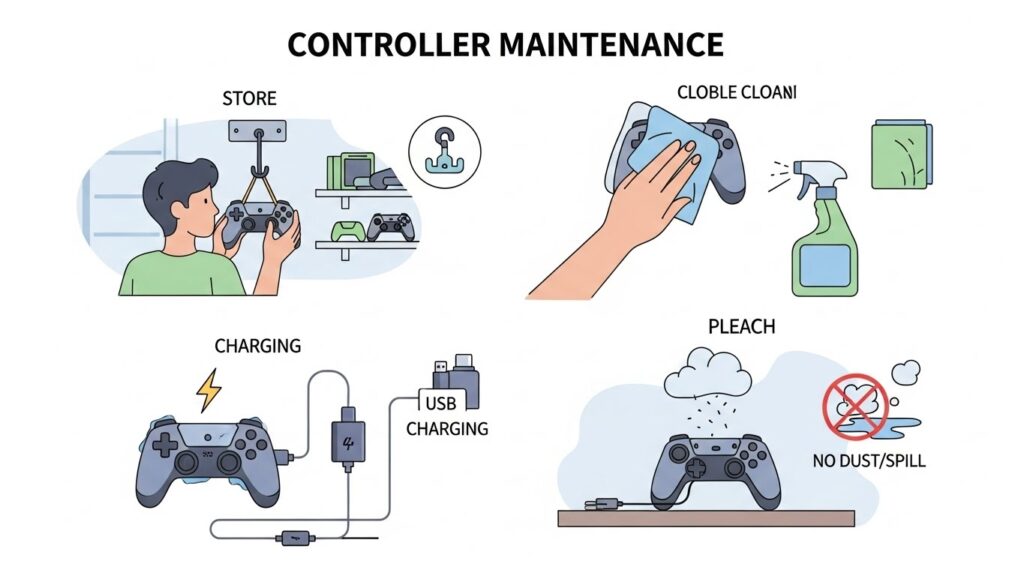
Preventing Future Gamepad Issues
Like any tool, your controller thrives with prevention and care. Here’s how to keep it sharp:
- Avoid eating while gaming. (Yes, pizza grease counts as “controller kryptonite.”)
- Store it properly. Keep it in a dust-free area, not tossed on the couch.
- Charge regularly. Don’t let the battery drop too often—unstable power can affect input stability.
- Use silicone covers. They protect from dust and moisture without affecting button feel.
- Calibrate quarterly. A quick check-up ensures consistent performance over time.
FAQs
Q1: What is the best free online controller tester?
A: Popular options include gamepad-tester.com, html5gamepad.com, and Hardcoders’ Gamepad Visualizer. These work without installation.
Q2: Why does my controller show input without pressing anything?
A: That’s joystick drift or trigger offset, usually caused by wear or miscalibration. Recalibrate or, if that fails, consider a hardware replacement.
Q3: Can I use a controller tester for Xbox and PlayStation controllers?
A: Absolutely. The HTML5 Gamepad API supports almost all modern controllers, including Xbox, PlayStation, Nintendo Switch Pro, and generic USB pads.
Q4: How do I know if it’s a hardware problem or software glitch?
A: If buttons fail on both your console and PC tester, it’s hardware. If they fail only on one device, update drivers or firmware.
Q5: Is it safe to open my controller for cleaning?
A: Yes, if you’re careful. Use proper screwdrivers and avoid tearing ribbon cables. If unsure, watch teardown videos from official repair channels.
(FAQ section structured for easy schema markup integration.)
Suggested External Authority Sources
- Microsoft Support – Calibrate Your Xbox Controller
- Sony PlayStation Support – Troubleshooting Wireless Controllers
- Nintendo Support – Calibrate Control Sticks
Key Takeaways
- When your controller buttons stop responding, an online gamepad tester is the fastest diagnostic tool available.
- It shows exactly which buttons fail, helping you decide between software recalibration or hardware repair.
- Clean, recalibrate, update, and handle your controller with care to maintain top performance.
- Most issues—from joystick drift to trigger lag—are fixable at home with a little patience, testing, and the right know‑how.
More Guides:
- Joystick Not Centering Properly? How to Detect and Fix Sensor Drift(Ultimate 2026 Guide)
- Gamepad Detected but Not Working on Windows (7 Easy Fixes)
- Controller Calibration Errors: Reset & Fix Gamepad Settings Easily(2026 Guide)
- Testing Vibration Motors on Gamepads: Easy Step-by-Step Guide to Diagnose & Fix (2026 Updated)
Keep your thumbs ready and your triggers tuned—because once your controller’s back in action, your gaming skills might just feel sharper than ever.