
Introduction-Nintendo Switch Pro Controller Tester
The Nintendo Switch Pro Controller is arguably one of the most comfortable gamepads ever made, but using it on a PC is often a nightmare. Windows natively struggles with its Bluetooth signal, leading to ‘phantom’ stick drift or buttons that simply refuse to map. If you’ve tried to use your Pro Controller on PC and felt like the sticks were ‘fighting’ you, it’s usually not a hardware failure—it’s a communication error. In this guide, I’ll show you how to use GamepadScan to calibrate your Pro Controller for PC and why you should never trust the default Windows ‘Game Controller’ settings for this specific device.
In this guide, we’ll explore the best online methods to test your Nintendo Switch Pro Controller, explain what causes input errors, and show you step-by-step how to fix common calibration issues. Whether you’re a casual gamer or an esports enthusiast, understanding how your controller performs gives you the edge (and saves you frustration mid-battle).
Table of Contents
Why You Should Test Your Switch Pro Controller
Testing isn’t just for when things go wrong—it’s also preventive maintenance. Your Nintendo Switch Pro Controller is a precision device that uses internal sensors, resistors, and digital triggers to read your inputs. Even small issues can ripple into frustrating gameplay.
Here’s why regular testing helps:
- Spot joystick drift early before it ruins your aim in Splatoon or Fortnite.
- Identify unresponsive triggers or bumper buttons after months of use.
- Check wireless signal strength or USB connection stability.
- Calibrate sticks and dead zones to match your gaming sensitivity.
- Verify firmware updates didn’t change how your controller behaves.
In short: a quick online test can save you hours of guesswork.
Pillar Post: How to Test Bluetooth Gamepads on Android and Windows (Ultimate Step-by-Step Guide 2026)
How a Switch Pro Controller Works (Quick Breakdown)
Before diving into online tools, let’s pull back the curtain a bit.
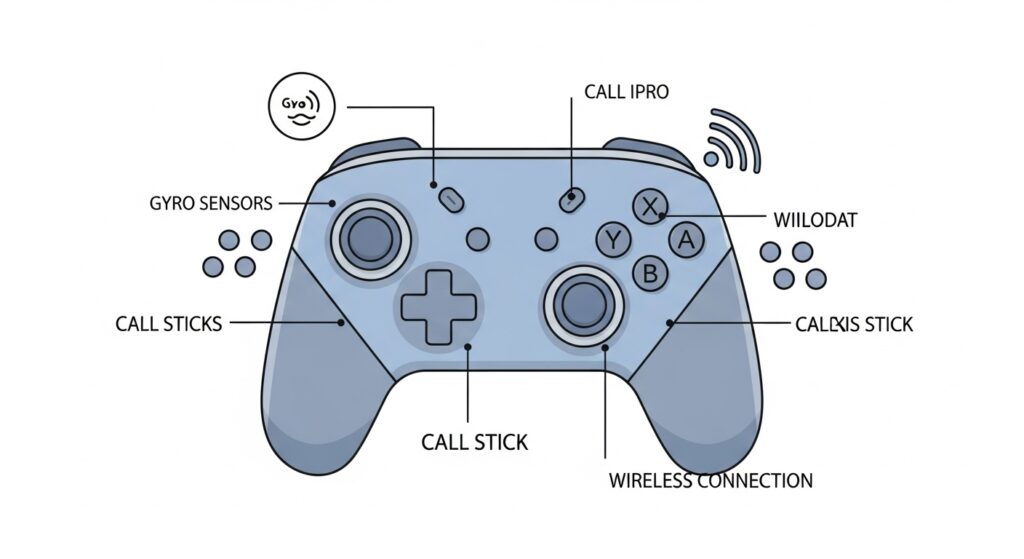
The Switch Pro Controller communicates with your PC or console through Bluetooth or USB-C. Inside, it houses:
- Analog sticks (read via potentiometers for axis movement)
- Digital buttons (for A, B, X, Y, and triggers)
- Gyroscope and accelerometer sensors (for motion controls)
- Battery and rumble motors
When you plug it into a computer, your browser can access its data through the HTML5 Gamepad API. This is what online testers use to show live button presses, joystick motion, and input values.
Pretty neat, right? It’s like a doctor’s checkup—but for your gamepad.
Best Online Nintendo Switch Pro Controller Testers
Let’s jump to the good stuff: the tools that actually work for testing your Pro Controller directly from your web browser.
Gamepad Tester (HTML5 Gamepad API)
URL: https://gamepadscan.com/game-pad-tester/
This tool is the gold standard. It works natively with any modern browser (Chrome, Edge, Firefox). Once your controller is connected:
- You’ll see a real-time visual diagram of your controller.
- Every button press, trigger pull, and joystick movement is displayed numerically.
- You can check dead zone values and stick calibration.
Quick Tip: The numerical values should rest near zero when centered. If the stick drifts past ±0.1 with no input, there’s drift.
Why It’s Great:
- Instant setup, no drivers.
- Works for Nintendo, Xbox, PlayStation, and generic USB controllers.
- Free and ad-free.
Gamepad-Tester.com
Not to be confused with the previous tool, this site provides more detailed diagnostics. It lists all connected gamepads, their hardware IDs, and even supports multiple devices simultaneously.
You can also record input sequences, which is useful for confirming intermittent issues—like a button occasionally missing registration.
Best For: Advanced users or those troubleshooting hardware-level connection drops.
DevicesTests Controller Page
URL: https://devicestests.com/controller-tester
This one’s user-friendly and clean. It displays joystick axis graphs, button color responses, and trigger pressure visuals.
Why It Works Well:
- Ideal for beginners.
- Includes mobile compatibility (Android with OTG cable).
- Provides clear color-based feedback for each input.
HID Tester and Advanced API Tools
For technically inclined users, tools like HID Explorer or Chrome’s internal chrome://inspect/#devices let you peek directly at input data packets. You can verify whether inputs are delayed, truncated, or misread.
That said, these methods are more developer-oriented. Most gamers will find the web-based ones sufficient.
Step-by-Step: How to Use an Online Controller Tester
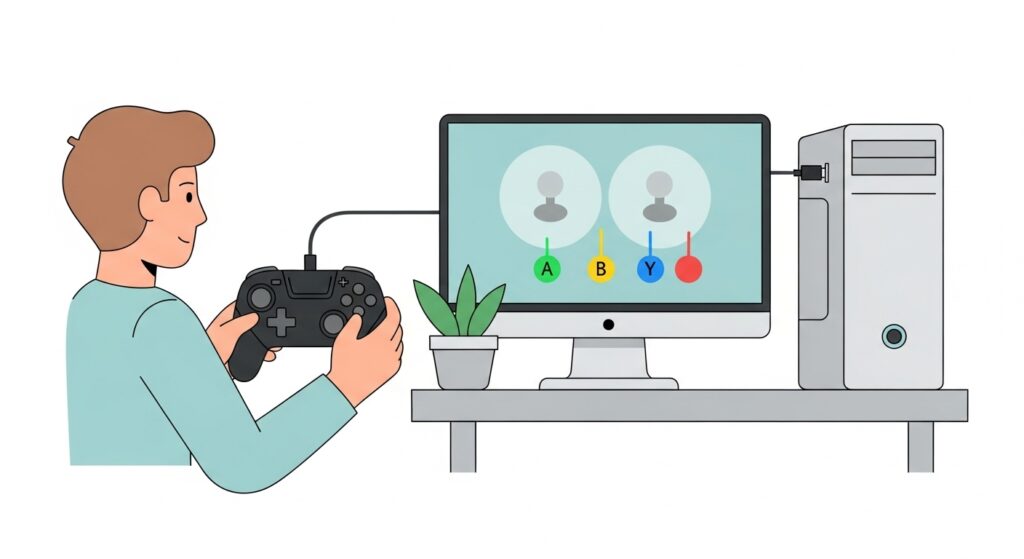
Here’s the universal method, no coding required:
Step 1: Connect Your Controller
- Plug your Nintendo Switch Pro Controller into your PC using a USB-C cable, or pair it via Bluetooth (hold the sync button until lights flash).
- Wait for your computer to recognize it—Windows and macOS do this automatically.
Step 2: Open a Tester Website
Use one of the recommended sites above. Ensure you’re using a browser that supports the HTML5 Gamepad API (Chrome, Edge, Brave, Opera, or Firefox).
Step 3: Press Any Button
Most testers require at least one button press to activate input display.
Step 4: Observe the Data
- Move the left/right joysticks in a circle. You should see smooth motion.
- Press triggers and bumpers—watch for immediate light-up or numerical change.
- Tap all face buttons (A/B/X/Y) to confirm responsive input.
- Check if the sticks return perfectly to “0” in the center.
Step 5: Calibrate if Needed
If your readings seem off, re-calibrate on your Nintendo Switch settings:
Home > Controllers > Calibrate Control Sticks / Motion Sensors.
Fixing Common Nintendo Switch Pro Controller Issues
Online testers help identify what’s wrong. Here’s how to fix why it’s happening.
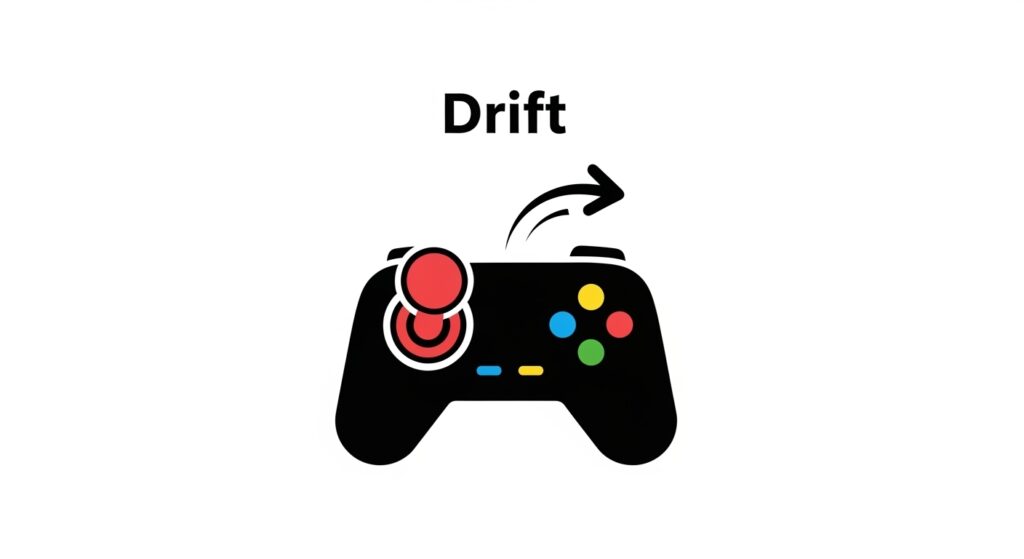
Joystick Drift
Symptom: Character moves slightly even when you’re not touching the stick.
Cause: Sensor wear, dust, or moisture inside the analog mechanism.
Fix:
- Use canned air to blow under the stick base.
- Apply a drop of contact cleaner (isopropyl alcohol 90%+) around the axis.
- Re-calibrate on your Switch or PC.
- If it persists, consider a stick module replacement—many DIY kits exist.
Button Lag or No Response
Symptom: Buttons occasionally fail to register.
Fix:
- Clean around button edges with gentle alcohol wipes.
- Check connectivity (especially Bluetooth interference).
- Test on PC and Switch—if both fail, internal membrane may be worn.
Connection or Calibration Problems
- Reset the controller by holding sync + small reset hole pin (on back).
- Delete and re-pair Bluetooth connections.
- Update firmware through your Switch console.
With the recent launch of the Nintendo Switch 2 in June 2025, the community at r/NintendoSwitch and r/Controller has discovered a frustrating reality: while the new Switch 2 Pro Controller has much better ‘Wired’ latency, it’s currently much harder to use on PC than the original model. For the classic Pro Controller, the community consensus on Reddit remains that you must use Steam Input or a wrapper like BetterJoy to get accurate results. If you test your Pro Controller on our site and see the sticks jumping wildly, it’s often because Windows is trying to read the ‘Raw’ Bluetooth data without the proper Nintendo-specific drivers. Our tool is designed to help you verify if your ‘Wrapper’ is actually smoothing out those inputs correctly.
Pro Tips for Accurate Testing
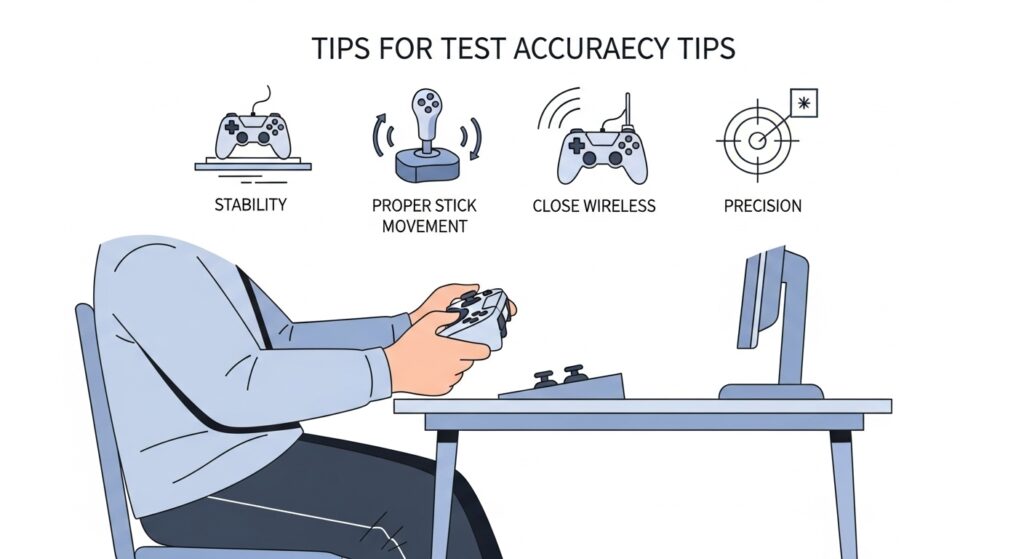
To ensure precision testing:
- Use a wired connection. Bluetooth can introduce a few milliseconds of delay.
- Avoid excessive browser tabs. They can interfere with live input readings.
- Note variations. Slight fluctuations in axis values are normal within ±0.02.
- Test multiple environments. Compare browser tester data with Switch’s internal calibration.
And of course—keep snacks off the controller. Greasy thumbsticks never help diagnostics.
💡 Developer’s Pro Tip: The ‘Square vs. Circle’ Conflict “Here is a technical secret: The Switch Pro Controller’s sticks aren’t perfectly circular in their output—they are slightly ‘squared’ at the edges. When you use a generic tester, it might report a ‘Circularity Error’ of 10% or more, making you think your controller is broken.
My recommendation? Don’t panic. This is actually intentional by Nintendo to ensure you hit ‘100%’ tilt in diagonal directions. When using GamepadScan, focus on the Centering value (Stick Drift) rather than the circularity. If your stick returns to a value under 0.05, your hardware is healthy. If you want a ‘perfect’ circle on PC, you’ll need to use Steam’s ‘Deadzone’ calibration, but keep in mind this will slightly change the ‘feel’ of the controller compared to how it plays on the console.”
Our Gamepad Testing Tools Collection
We maintain a curated set of tools that work seamlessly for all major controllers:
| Tool Name | Best For | Platform | Free |
| HTML5 Gamepad Tester | General testing & calibration | Web | ✅ |
| DevicesTests Controller Tool | Touch-friendly & detailed display | Web/Mobile | ✅ |
| XInput API Demo | Xbox & third-party pads | Windows | ✅ |
| DualShock Check | PlayStation-specific | Web | ✅ |
| Switch Pro Analyzer | Nintendo-specific layout | Web | ✅ |
Our toolbox covers every scenario—from drift diagnosis to full input stress testing. Gamers, developers, and hardware enthusiasts alike can use these to optimize performance, design responsive control layouts, and verify physical repairs.
FAQs: Nintendo Switch Pro Controller Testing
Q1. How can I test my Nintendo Switch Pro Controller online?
Connect it to your PC, visit a Gamepad Tester site, and press any button to see live results using the HTML5 Gamepad API.
Q2. What causes joystick drift on a Switch Pro Controller?
Dust, worn potentiometers, or humidity can cause misreading of stick input values, making the system think the stick is tilted.
Q3. Can I fix drift without opening the controller?
Yes, try calibration and cleaning first with isopropyl alcohol and a gentle airflow. Persistent drift may require hardware replacement.
Q4. Does Bluetooth affect controller latency during testing?
Slightly. For the most accurate testing, use a wired USB connection.
Q5. Are online controller testers safe to use?
Absolutely. They run locally in your browser—they don’t upload any data or access files beyond the input signals provided by the Gamepad API.
Conclusion & Key Takeaways
Your Nintendo Switch Pro Controller is a masterpiece of design—until that one drift makes you miss the winning shot. But before you panic or replace it, test it online.
With tools like Gamepad Tester and DevicesTests, you can monitor every axis and button live. These browser-based solutions harness the HTML5 Gamepad API, requiring no installation, no risk, and no tech wizardry.
Remember:
- Test regularly to maintain top performance.
- Calibrate your sticks whenever input feels off.
- Use wired connections for precise diagnostics.
- Keep physical maintenance (dust removal, cleaning) part of your gamer routine.
In just a few minutes, you’ll know whether your issue is software, hardware, or just a bit of controller fatigue. And armed with that knowledge—you’re back to smooth gameplay, boss fights, and perfectly timed dodges.
External Authority Sources: