
Introduction-Test an Xbox Controller on PC
We’ve all been there: you buy a new Xbox controller, or maybe you suspect your old one is acting up, and the first thing you see online is a recommendation to download a 200MB ‘diagnostic suite’ or a driver package. In my opinion, that’s complete overkill. Windows has become much better at handling plug-and-play hardware, but it still hides the raw data you actually need. At GamepadScan, I wanted to create a ‘zero-footprint’ alternative. In this guide, I’ll show you how to get a professional-grade hardware readout using just your browser—no installs, no registrations, and no bloatware.
In this comprehensive guide, we’ll show you exactly how to test an Xbox controller on a Windows PC without downloading extra software, using built-in tools and browser-based methods. We’ll also cover calibration tips, drift testing, troubleshooting, and advanced tricks for both wired and wireless controllers.
Whether you’re using an Xbox Series X|S controller or an older Xbox 360 one, this guide will help you ensure your gamepad performs flawlessly—before you get back to chasing high scores.
PILLAR POST: How to Test Bluetooth Gamepads on Android and Windows (Ultimate Step-by-Step Guide 2026)
Table of Contents
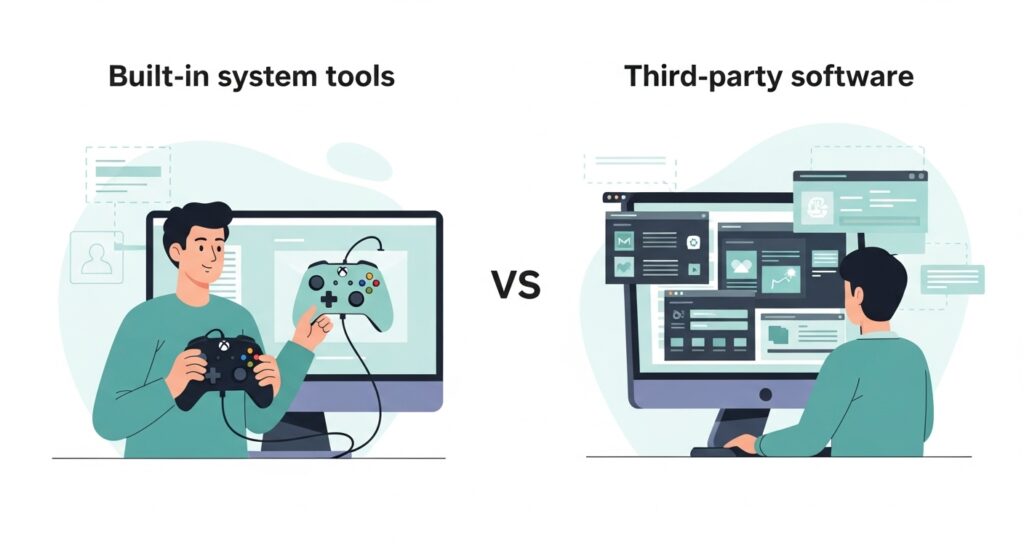
Why Test an Xbox Controller Without Third-Party Software?
There are tons of “controller tester” apps floating around. But sometimes you just want to quickly verify your controller’s health without cluttering your system with tools you’ll use once.
Here’s why testing without apps makes sense:
- Security: Avoid shady downloads that could contain malware.
- Simplicity: All you need is what’s already built into Windows—or just your web browser.
- Speed: Plug in, test, and go game. No installations, no updates.
- Compatibility: Works for Xbox One, Xbox Series X|S, and even Xbox 360 controllers.
In short: zero downloads, maximum effectiveness.
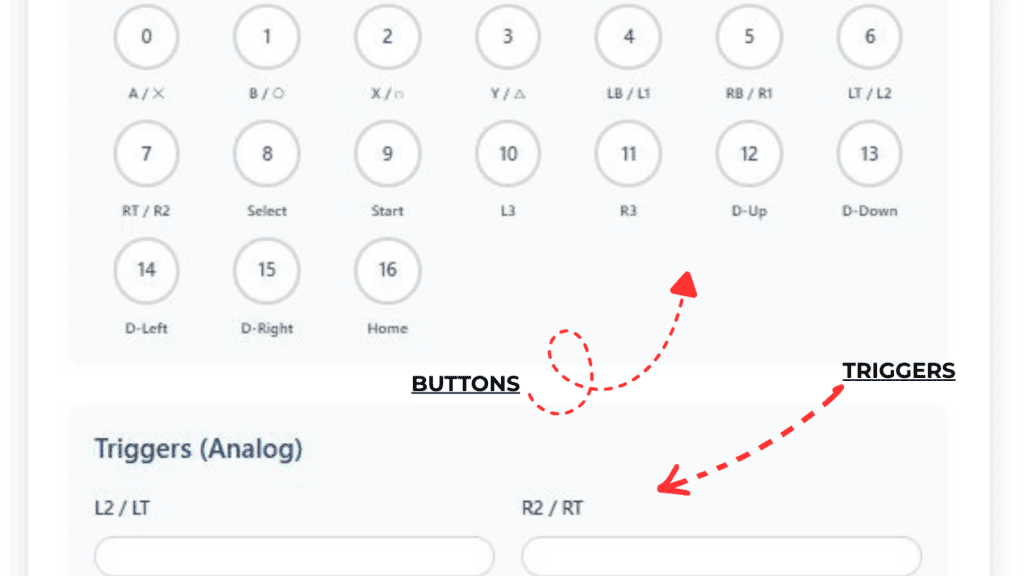
Understanding Controller Inputs and Signals
Before diving into methods, it helps to understand what you’re testing.
An Xbox controller communicates with your PC through XInput, Microsoft’s input standard. It carries data for:
- Buttons: A, B, X, Y, LB, RB, view/menu buttons.
- Analog sticks: Left and right (X/Y axes).
- Triggers: Left and right trigger pressure values.
- Haptics: Vibration feedback channels.
When testing, you’ll see real-time data showing axis movement, button presses, and trigger pressure. Any flickering, unresponsive buttons, or drifting values means there’s something to fix.
If you browse the Microsoft Community forums or r/Xbox, you’ll see a common complaint: the official ‘Xbox Accessories’ app is great for firmware updates, but it’s surprisingly limited for actual troubleshooting. It doesn’t show you raw axis values or button response times. Many gamers on Twitter and Reddit have noted that the app can sometimes fail to detect third-party Xbox-style controllers (like those from PowerA or Turtle Beach). The community consensus is that web-based testers using the HTML5 Gamepad API are actually more reliable for checking third-party hardware because they read the ‘Raw Input’ that Windows receives before any software filtering happens.
Methods to Test an Xbox Controller on PC Without Installing Apps
Let’s cover the simplest and most reliable methods—no extra downloads needed.
Method 1: Use Windows Game Controller Settings
Windows has a built-in controller tester, hiding in plain sight.
Steps:
- Connect your Xbox controller.
Use a USB cable or wireless adapter. Make sure it vibrates or the Xbox button lights up. - Open the Run command.
Press Windows + R to bring up the Run dialog. - Type in:
- text
- joy.cpl
- Then press Enter.
- View detected controllers.
A window titled Game Controllers appears. You’ll see your Xbox controller listed. Select it and hit Properties. - Test your inputs.
In the Test tab, press buttons and move sticks to see them light up in response.- The D-pad should toggle directional inputs.
- Analog sticks move a red crosshair in a box.
- Triggers show analog bar changes.
This built-in diagnostic tool works for all XInput devices, including Logitech F310s, PowerA controllers, and other Xbox-compatible pads.
Pros
- 100% local and secure
- Shows real-time input
- Great for button and trigger tests
Cons
- Doesn’t show advanced data like dead zones
- The interface looks a bit retro (but hey, it works!)
Method 2: Use the HTML5 Gamepad Tester in Your Browser
The second approach uses your web browser—no installation required.
Modern browsers support the HTML5 Gamepad API, which can read inputs from USB or Bluetooth controllers directly.
Steps:
- Open a browser that supports the Gamepad API
Examples: Google Chrome, Microsoft Edge, Firefox, or Opera. - Visit a gamepad testing site.
Reliable option include:- https://gamepadscan.com/game-pad-tester/
- Connect your Xbox controller (wired or wireless).
- Press any button to activate detection.
You’ll immediately see real-time feedback—buttons lighting up, axis values changing as you move sticks, and trigger analog outputs.
Pros
- No software or driver installation
- Displays full analog data (great for diagnosing drift)
- Works across platforms (Windows, macOS, Linux)
Cons
- Requires an active internet connection
- Minor differences between browser implementations
Step-by-Step Guide: Testing and Calibrating in Windows
Sometimes, your controller doesn’t just need testing—it needs calibration.
Here’s how to access and run calibration via Windows tools.
Step 1: Open Game Controller Settings
Type joy.cpl in the Windows search bar or Run dialog and press Enter.
Step 2: Choose Your Xbox Controller
Select your controller and click Properties.
Step 3: Go to the “Settings” Tab
There you’ll find a Calibrate button.
Step 4: Follow the Calibration Wizard
Windows will guide you through each axis:
- Move both sticks in full circles.
- Press triggers to their limits.
- Center each analog stick when asked.
Once done, you can retest inputs immediately to confirm improvement.
Tip: Calibration helps fix slight misalignments, especially after months of heavy gaming.
💡 Developer’s Pro Tip: The Sync vs. Signal Rule “One thing I see constantly in our test logs is users thinking their controller is broken when it’s actually just a firmware mismatch. Even if you are testing ‘without apps,’ my one exception is the initial setup: if your Xbox controller is behaving erratically on PC via Bluetooth, connect it via USB just once to check for a firmware update. Xbox controllers released after 2021 have a specific Bluetooth ‘Low Energy’ (BLE) bug that causes dropped inputs on Windows 10/11 unless they are updated. Once updated, you can go back to being ‘app-free’ and use our dashboard to verify that your signal is finally 100% stable.
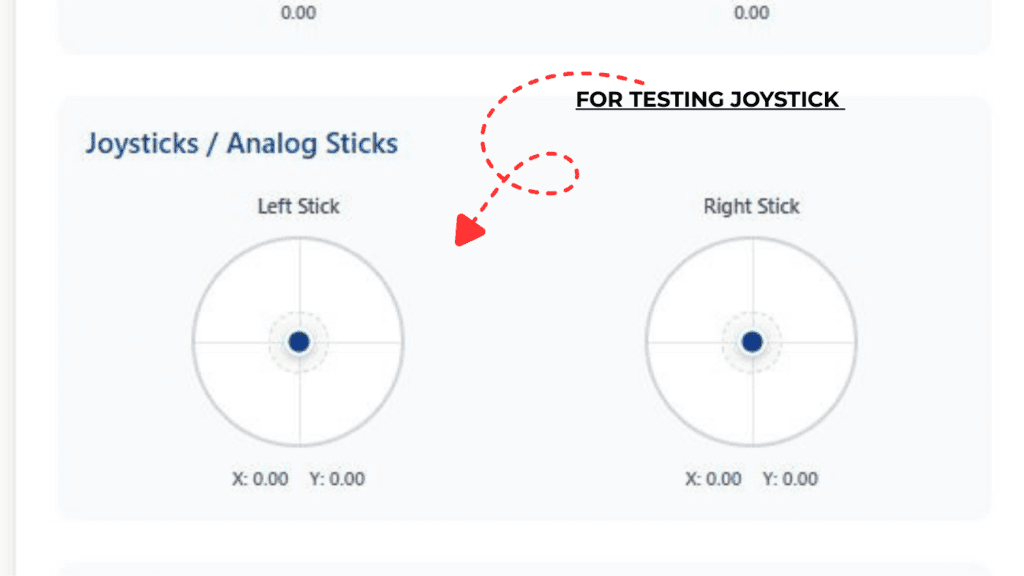
FIGURE 2 SHOWS OUR TOOL FOR CHECKING JOYSTICK DRIFT/DEAD ZONES
How to Check for Joystick Drift and Dead Zones
Controller drift is when your character moves even though you’re not touching the stick—a common Xbox issue.
Here’s how to test drift without software:
- Open joy.cpl → Properties → Test Tab.
- Look at the red crosshair in the boxes for analog sticks.
- If it moves slightly when untouched, you have drift.
- To confirm, check the HTML5 Gamepad Tester.
- It will show numeric axes values (e.g., 0.05 on idle).
- A perfect neutral stick should be near 0.00.
If drift persists, try recalibrating. If that fails, clean the stick housing with compressed air or consider replacing the analog module.
Testing Xbox Controllers via Browser (HTML5 API)
Let’s go deeper into the HTML5 Gamepad API, the backbone of browser-based testing.
When you connect your gamepad and press a button, the API sends event data to the page, such as:
JSON
{
“id”: “Xbox Wireless Controller”,
“axes”: [-0.01, 0.02, 0.00, -0.01],
“buttons”: [
{“pressed”: false}, {“pressed”: true}
]
}
You don’t have to read raw code—but understanding what it does helps you appreciate how modern browsers handle hardware input securely.
You can move sticks, press triggers, and instantly see axis and button feedback on the screen. It’s like your controller’s X-ray vision.
Test Your Xbox Controller Using Our Online Tool
Want to skip searching for third-party testers altogether? You can also use the built-in Xbox Controller Tester available right here on our website!
Our tool uses the same secure HTML5 Gamepad API technology as major online testers, but we’ve optimized it for speed, responsiveness, and visual clarity. You can:
- Instantly see input signals for all buttons, triggers, and sticks.
- Detects joystick drift, dead zones, and button lag in real time.
- Use it safely in your browser—no downloads or ads.
Simply navigate to the Controller Tester section of our site, connect your Xbox controller, and start pressing buttons. Everything updates live on the screen. Perfect for diagnosing issues quickly before diving back into your favorite game.
If you’re already here—great! Scroll down to our Xbox Controller Tester widget below and try it instantly.
Click Here To Test Your Controller Online
Fixes if Your Controller Isn’t Detected
Nothing ruins the fun like a controller that won’t show up. Here’s a checklist:
1. Check Connection Type
- USB Cable: Try another port or cable.
- Wireless Bluetooth: Unpair and re-pair the controller.
- Windows Adapter: Ensure the Xbox Wireless Adapter driver is installed.
2. Update Firmware
Connect your controller to an Xbox console or use the Xbox Accessories app to update firmware (just once is fine).
3. Confirm Drivers
In Device Manager → Human Interface Devices, make sure there’s no yellow warning icon.
4. Try a Different USB Port
Prefer USB 3.0 or higher ports for stable data transmission.
5. Restart Your PC
Still the undefeated champion of troubleshooting.
Comparison Table (Web vs. App Testing)
| Feature | Official Xbox App | GamepadScan (Web) |
| Download Required? | Yes (200MB+) | No (Instant) |
| Shows Raw Axis Data? | No | Yes (0.00001 Precision) |
| Latency Testing? | No | Yes |
| Third-Party Support? | Limited | Universal |
| Browser Compatible? | No | Yes (Chrome, Edge, Firefox) |
About Our Website
Welcome to GamePad Scan, your trusted resource for practical, no-nonsense tech guides. We focus on helping gamers and PC users solve real problems quickly, safely, and confidently—no unnecessary apps, no jargon overload.
Our tutorials combine expert research with everyday usability. From controller testing and calibration to system optimization and input troubleshooting, our mission is simple: make tech easy, efficient, and enjoyable.
Bookmark us for more guides
FAQs
1. Can I test my Xbox controller on PC without downloading anything?
Yes. You can use Windows’ built-in “joy.cpl” panel or online Gamepad Tester tools through your browser.
2. Does this method work for wireless controllers?
Absolutely. As long as it’s connected via Bluetooth or the Xbox Wireless Adapter, Windows will recognize it instantly.
3. How can I test trigger sensitivity?
Use the Test Tab in joy.cpl or the browser tester. Triggers will show a bar or numeric value that increases with pressure.
4. Is the HTML5 Gamepad Tester safe?
Yes, reputable sites simply read input data through the browser. They don’t install anything or store your data.
5. Why isn’t my controller responding even though it’s connected?
Check cable integrity, USB port functionality, or ensure no other gamepad software is interfering.
Conclusion and Key Takeaways
Testing an Xbox controller on PC doesn’t require extra apps or downloads—just a few clicks and the tools already built into Windows or your browser.
Here’s what you’ve learned:
- Windows Game Controller Settings (joy.cpl) offers instant feedback for sticks, buttons, and triggers.
- HTML5 Gamepad Tester sites provide detailed, real-time visualization useful for diagnosing drift.
- Calibration and drift checks can prolong your controller’s life.
- Simple troubleshooting steps can resolve most detection issues.
A quick test today can save you from awkward in-game mishaps tomorrow. Keep your controller in top shape, and the next time something feels off, you’ll know exactly what to check—no installations required.
External authority sources: